Compare Two Saved Versions of Current Model
This workflow is recommended for the following scenarios:
•Create design options, then compare them
•Compare views based on Renovation status
•View today’s progress: in the afternoon, compare the current model version to what it looked like this morning.
Example Workflow
1.Use Design > Model Compare.
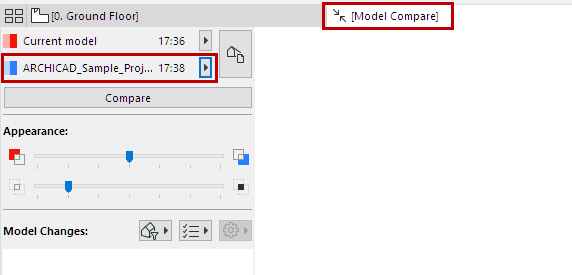
2.The Model Compare window opens.
3.From the Model Compare palette, click Select Model 1, and choose Current model. The timestamp is shown.
4.Click on Select Model 2, and browse for an earlier saved version.
5.When comparing two different views, current View settings can be significant. See Select View for Compare.
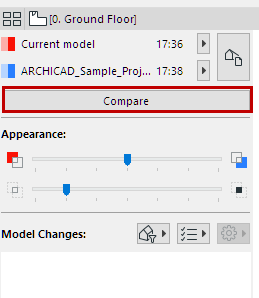
6.Click Compare.
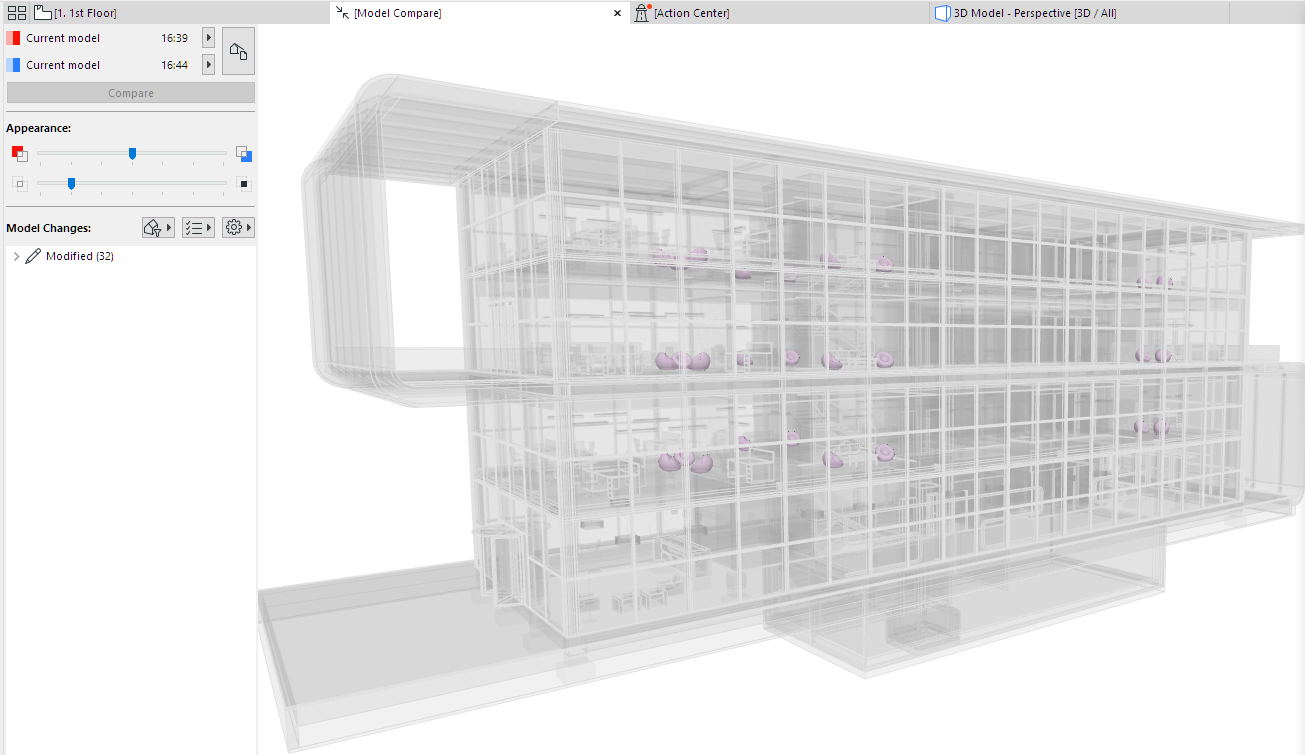
7.Check the results in the Model Compare window.
Review the Model Compare palette to see what has changed.
See Model Compare: Review the Changes.
8.As needed, create Issues.