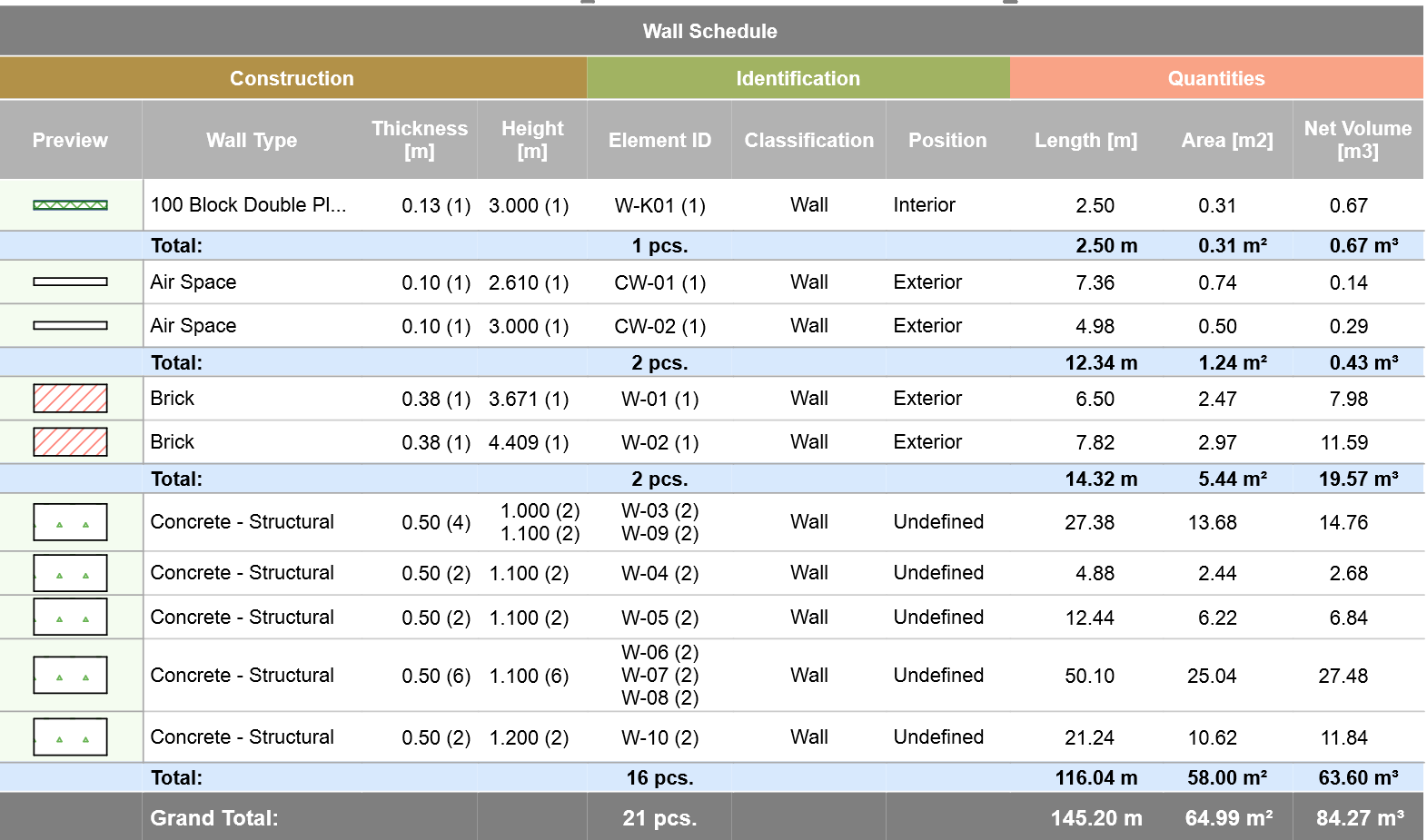
Achieve the data visualization you need! Expanded controls allow custom text, granular data display (e.g. in fields with merged data), and custom format/colors. Available for both Element Schedules and Project Indexes.
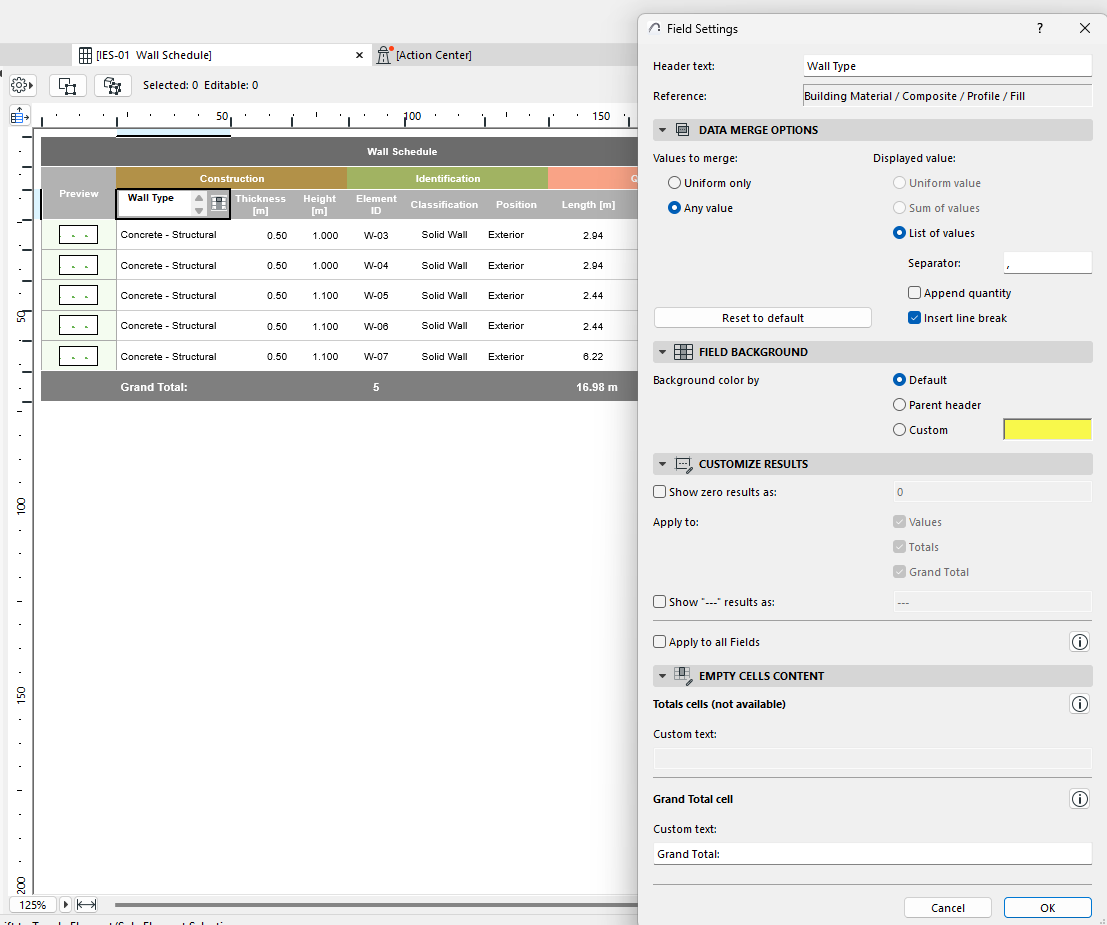
New Field Settings dialog to control field-level settings:
•Displays the base property and lets you edit the header name directly
•Set field color background
•Format totals and grand totals: prefix, suffix, show units
•Customize appearance of zero results and non-evaluable results
•Add any custom text to empty cell
Access Field Settings (both Schedules and Indexes):
1.Select any cell in the schedule or index, then click “Field Settings..” button above the schedule or index
2.Select a header or the totals/grand total cell of any field (if present), and push the little Field button inside the cell
Note: Formerly, in Schedules this button opened the “data merge options” dialog where relevant.
Now, “data merge options” is included in the Field Settings dialog.
•New Merge Option: Separate a list of values into multiple lines
•Improved and reliable align-to-decimal behavior
•Hidden field improvements: No longer block graphical resizing columns/rows, double click will resize the previous column/field instead of un-hiding these fields (as in previous versions), and hidden fields no longer reopen due to automatic cell resizing, using wrap text or switching between records by rows/columns.