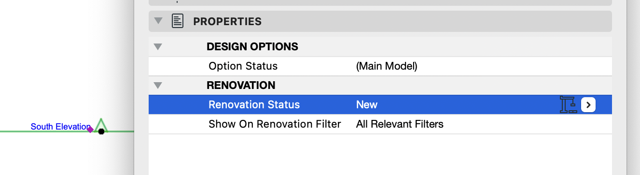
Markers (for Section, Elevation, Interior Elevation, Detail and Worksheets) now have their own Renovation status - just like other documentation and model elements. For example, a Section marker placed in a building’s new wing shouldn’t appear on Existing views. Now that the marker has a Reno status, it is easy to show or hide it as needed.
Set Renovation Status in Section Settings
As with other annotation elements (like texts and fills), you have the flexibility to display markers with renovation overrides, or not - use the checkbox in Renovation Filter Options.
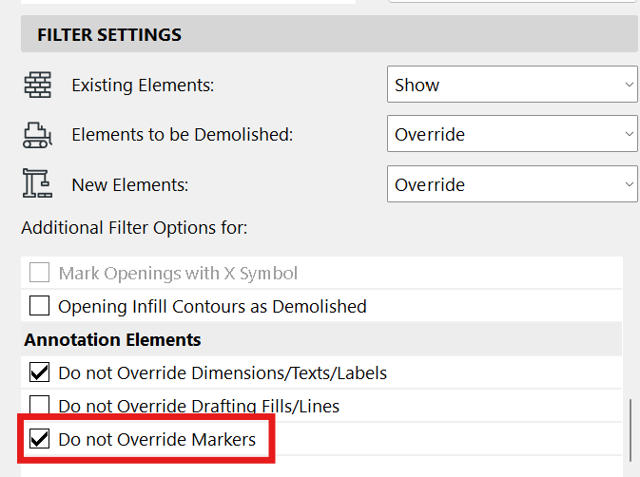
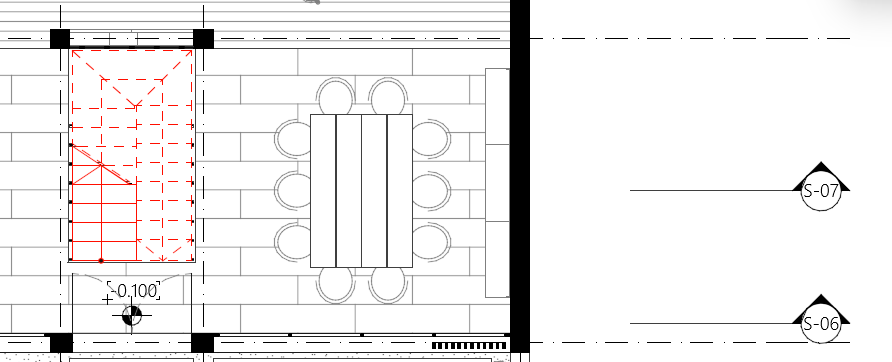
Markers without Renovation override
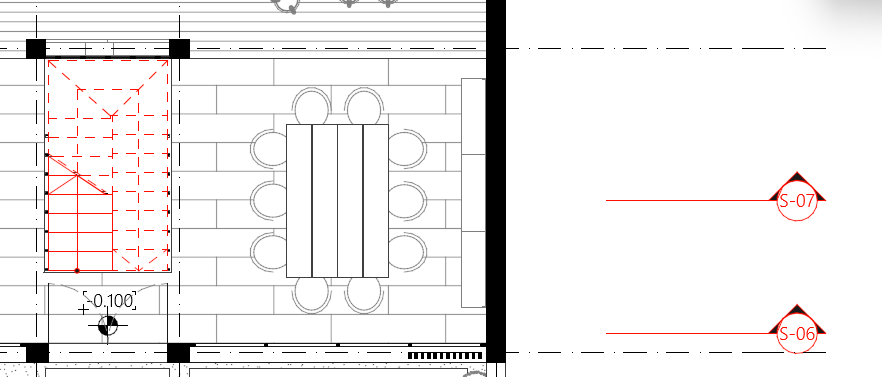
Markers with Renovation override
When you migrate an older-version file to Archicad 29, the project’s markers will automatically get a Renovation status that helps ensure that your drawings look the same as they did before.
•By default, Archicad aligns the Renovation status of markers with those of the associated elements, so they appear consistently across views.
•If the project contains no Renovation status that is visible on all Renovation Filters, Archicad automatically creates linked markers to preserve the drawing’s visual integrity. In such cases, a notification appears in the Action Center. You can easily locate these linked markers: Select a Navigator item (view, viewpoint, Drawing), and use the “Find Linked Marker” command from the context menu.