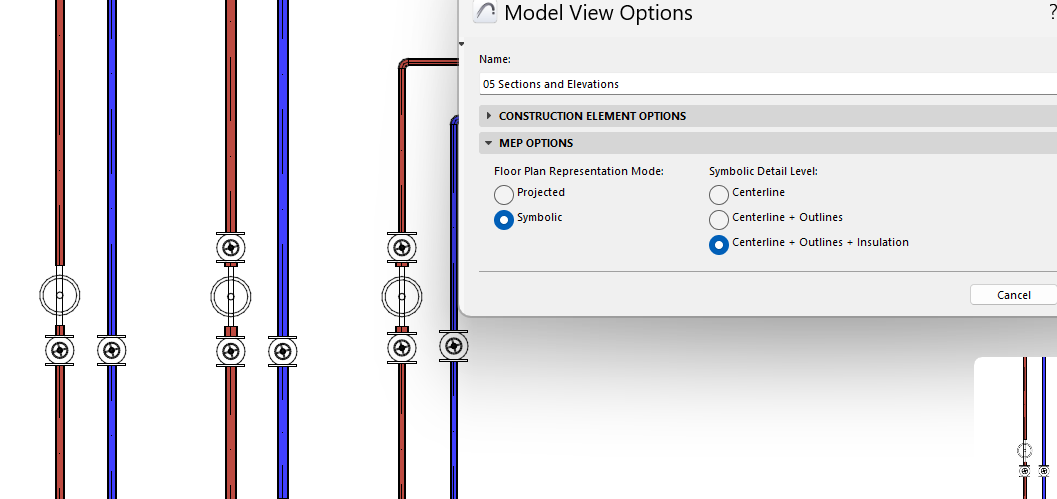
Detailed symbolic representation of MEP elements
Achieve clearer, more accurate documentation and better standard compliance: Use Model View Options to set detailed symbolic representation for MEP routing elements.
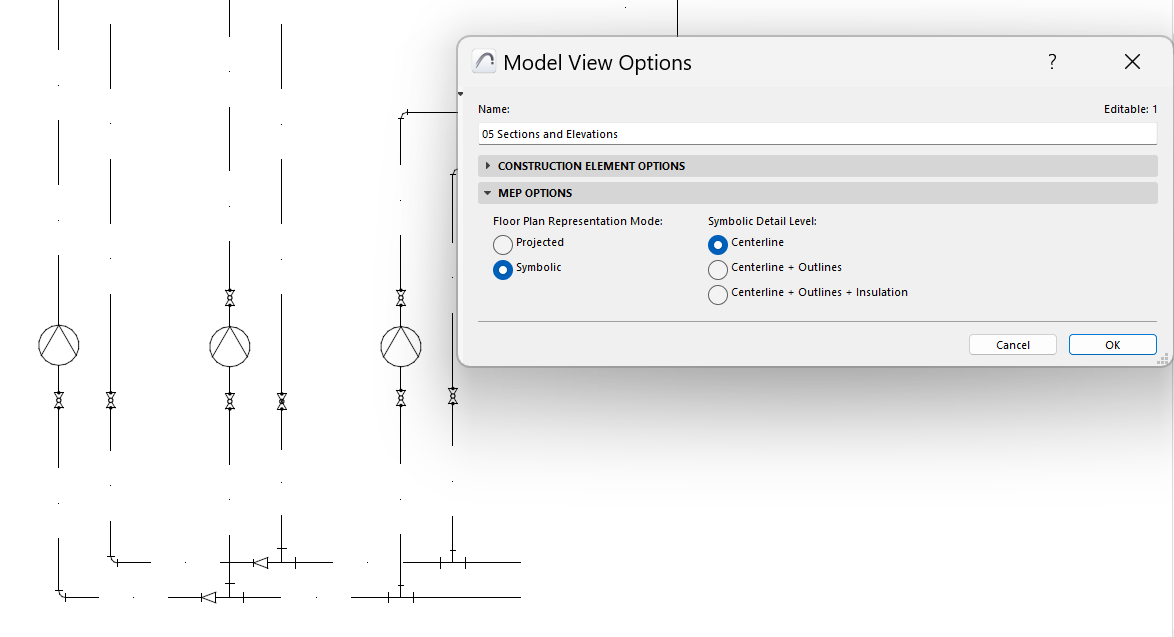
For Model View Options to take effect for any route, make sure its Floor Plan display option (at Route Settings) remains set to “By MVO”.
You can also override this setting, choosing Projected or Symbolic for any individual route.
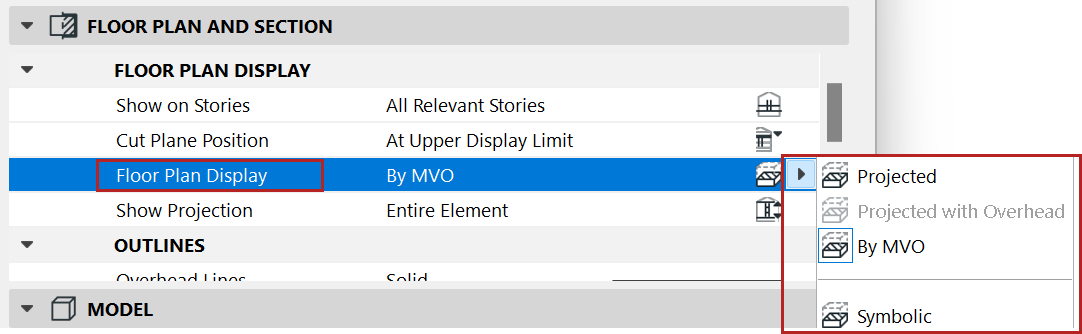
Note: Make sure you set Model View Options to “Symbolic” (Document > Model View > MEP Options)
Create Custom MEP Symbol
Built-in symbols are available, but you can also customize symbols to display Pipe Terminals, Pipe Accessories, and Equipment.
Draw your own symbol using 2D tools (lines, fills, etc.), then save it as MEP Symbol. Replace the built-in Plan Symbol with the new custom one in its tool settings dialog. (Available for supported MEP elements.)
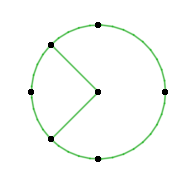
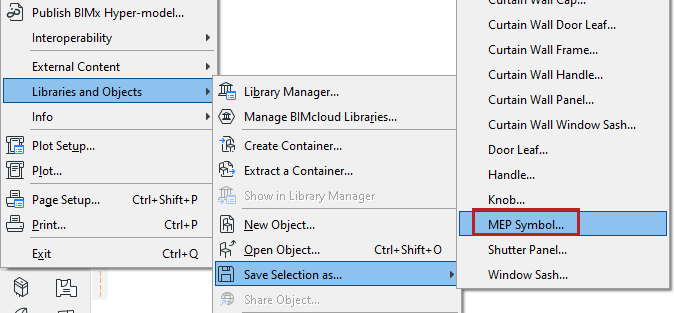
Draw and save 2D MEP Symbol
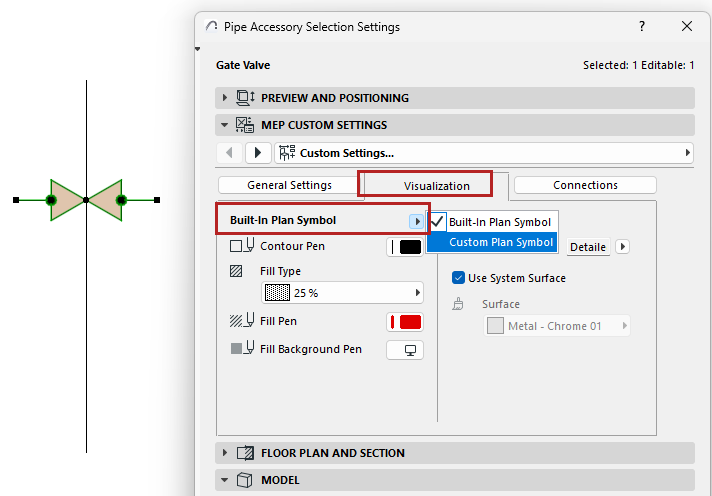
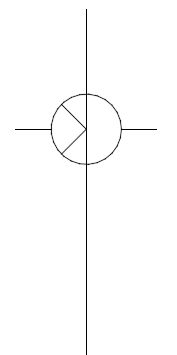
Replace built-in symbol with custom symbol