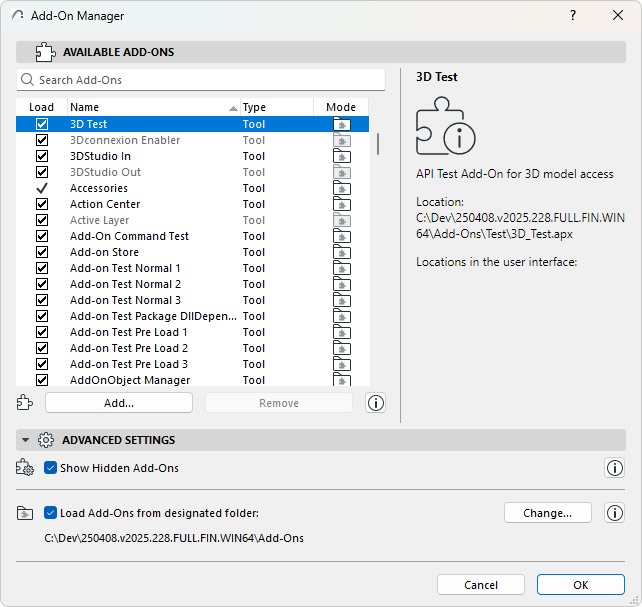
Add-ons are small applications that extend the application’s core functionality. Many add-ons are integrated as menu commands.
To manage them:
Open Options > Add-on Manager
Use the Add-on Manager to:
•Load or Unload Add-ons from the Available Add-ons list for the current program session
•Add or remove Add-ons for the Available Add-ons list
•Show information about Add-ons
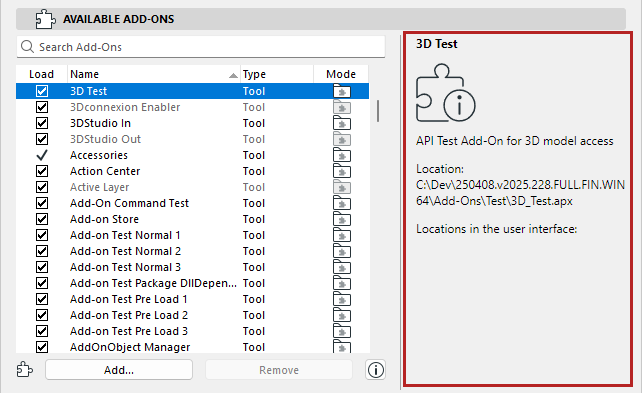
Shows list of currently available Add-ons. Checked items are loaded for the current program session.
Select an Add-on to see its function, file location, and (if loaded) its menu location in Archicad.
Load or Unload
•For the current session: Load or unload Add-ons by switching the checkboxes on and off. This enables or disables an available Add-on temporarily - for your current Archicad session. (It does not remove them from the list.)
•Some Add-ons must always be loaded - their checkbox is not editable
•If you open a project that refers to currently unloaded Add-ons, you will be alerted
Add or Remove Add-ons
Manage the Available Add-ons list by using Add or Remove. Once an Add-on is added, it is available to be loaded.
Note: An Add-on from the designated Add-ons folder cannot be removed.
Add-on Type and Mode
•“Tool” Add-ons loaded by default appear as menu commands in the Standard Work Environment. (You can customize their location like any other menu command.)
•“Tool” Add-ons loaded manually will appear in a menu according to the location of that menu’s Add-on Anchor Point (see Menu Location of Add-on Functions)
•“Imaging” Add-ons provide rendering or animation options to commands in the View menu
•The Mode column shows whether the Add-on was loaded by default or loaded manually
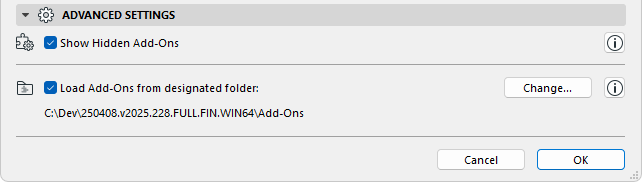
In the Advanced Settings panel, check Show Hidden Add-ons to display them in the Available Add-ons panel.
Note: Hidden Add-ons are core features developed by Graphisoft and hidden by default. It is not recommended to unload them or remove them.
Designated Add-ons folder
Check Load Add-ons from designated folder checkbox to enable the default location (the Add-ons folder in your Archicad Folder) or another dedicated folder (click Change to browse a different folder).
•Add-ons loaded from the designated folder cannot be removed from the list of available Add-ons
•Add-ons loaded from the designated folder can be unloaded manually (by unchecking its name in the Load column) for the current session
Menu Location of Add-on Functions
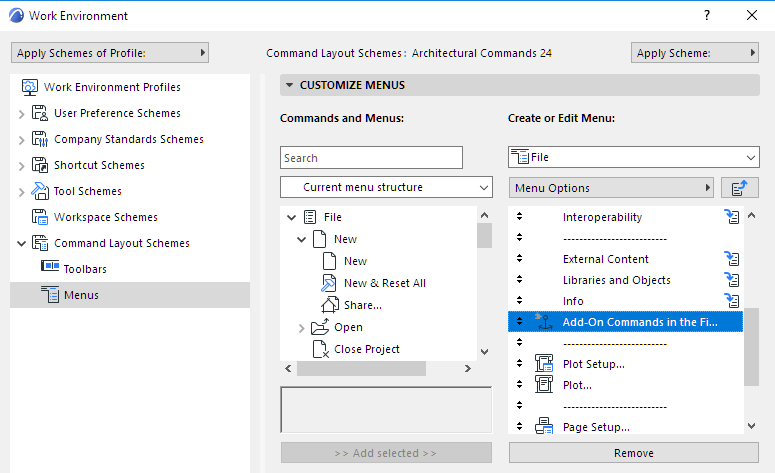
The menu/toolbar location of Add-ons is defined in the settings dialogs of Options > Work Environment > Menus/Toolbars.
In the Customize Menus (Toolbars) page, add an “Add-on Anchor Point” item to any menu (e.g. File menu) or toolbar. The respective Add-ons will be displayed at this customized menu/toolbar position.
If the Add-on Anchor Point is not part of your menu structure, then the Add-ons will not be displayed in the menu.