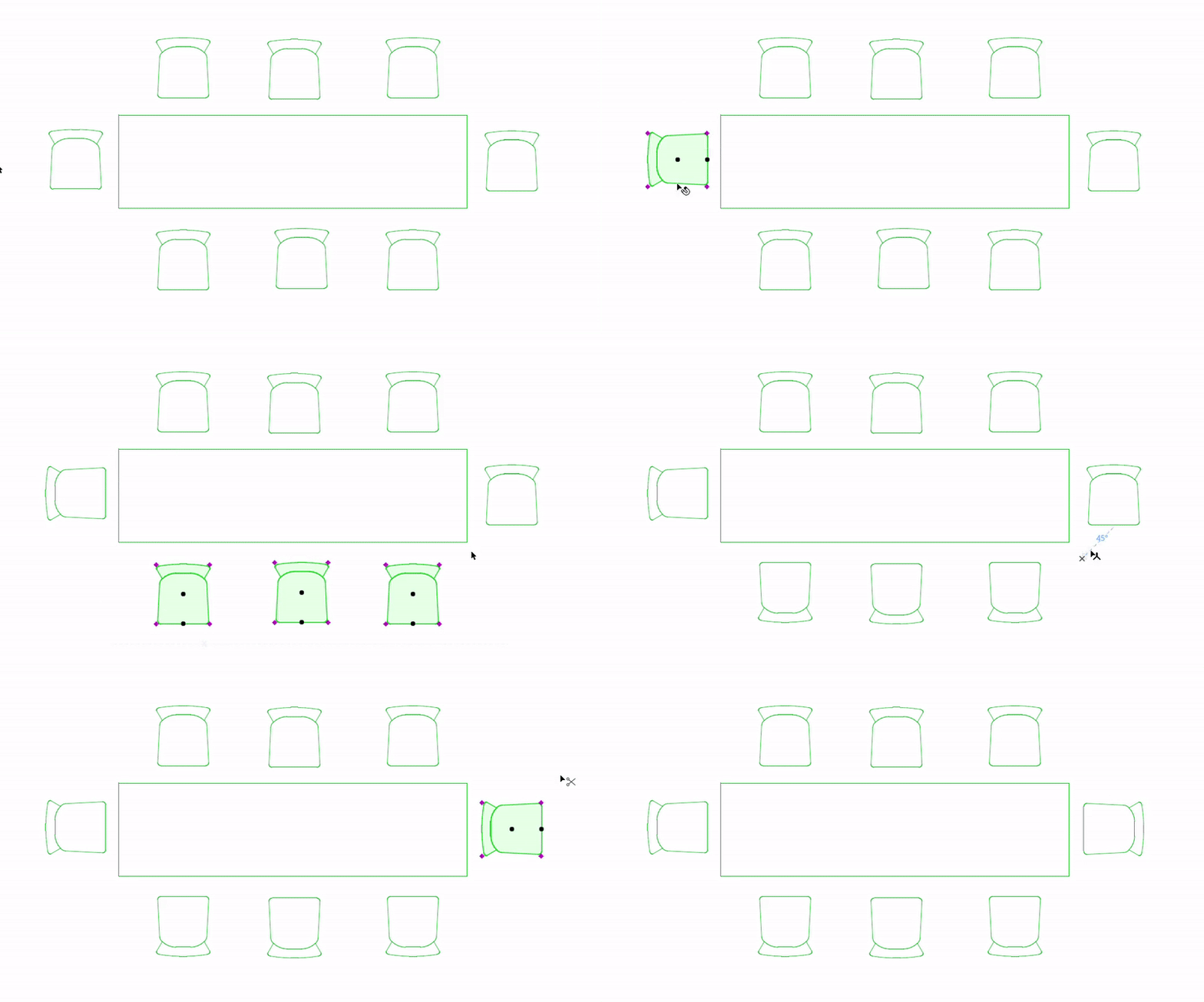
Rotate selected elements in the Floor Plan or in the 3D Window using any of these methods:
•Quick Rotate: Use Ctrl+R shortcut to rotate selected elements by 90 degrees
•Manually: Define the center of rotation and radius, then rotate graphically or enter degrees
|
Rotate Shortcuts |
||
|
Clockwise 90 degrees |
Counterclockwise 90 degrees |
Manual Rotate (multi-step) |
|
Shift + Ctrl + R |
Ctrl + R |
Ctrl + E |
Quick Rotate elements by 90 degrees
•Use Ctrl + R to rotate selected element(s) by 90 degrees, counterclockwise
•Use Shift + Ctrl + R to rotate clockwise
•Use Move > Rotate > Clockwise or Move > Rotate > Counter-clockwise
•Access these commands from the Edit > Move menu or the Drag Elements toolbar
Quick Rotate selected elements in 90-degree increments
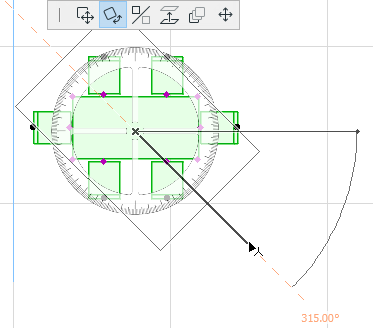
Rotate element manually
1.Select one or more elements, then do one of the following:
–Use a shortcut: Ctrl (Cmd) + E
–Select the Rotate icon from the pet palette
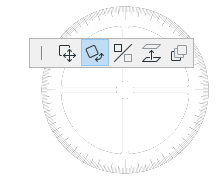
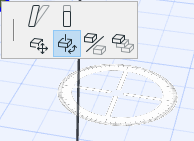
–Edit > Move > Rotate
–Move > Rotate from the context menu or the Drag Elements toolbar
2.Click to define the center of rotation of the selected elements.
3.Click to define the starting point of the rotation arc and its radius.
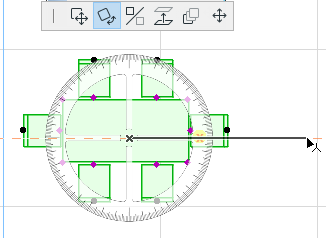
4.Move the cursor and click to complete the rotation, or enter a rotation angle in the Tracker.
Rotate a Copy
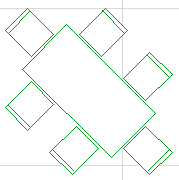
This command makes a copy of the selected element, and rotates the copy. The original element(s) remain in place.
Follow the steps to rotate as usual, but also do one of the following:
–Use a shortcut: Ctrl (Cmd) + Shift + E or Ctrl (Cmd) + Shift + R
–Press Ctrl while executing the regular Rotate command
–Edit > Move > Rotate a Copy
–Move > Rotate a Copy from the context menu or the Drag Elements toolbar
Rotate Multiple Copies
Use this to make several rotated copies of the original element. The original element(s) remain in place.
Follow the steps to as usual, but also do one of the following:
–Press Ctrl (Cmd) + Alt while executing the regular Rotate command
–Edit > Move > Rotate Multiple Copies
–Move > Rotate Multiple Copies from the context menu or the Drag Elements toolbar
Notes:
–In Section/Elevation/IE, 3D Document, and Detail/Worksheet window, you can rotate drawing elements only
–In the 3D Window, rotation is performed across a horizontal plane