2D and 3D Representation of Objects
Model View Options for Library Parts
Depending on which libraries your project has loaded, use Model View Options (Document > Model View > Model View Options) to assign global preferences for the display of certain library parts and their parameters.
See Miscellaneous Settings for Library Parts.
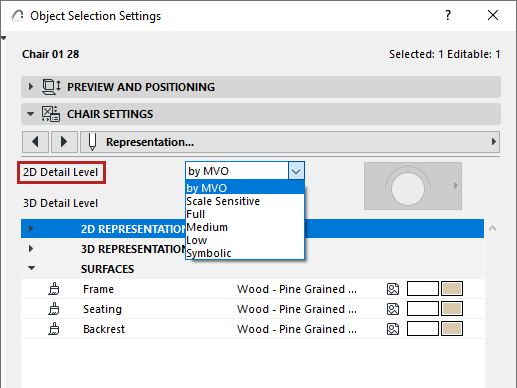
By default, Objects use the detail level settings defined in Model View Options (By MVO). For a specific object/lamp, if the control is available, you can override its detail level in Element Settings (use the 2D or 3D Representation controls).
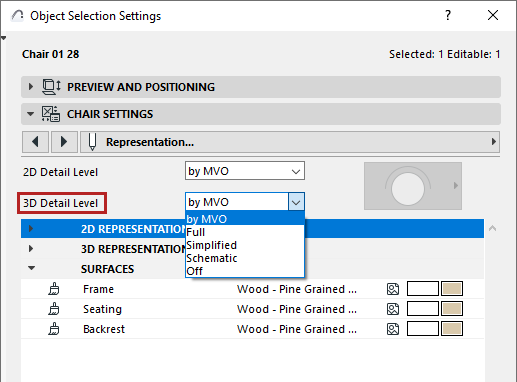
3D Detail Level
Where available, this control lets you overwrite the MVO-based settings for an object: Choose Schematic, Simplified, or Full.
Some complex elements may take a long time to display in fully detailed 3D - for example, realistic trees and other plants that consist of a very large number of polygons.
2D Detail Level
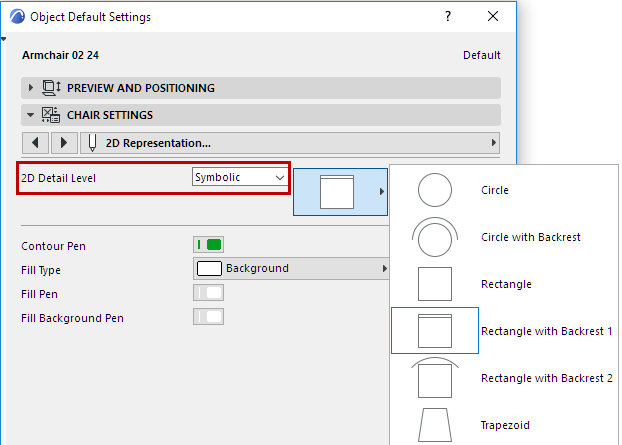
•If you choose Symbolic, the Symbol Type parameter becomes available, where you can choose a fixed symbol to display the object in 2D views regardless of the scale.