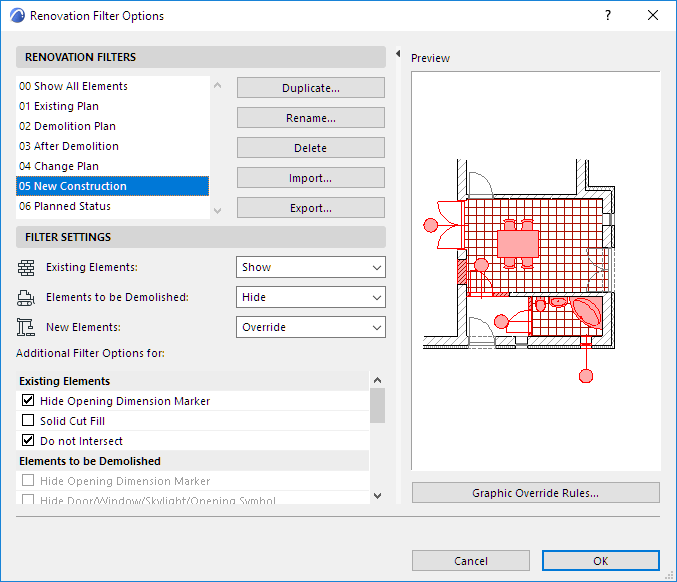
Use this dialog box (Document > Renovation > Renovation Filter Options) to define which elements (by Renovation Status) should be shown, hidden, or overridden in a Renovation Filter.
You can change the settings of existing filters, or create new Renovation Filters.
Renovation Filter Options are stored with the project.
See also Examples of Renovation Filters.
Open Renovation Filter Options Dialog Box
Do one of the following:
•Click the Reno Filter Options icon from the Quick Options Tab

•Go to Document > Renovation > Renovation Filter Options
•Click Renovation Filter Options from the pop-up in the Renovation Palette.

Choose a Filter to Edit
Use the pop-up at the top of Renovation Filter Options to choose the Filter you want to view or edit.

•Duplicate: Create a new Renovation Filter by duplicating the selected filter under a new name and editing its properties.
•Rename: Rename the currently selected Renovation Filter.
•Delete: Remove the selected Renovation Filter from the project.
•Import: Add a saved Renovation Filter (.xml file) to your project.
•Export: Save the selected Renovation Filter (.xml file) to an external location. It can then be imported to another project.