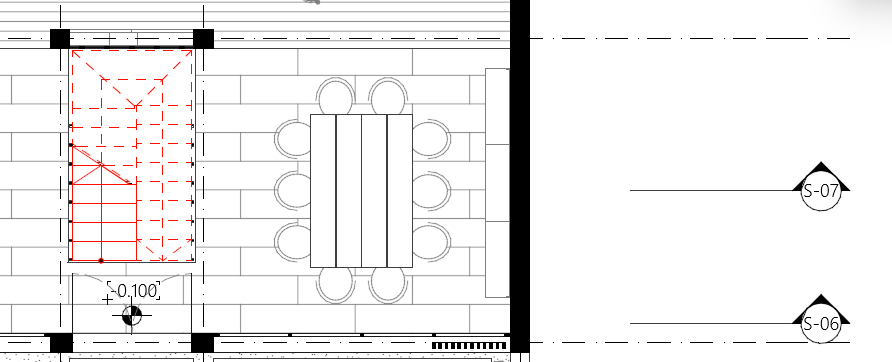
Additional Renovation Filter Options
Additional Override options are available for “Existing” elements, for “To be Demolished” elements, and for Annotation Elements.
These extra options help you meet local standards or make your Renovation views easier to interpret.
Check the box of any of the Additional Overrides you wish to add to your Renovation Filter definitions:
For “Existing” Elements:
•Hide Opening Dimension Marker (if you don’t need to see dimensions of openings already in place)
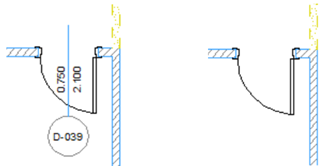
•Solid Cut Fill (if you don’t need to see the structure of walls already in place)
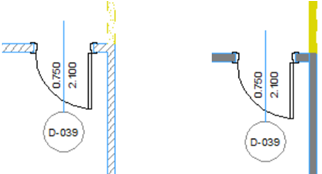
•Do not Intersect (use this to ensure that intersections among New or Demolished walls do not interfere with existing wall intersections)
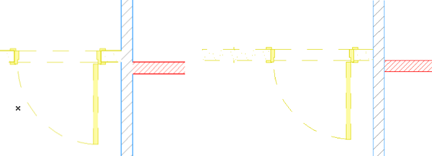
For “To Be Demolished” Elements:
•Hide Opening Dimension Marker (if you don’t need to see dimensions of openings that will soon no longer exist)
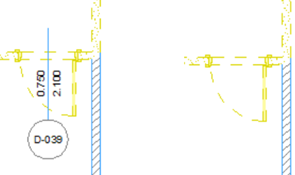
•Hide Door/Window/Skylight/Opening Symbol (if you don’t need to see openings that will soon no longer exist, especially if they are part of walls to be demolished anyway)
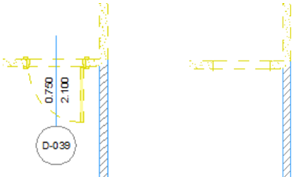
•Hide Zone (if you don’t want to see information for zones that will be eliminated)
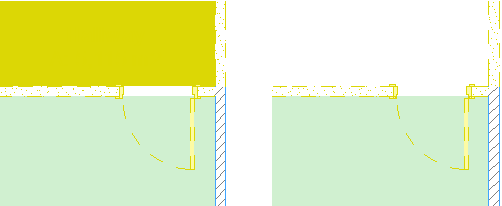
•Hide Objects (since most furnishings will not really be demolished; and they don’t need to be visible on the Demolition Plan)
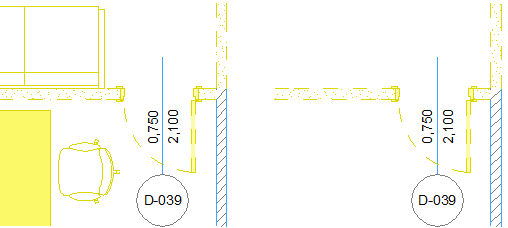
•Solid Cut Fill (if you don’t need to see the structure of walls that will be demolished)
•Transparent Fill (to indicate the place of a demolished element with just lines, no fill)
•Do not Intersect (to ensure that intersections among New or Demolished walls do not interfere with existing wall intersections)
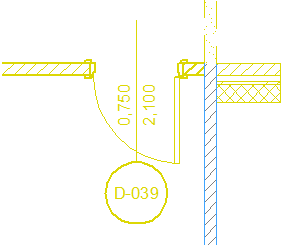

Walls and slabs with “Do not Intersect” setting: “New” on top of “Existing”, on top of “Demolished”
•Mark Openings with “X” Symbol: Place an X on Doors and Windows to be demolished.
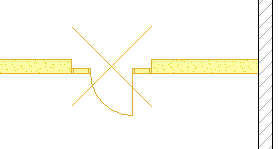
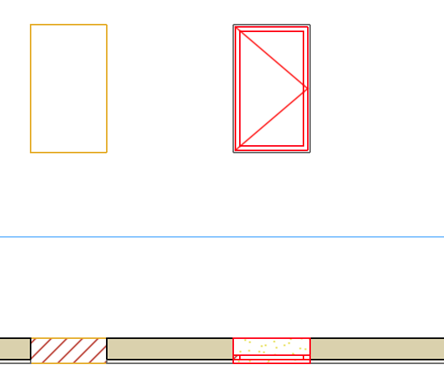
•Opening Infill Contours as Demolished: On a wall where a door/window will be demolished (and replaced by new wall parts): Display the contour lines of demolished openings as To Be Demolished.
|
|
|
|
Window on left: Opening contour as “New” |
Window on left: Opening contour as “To Be Demolished” |
•Do not Override Dimensions/Texts/Labels
•Do not Override Drafting Fills/Lines
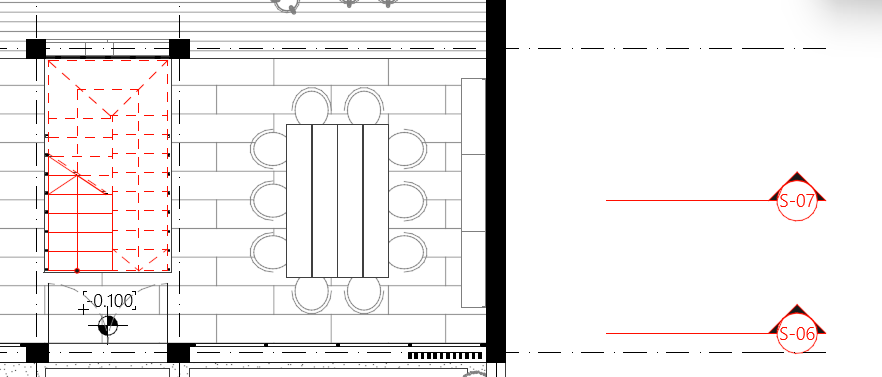
•Do not Override Markers
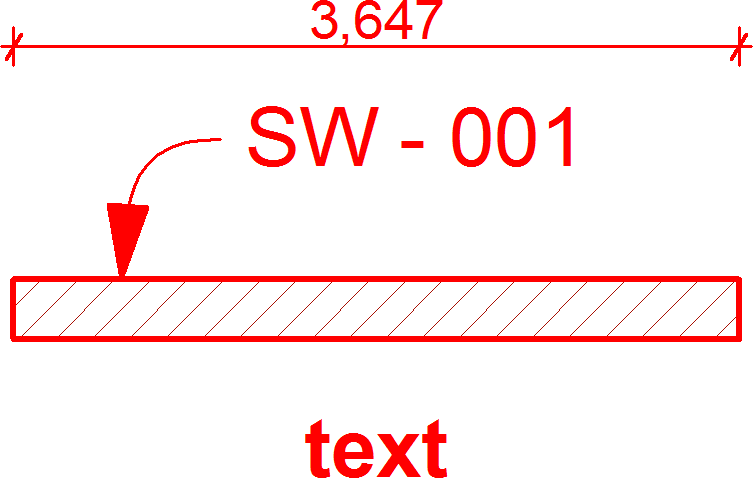
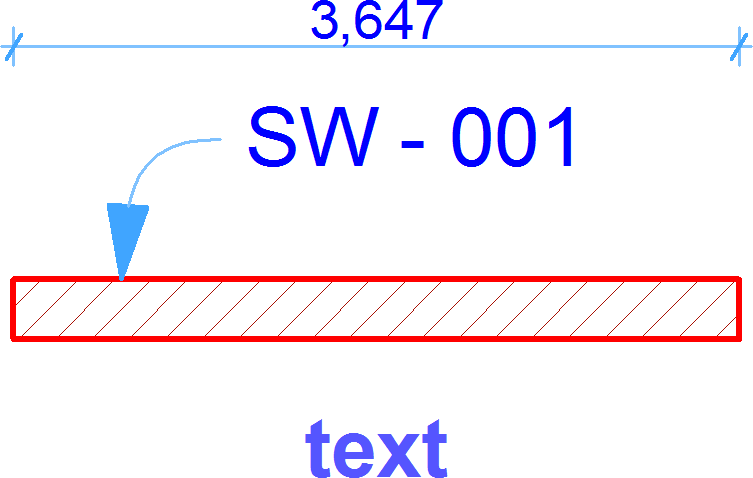
Use these checkboxes to exclude Annotation Elements - Dimensions, Texts and Labels, and/or Drafting Fills and Lines - from the override rules. You can also choose to exclude Markers (Section, Elevation, Interior Elevation, Detail, Worksheet) from the override rules.
|
|
|
|
Text and Dimensions with Overrides |
Do not Override Dimensions/Texts/Labels |
|
|
|
|
Markers with Overrides |
Do not Override Markers |