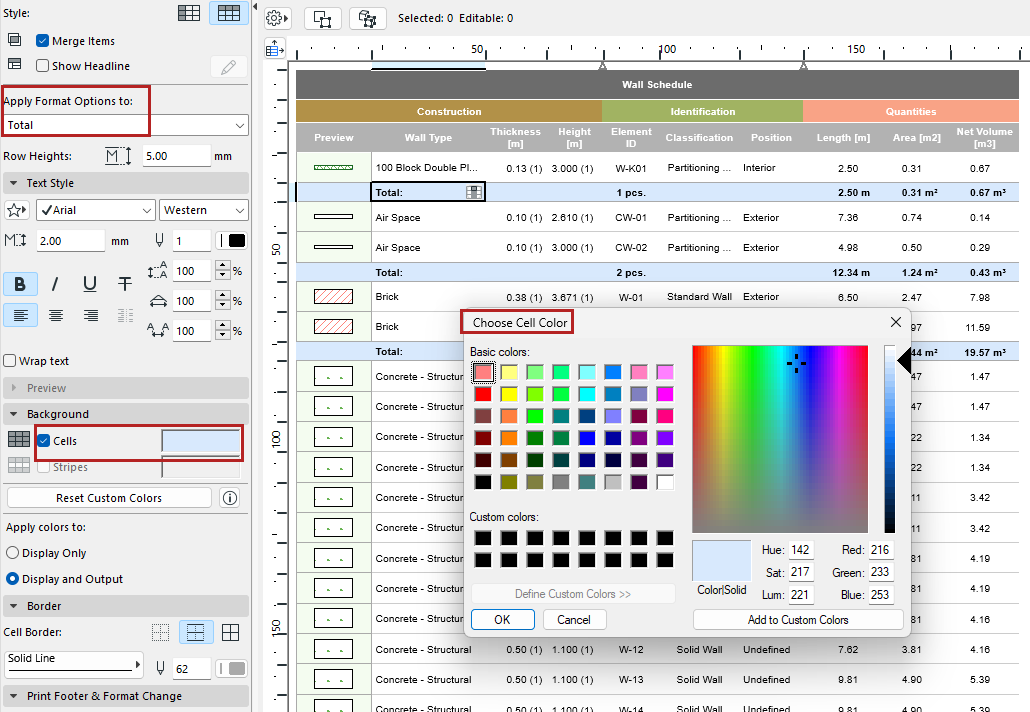
You can apply background colors to schedule cells by category (such as Headline or Grand Total).
1.From “Apply Format Options,” choose a cell category. Or click in a cell.
2.Click Cells.
3.Choose a background color.
Display stripes
To apply stripes to alternating rows of values:
1.From “Apply Format Options,” choose Value. (Or click in any schedule row.)
2.Click Stripes.
3.Choose a stripe color.
Set custom color for schedule field
Set a custom color for any schedule field (for example, make all the Fire Resistant Rating cells red.)
1.Click any cell of the field you want to customize.
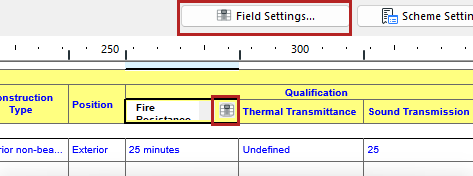
2.Open Field Settings:
• Click the Field icon from inside the cell, or the Field Settings button at the top of the schedule
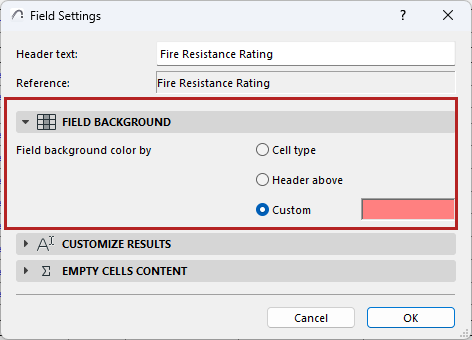
3.In the Field Background panel, do one of the following:
•Choose Custom, then click the color to pick a color for this schedule field
•Choose Parent header to apply the same color used by the field’s parent header
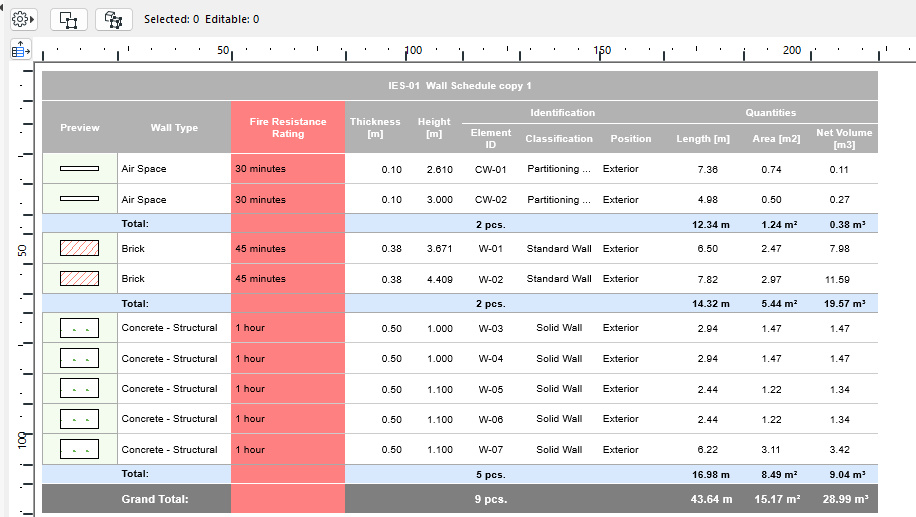
Reset custom colors
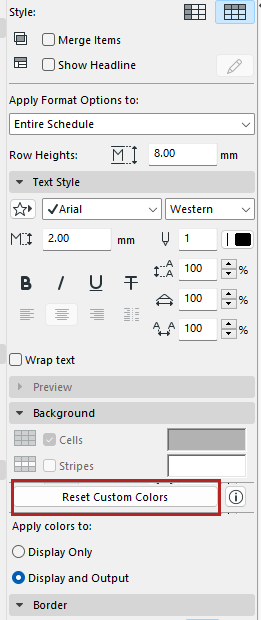
In the Formatting panel: Click Reset Custom Colors to remove field-level custom colors.