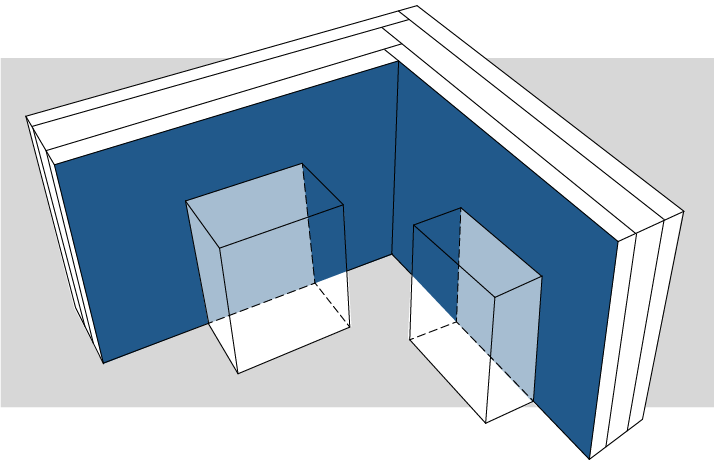
Exposed Area parameter in Surface Schedules
Exposed Area is the part of an element’s surface that would be covered by a paint bomb. In the follow diagram, the dark blue area is considered as “Exposed”, the light blue areas are considered as “Covered”.
You can define exactly what counts as exposed, using the Reduce Exposed Area control in the Scheme Settings of your Surface List.
1.In Scheme Settings, Fields panel: Find the Exposed Area (By Criteria) field.
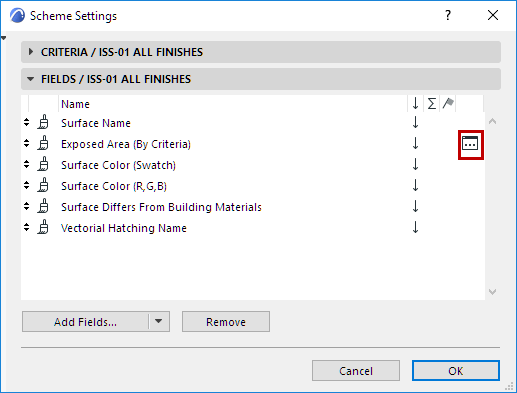
2.Click the button to open the Reduce Exposed Area dialog box.
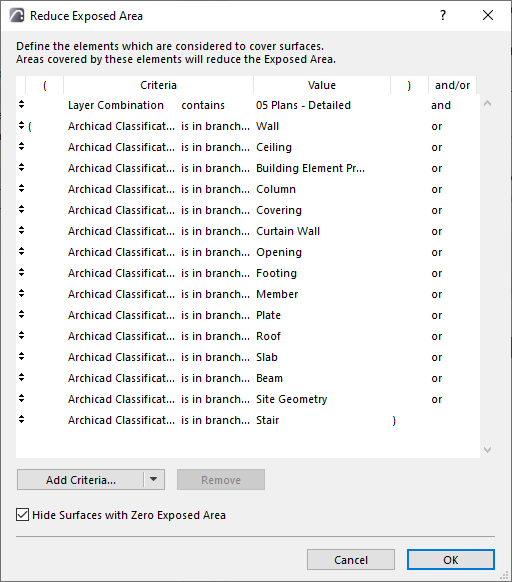
3.Define which elements are covering elements (that is, they should cover up other element surfaces).
For example: Normal construction elements are covering elements: If they overlap a wall’s surface, that wall’s surface is covered, and the wall’s exposed area is reduced accordingly.
However, some elements, while they do cover a surface, should not be considered as covering elements. In this example: Objects, lamps and zones should not affect a wall’s exposed area, so they are not listed here:
Hide Surfaces with Zero Exposed Area
This box is checked by default. It means that unexposed areas, with zero visible area, are not shown in the schedule.
Surface Differs from Building Materials
This field is displayed in the schedule as a checkbox (e.g. entitled “Painted”) to indicate it has been “painted over” with an override.
Note: This field is not evaluated for Openings, which do not have Building Materials.