Do one of the following:
Drag and Drop
Drag drawing files (one at a time) from your file system.
With Drawing tool
1.Activate the Drawing tool.
2.Click in the view.
3.The Relink Drawing dialog appears. Choose the source of the Drawing: either local file system or BIMcloud.
If needed, log in to BIMcloud. See Log in to BIMcloud.
4.Click Browse, then select the desired Drawing file.
Notes:
–You can place one file at a time and one PDF page at a time using the Drawing tool. To place multiple drawings, use File > External Content > Place External Drawing as described below.
With File menu commands
Use one of the following depending on the source of the Drawing:
•File > External Content > Place External Drawing
•File > External Content > Place External Drawing from BIMcloud
Choose the BIMcloud, then the project you need.
If needed, log in to BIMcloud. See Log in to BIMcloud.
Note: To link a drawing from a Teamwork project, the source Teamwork project must have the same version number as the host project.
Place selected pages from a PDF
This works if the PDF is placed using drag-and-drop or a File menu command.
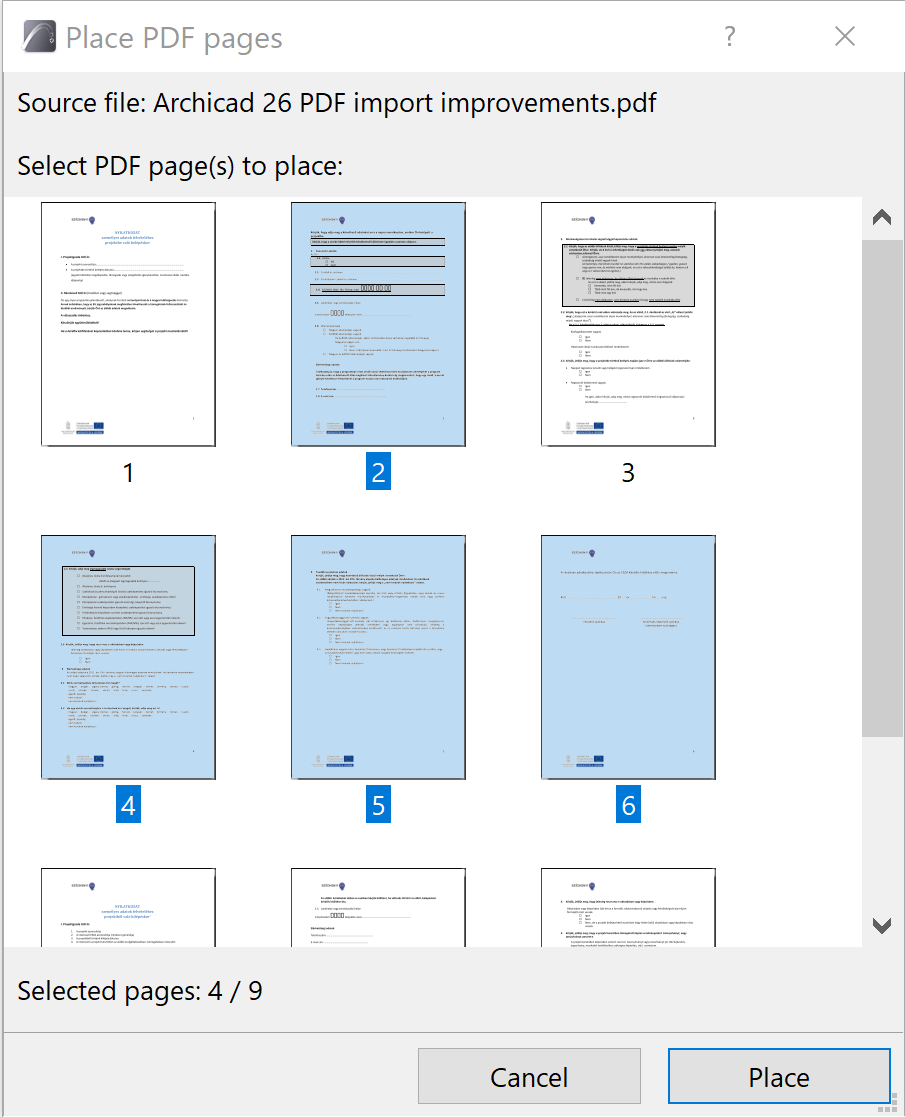
If the imported drawing is a multi-page PDF:
1.A chooser dialog appears. Select one or more or all pages.
2.Click Place.
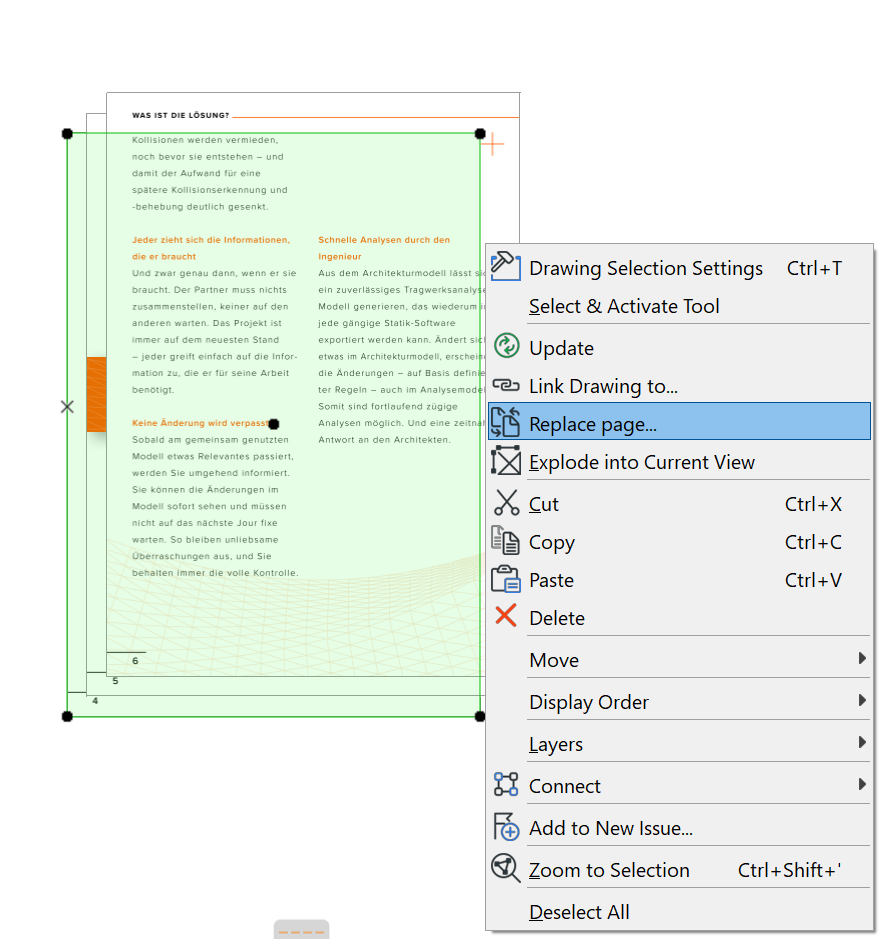
After placing a PDF, use the “Replace page” context menu command (from selected Drawings or Drawing Manager) to relink to another page within the same PDF document.
To import only certain layers of DWG/DXF or DWF drawings:
See “Enable Partial Open” at Open Options (DXF/DWG Translation Setup).
To show/hide the source layers of imported DWG drawings placed in Archicad:
See Embedded Layers.