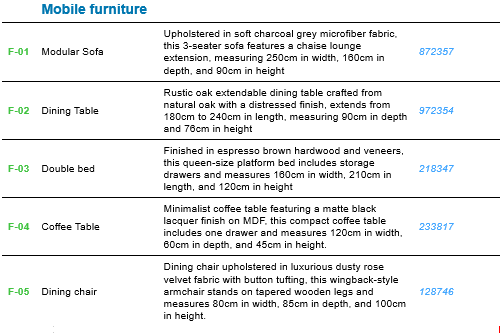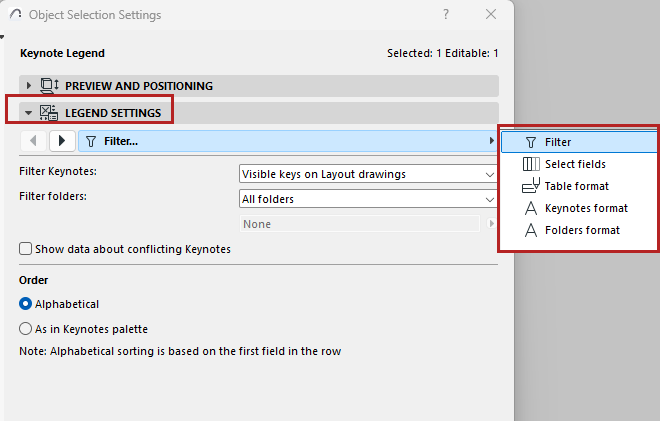
The Legend is an object-type element, found in your project library.
Use the pages of the Legend Settings panel to set up the content and format the way you like it.
Filter Legend content (by folder and visibility)
Select Keynote fields to display
Select Folder fields to display
Display borders and separators
Wrap table rows for horizontal display
Filter Legend content (by folder and visibility)
On the Filter page:
•Set which Keynotes to display: all Keynotes, or just Keynotes visible on the drawings
•Set which folders should have their content displayed (or choose All folders)


Show data about conflicting Keynotes
If Legend content includes Keynotes with conflicting data (this may occur with hotlinked elements): Check this box to display info about the conflicting data. Otherwise, the Legend will just display a Key, without any other information.
See also Keynotes in hotlinks.
Order of rows
Choose the order in which to list Keynotes in the Legend:
•Alphabetical (based on the first field in the row)
•As in Keynotes palette
On the Select fields page:
•Click to define the number of columns in the Legend (e.g. “2 Columns”)
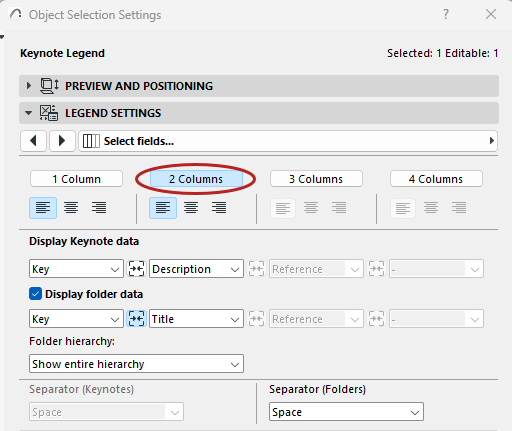
Select Keynote fields to display
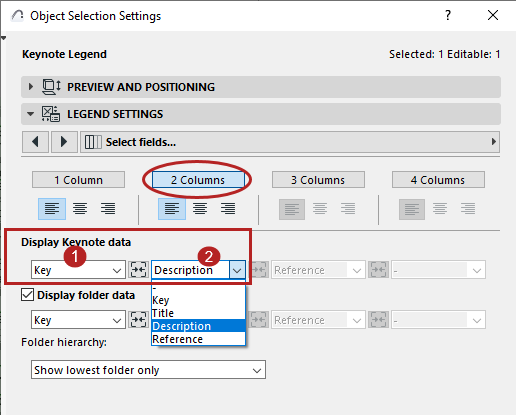
On the Select Fields page:
Use the pop-ups to set which Keynote data to show in each column of the Legend. (For example, if you selected “2 Columns”, then you can choose two Keynote data here, e.g. Key in the first column and Description in the second.)
Select Folder fields to display
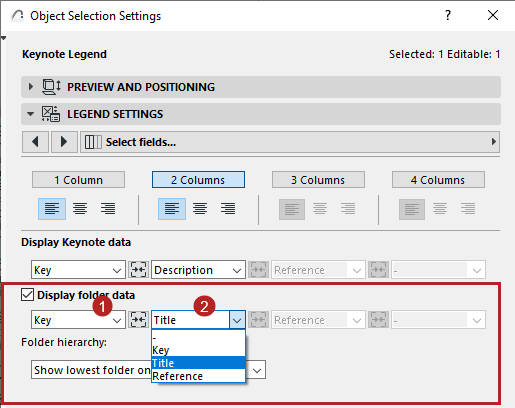
The Legend can display folder data as well as the Keynotes themselves. On the Select Fields page:
Check Display folder data.
Then set which folder data to show in each column of the Legend (e.g. folder Key in the first column and folder title in the second).
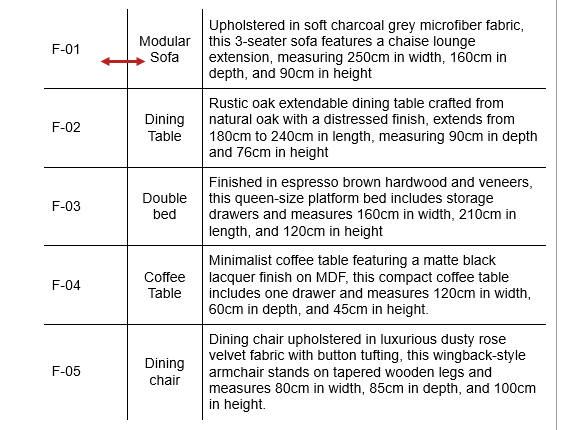
You can merge the data and formatting of adjacent fields.
Here it is worth merging the first two keynote fields (Key and Title):
To merge these data: On the Select Fields page of Legend Object Settings, click the Merge button between the two fields.
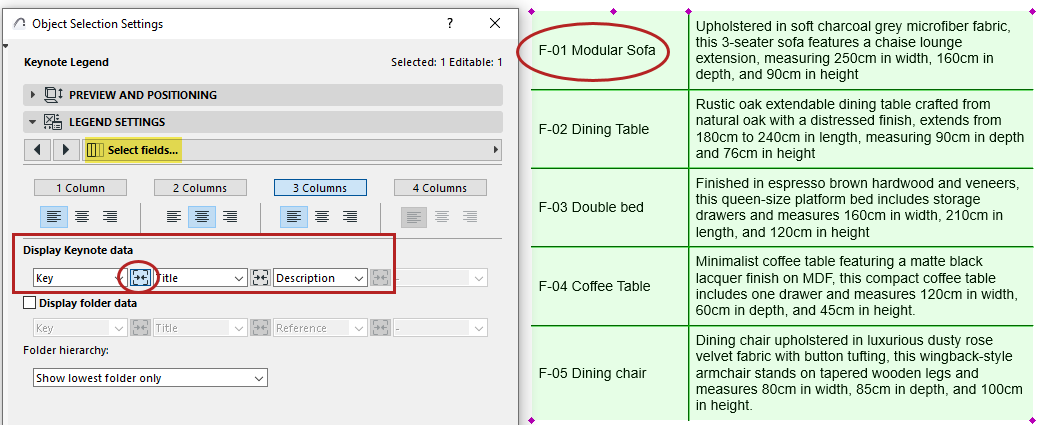
Note: A merged field will use the alignment set for the first column For example, the merged Key + Title field uses the alignment defined for Column 1 (here, it is aligned left).
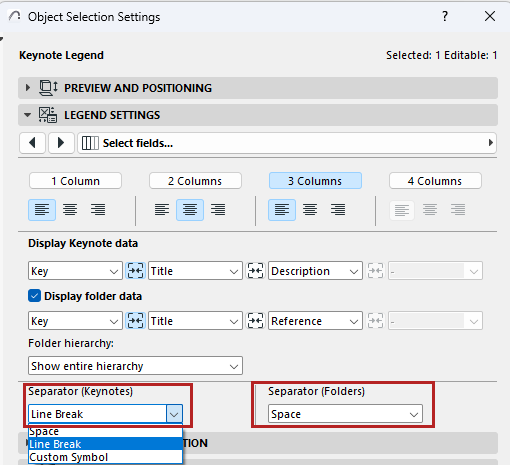
If the Legend has merged fields (such as Key plus Title), you can set any separator between them.
For example, put a line break between merged Keynote data and a space between merged folder data.

Set preferred text alignment for each column of the Legend (left, center, right).
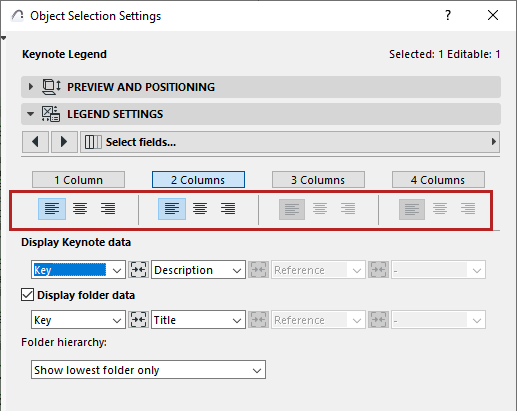
The entire column gets a uniform alignment.
Display borders and separators
On the Table format page:
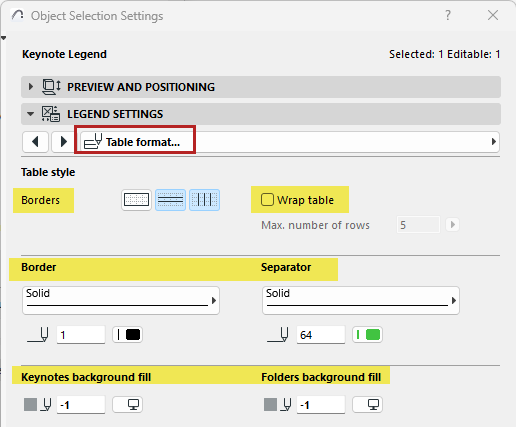
•Add border and separator lines for the Legend table (click the icons to turn them on or off)
•Set line types and colors for the border and separator lines
•In the Legend, drag the lines as needed
If you like, set off the Keynote and/or Folder data fields with background fills.
Wrap table rows for horizontal display
If the Legend is too long, you can wrap the table rows for a horizontal format.
On the Table format page:
Check Wrap table, and enter a row number (Max. number of rows). The Legend table will break after this row.
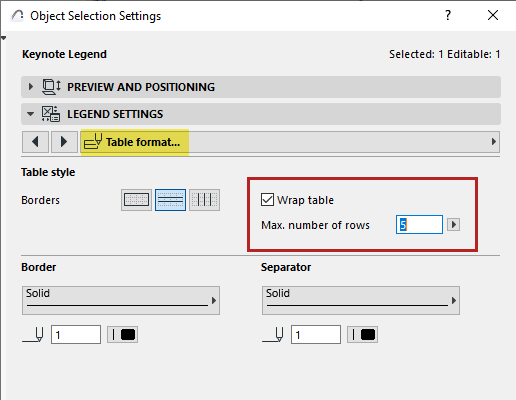
In terms of wrap text, the “row” means a row of data items (folder title, keynote data, etc.) - not a single row of text.
Here, the Legend breaks after 5 rows.
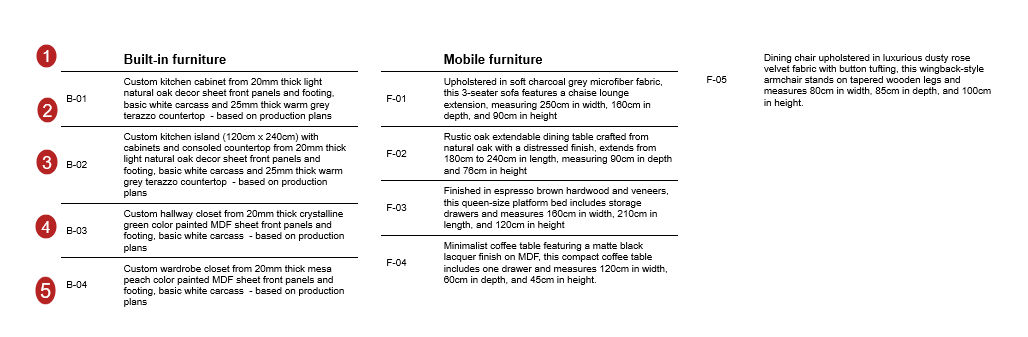
Note: If the defined row break would leave an “orphan” folder title at the bottom, that folder title will jump to the top of the next section.
Use the Keynotes format and Folders format pages.

For example:
•Offset the Keynote text or folder text from the Legend frame
•Set text alignment
•Use separate text formats for particular data, such as “Key” or “Reference”