Add MEP System to System Browser
Available with Archicad Collaborate
1.Open MEP System Browser
•from Window > Palettes menu, or
•use the shortcut from the MEP toolbar
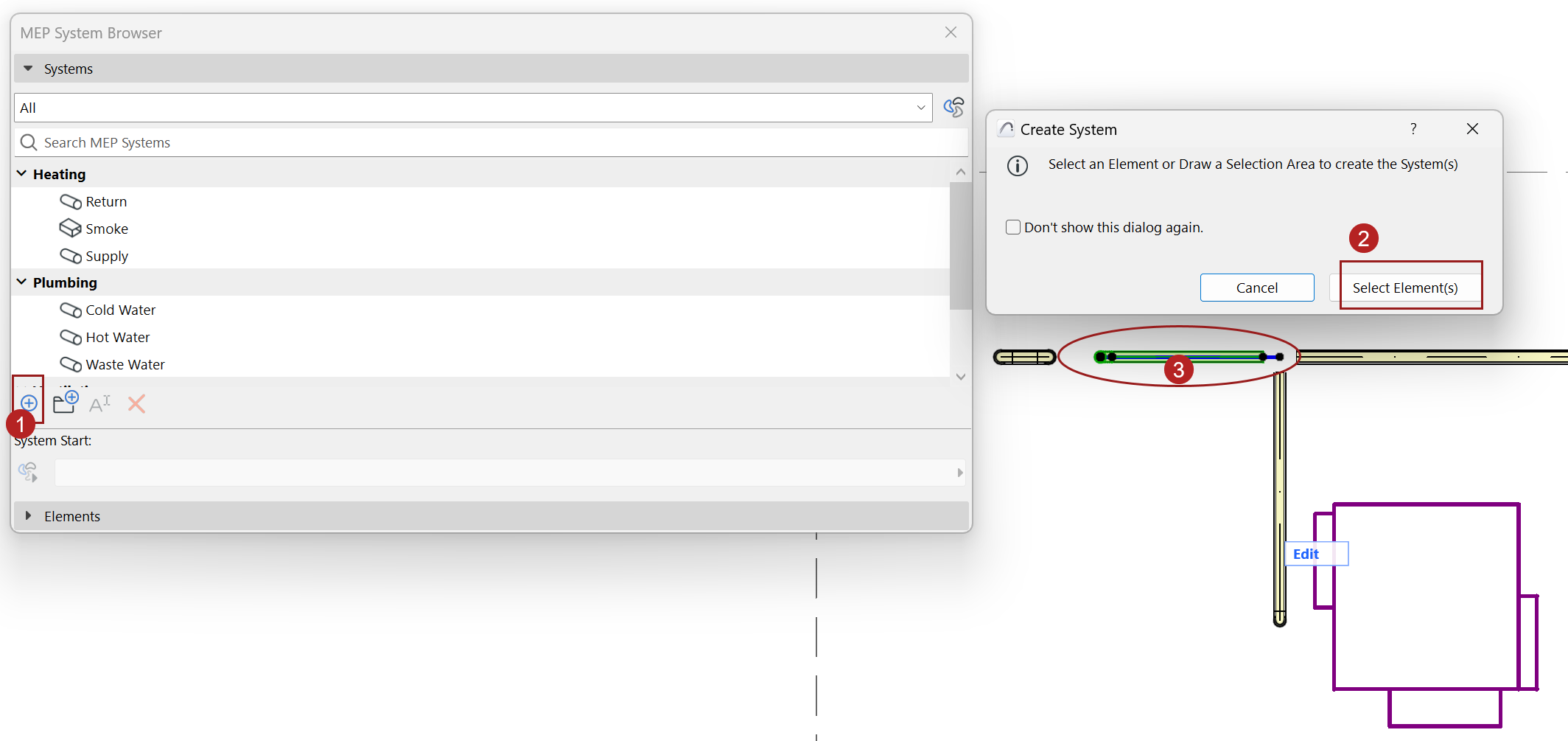
2.In the System Browser, click “Plus” [+]
3.In the appearing dialog, click Select Elements.
4.Select System elements OR system start point:
In the model, do one of the following:
•Select the system start point (one MEP element as the start point for duct or pipe systems: Its port represents where the air or fluid will come from)
–The start point element should be the open end of a route, or a connected Equipment or Accessory (not a terminal).
–To see open ends and open connections in 2D views, turn on Open MEP Connections at View > On-Screen View Options.
•OR select one or more MEP elements to be part of the system
Tip: You can select elements from different MEP Systems; each system will be added separately
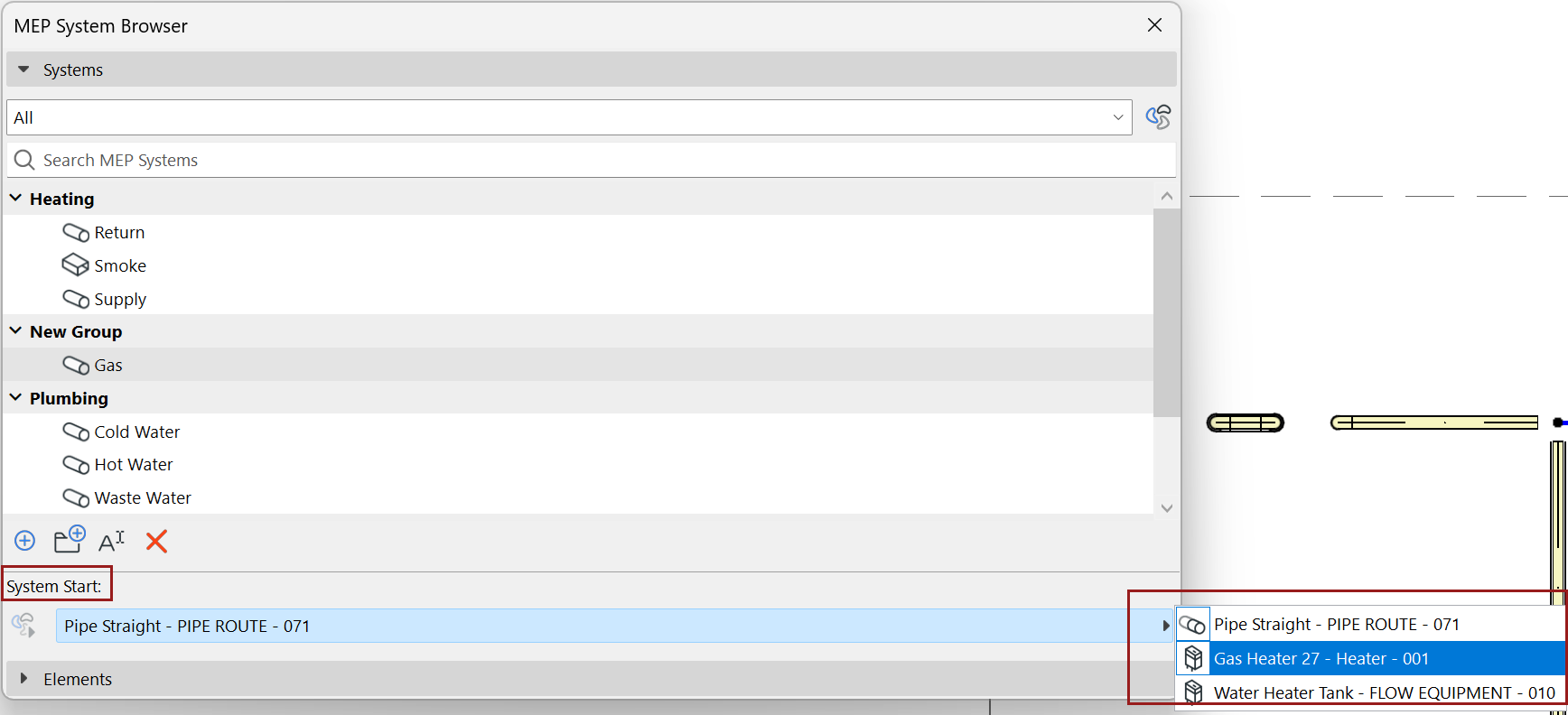
•For each system, choose a valid start point from the System Start dropdown
Note: If you later eliminate the System start point (for example, you add a terminal to the open end), the System is deleted from browser, because it has no open end. An alert will allow you to either undo this, or else continue - in that case, you can later add the System to the browser by using a different start point.
5.The new system is added to the browser in a “New Group”
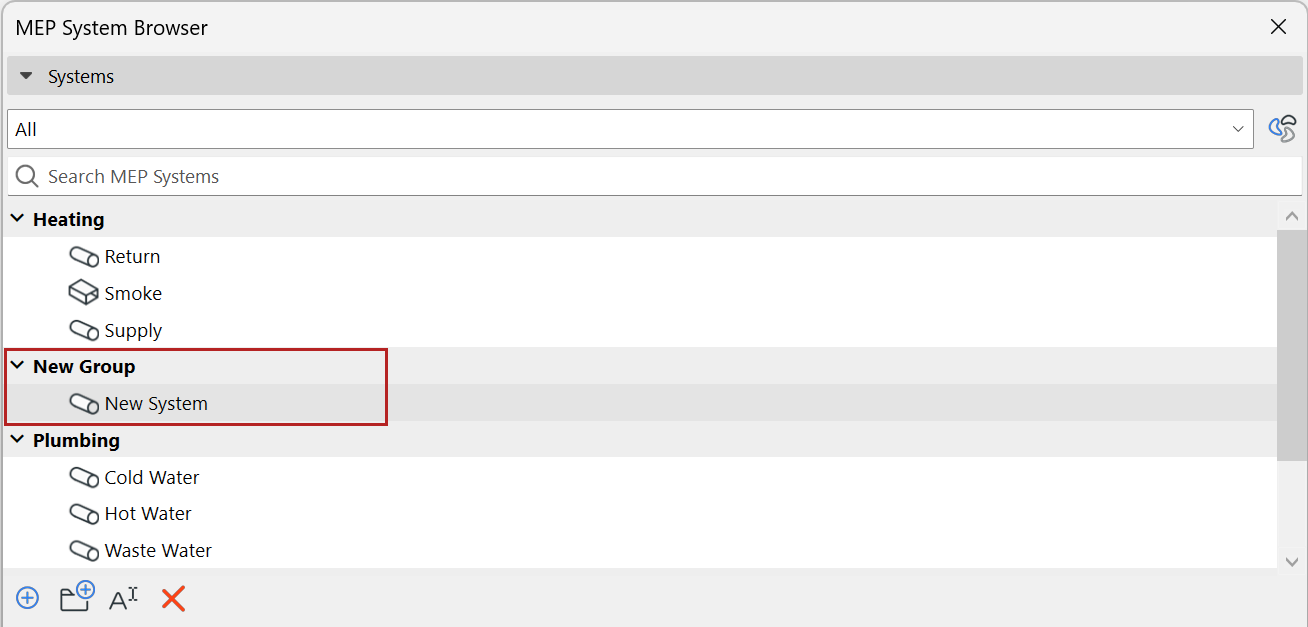
6.Rename or organize Systems or groups
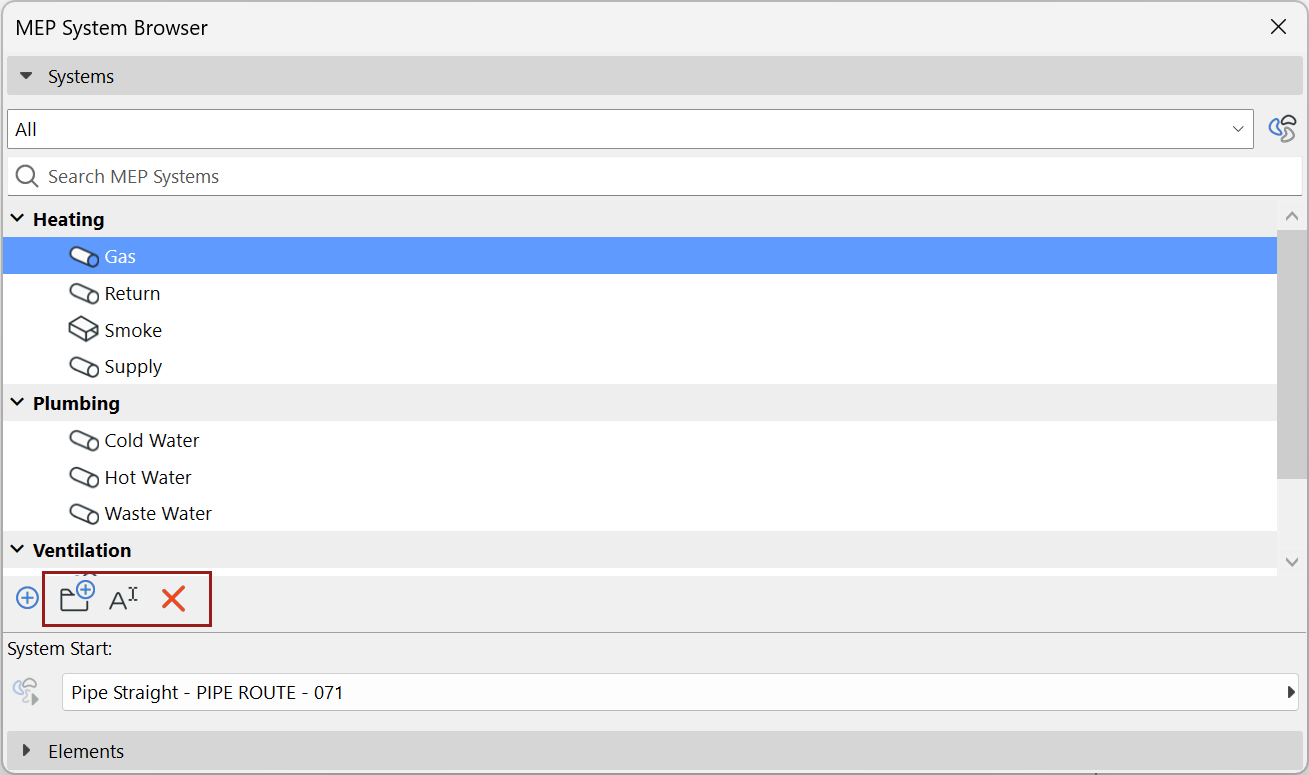
•Use the command icons to rename or delete any selected group or system
•To add a System to a different group: Click and drag the system onto a different group name