Available with Archicad Collaborate
Modify slope at selected point
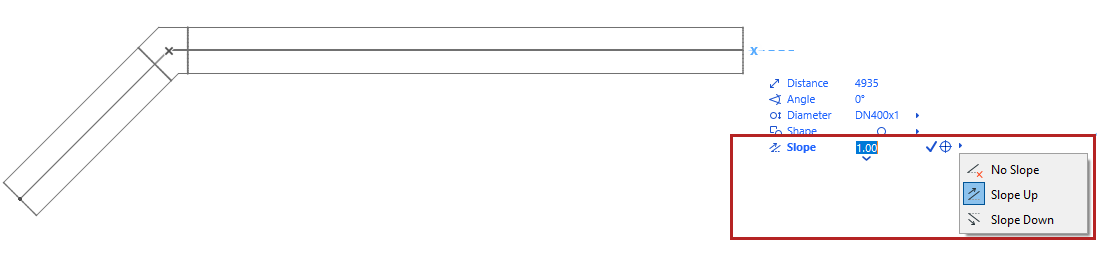
During route input, use the Tracker to set a slope value.
•Choose “Slope up” or “Slope down”, or
•Enter a value (positive for up, negative for down)
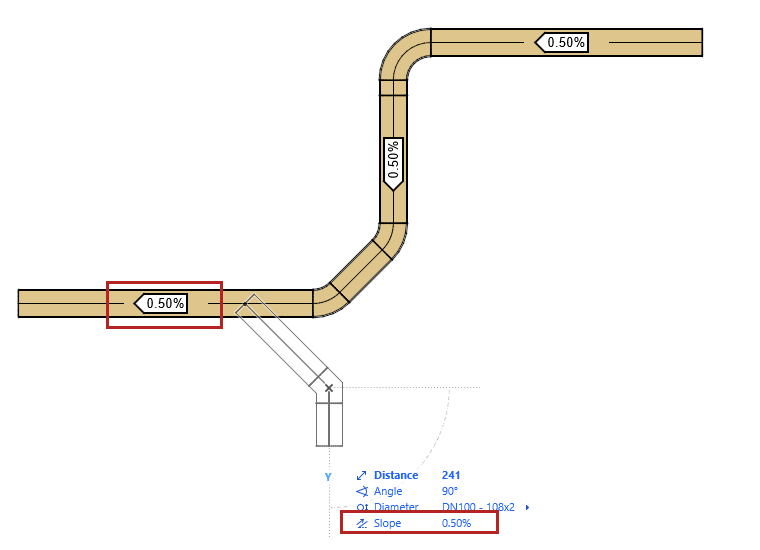
•Even after a change in elevation along the route, the slope of the route is maintained. If you adjust the Z-coordinate, the route will continue at the new elevation, while the slope remains constant.
•Newly branched-off route segments also inherit the route’s slope
Modify slope at selected point
1.Select the open end of a route element.
2.From the pet palette, choose Modify slope at selected point.
3.Enter the Tracker and change the slope value.
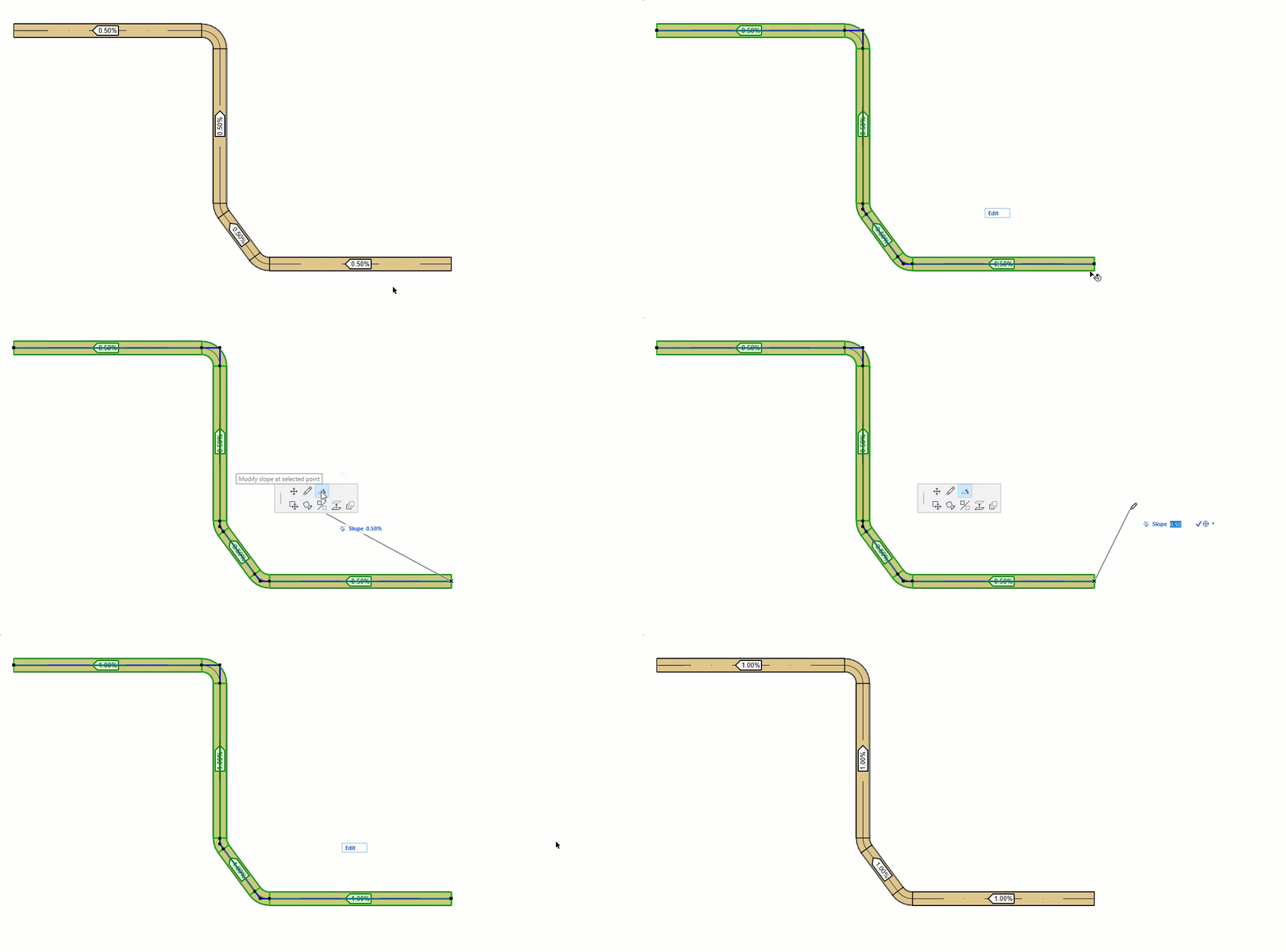
You can also change a route slope at an elbow or from a branch:
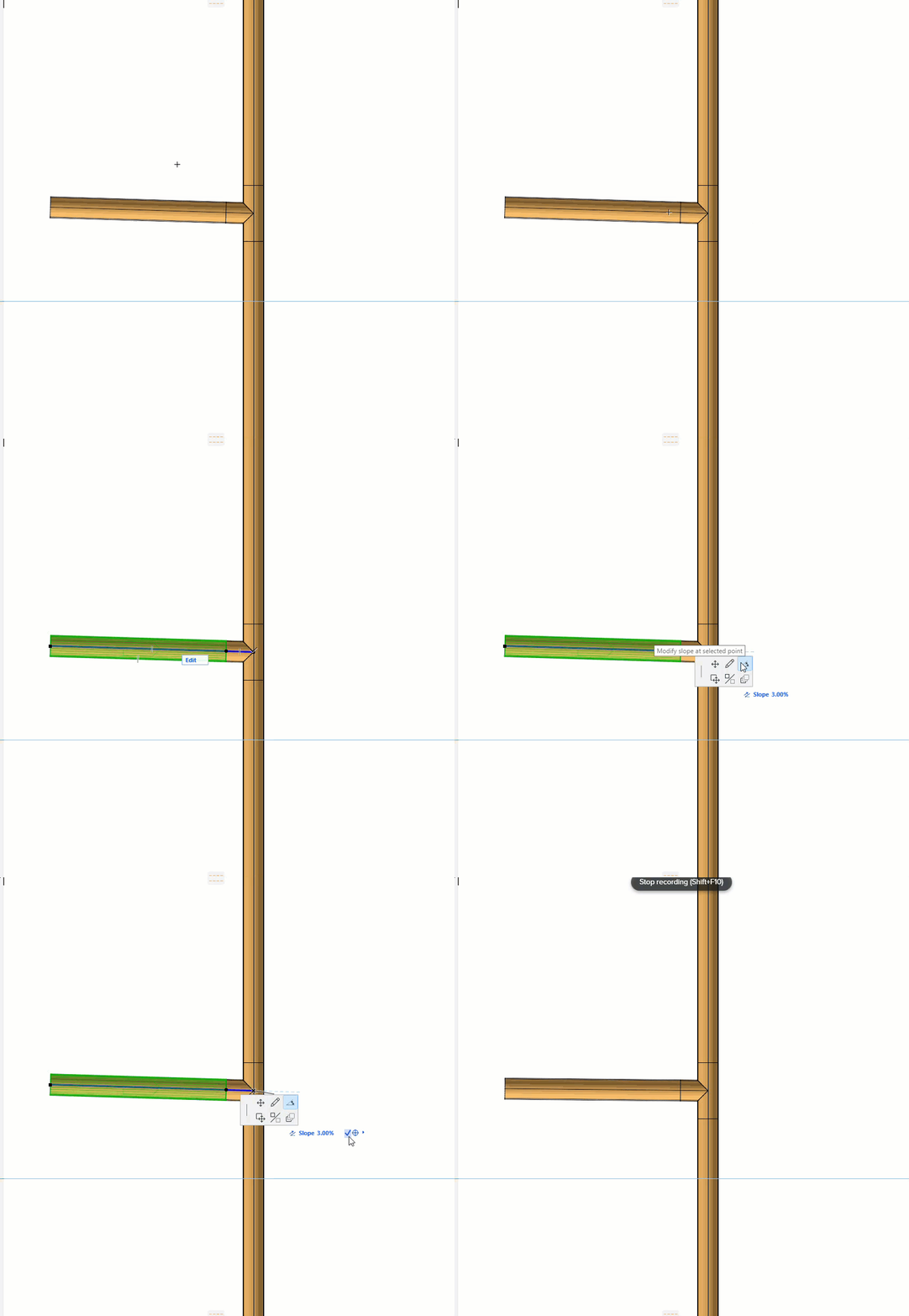
The elevation of the route at the clicked point will not change.
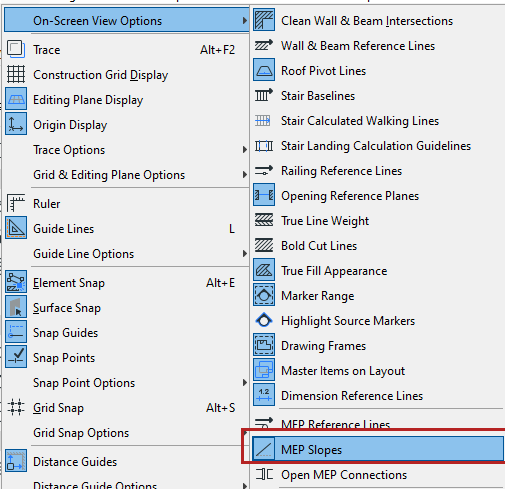
Turn on MEP Slopes at View > On-Screen View Options.
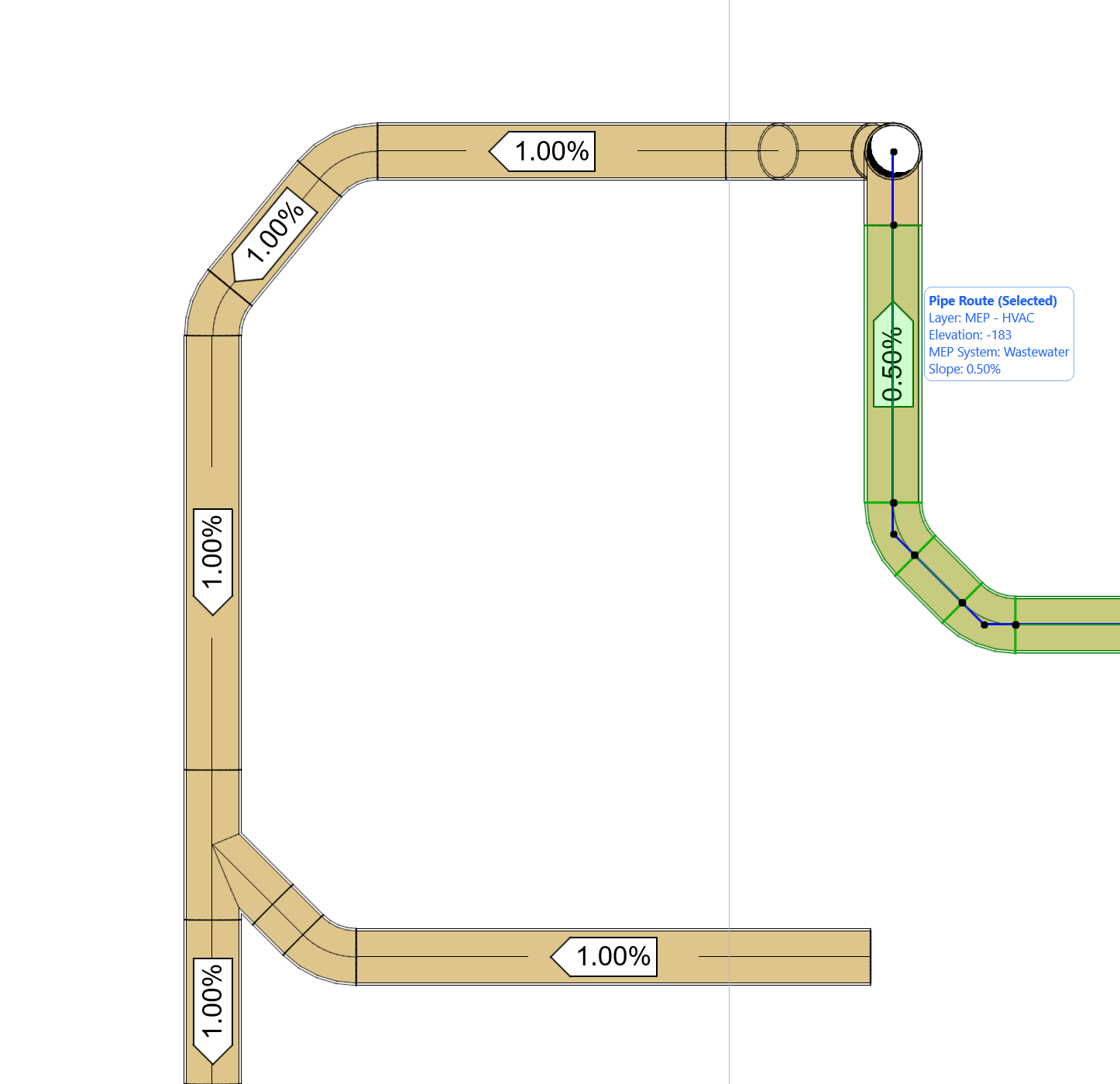
•On the Floor Plan, you see the direction and value of the route slope
•For a selected route element, the Info Tag also displays the slope value
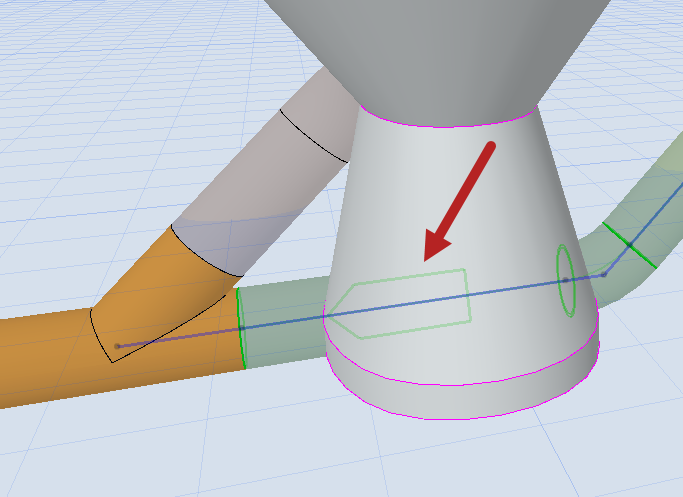
In 3D and Section views, selected route elements display a green arrow to indicate the slope direction: