Offset Options In Case of Multiple Targets
Offset always occurs in one direction (one to the other): The adjusting Members will be offset to their targets; the targeted Members will remain unchanged. But what if there are several possible target elements?
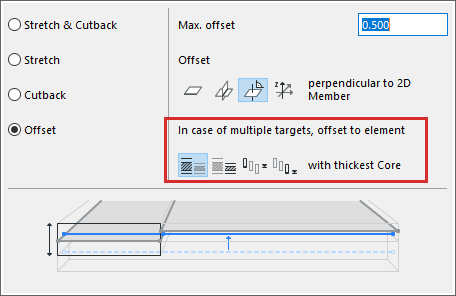
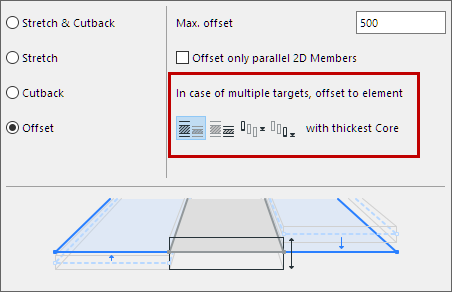
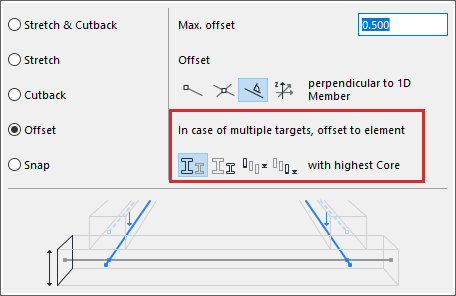
In this case, use the “Multiple targets” controls (shown in the images below) to define the preferred group of target elements based on their geometry.
In the dialog box, click on the icons to see a text and illustration for each possibility.
Target Options When Offsetting to a 1D Member
In case of multiple targets, offset to element with
•Highest core
Offset to the target 1D Member(s) whose core Height dimension is larger
•Lowest core
Offset to the target 1D Member(s) whose core Height dimension is smaller
•Highest position
Offset to the target 1D Member(s) that have the highest elevation value
•Lowest position
Offset to the target 1D Member(s) that have the lowest elevation value
Target Options When Offsetting to a 2D Member
|
|
|
|
Offsetting 1D to 2D Member |
Offsetting 2D to 2D Member |
In case of multiple targets, offset to element with
•Thickest core
Offset to the target 2D Member(s) with the largest core thickness value
•Thinnest core
Offset to the target 2D Member(s) with the smallest core thickness value
•Highest position
Offset to the target 2D Member(s) that have the highest elevation value
•Lowest position
Offset to the target 2D Member(s) that have the lowest elevation value
If there are still multiple possible targets:
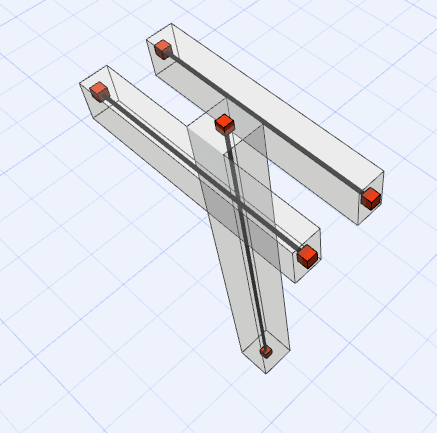
The target is chosen in the following order of priority:
1.Closest by Eccentricity (shorter move distance)
2.Target with stronger Building Material
3.The element that was placed earlier