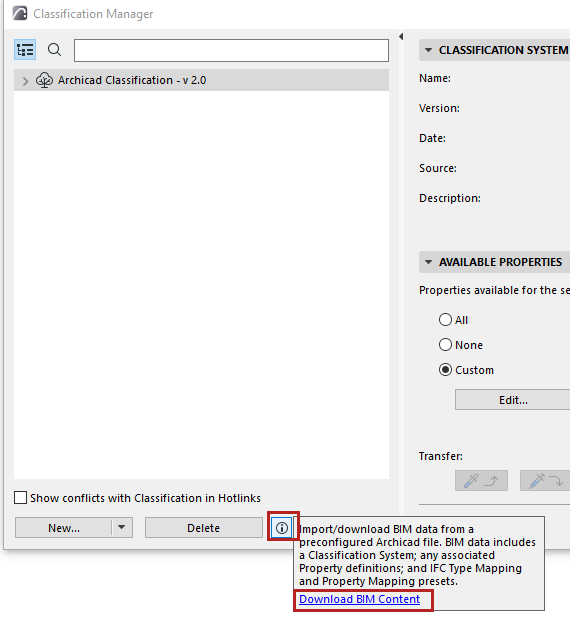
The command enables the one-step import of BIM data that have been predefined in an external project file (PLN, PLA or TPL format).
The following BIM Content is imported:
•A Classification System
•Any Properties belonging to that Classification System
•The IFC Translator “Mapping” presets which refer to that Classification System:
–Type Mapping for IFC Import
–Type Mapping for IFC Export
–Property Mapping for IFC Export
–Property Mapping for IFC Import
Import BIM Content from project file
Use the Import BIM Content command to browse for any project file that you have prepared or downloaded, which contains the needed Classification System and other definitions.
1.Go to File > Interoperability > Classifications and Properties > Import BIM Content.
2.From the appearing Merge BIM Data dialog, browse for any the project file (PLN, PLA or TPL format) which contains the Classification/Property/IFC Translator Mapping definitions that you need.
3.Click Open to import these data.
See also Conditions for Downloading or Importing BIM Content, below.
Download BIM Data File from Website
With this command, you browse for and download a preconfigured file.
These files, predefined for various international standards, are available at Graphisoft’s website: https://www.graphisoft.com/downloads//BIM_Data.html
1.Go to File > Interoperability > Classifications and Properties > Download BIM Content.
The same link is available from:
–Classification Manager
–Property Manager
–IFC Translators dialog box
2.This takes you to a Graphisoft website, where you can choose a file containing standard Classification/Property/Mapping definitions.
3.Download the file to any location.
4.Use File > Interoperability > Classifications and Properties > Import BIM Content to browse for and import the downloaded file.
Conditions for Downloading or Importing BIM Content
The import will work only if none of the imported data already exist in the receiving project. If data already exist, you get a warning that the import failed.
Consult the Report Window in Archicad(scroll to the bottom of the window as needed) to see which data are in conflict.
In this case, delete the duplicate data from your project, then use Import BIM Content again.