Drawing Web Format, a 2D vector graphics format created by Autodesk.
The DWF file will contain all drawing elements with some exceptions and limitations:
•pictures: due to format limitations, only straight pictures can be written to a DWF file,
•cameras will not be included.
Archicad opens all DWG file formats starting with AutoCAD 2000.
From File > Open, select the DXF or DWG file format. Use the Settings button to open the DXF-DWG Translation Setup dialog box.
For details, see Opening DWG/DXF Files.
However, in most cases you need not adjust these translation settings, because the default setup will give you the desired result when opening a DXF/DWG file.
Note: If you are working in AutoCAD and open a DWG that was originally saved from Archicad, an Alert may appear. However, you should go ahead and work with the saved DWG in AutoCAD - no stability problems should result.
MicroStation Design File (.dgn) - Version 7 or 8
Do one of the following:
•Use File > External Content > Place External Drawing and select a MicroStation Design File (.dgn) file (version 7 or 8)
•Use File > Open and select a MicroStation Design File (.dgn) file (version 7 or 8)
•Drag and drop a .dgn file to import into the current project.
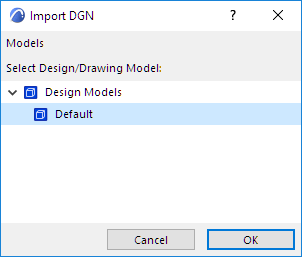
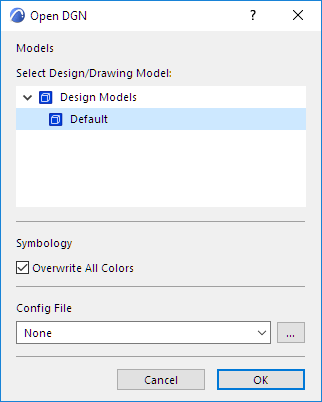
Set options in the Open DGN dialog or Import DGN dialog, as applicable:
Design/Drawing Model
Use the pop-up to select one of the models in the DGN model (if it contains multiple models).
Symbology
Overwrite All Colors: The project’s Pen Set is overwritten using the DGN color table.
Note: If you check this box, and if you use a configuration file, its definitions will overwrite the Pen Set.
Config File
Optional. A default configuration file (txt) is available in the ArchicadDefaults folder. Use or customize a config file to ensure company-standard conversions.
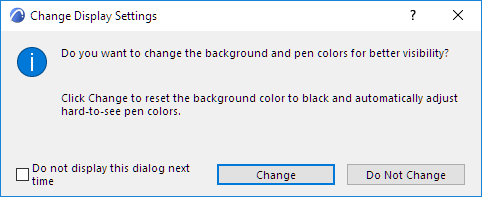
If you used File > Open to open the DGN file: A dialog will appear with the option of changing the background color to black.
See also Save as MicroStation Design File (.dgn) - Version 7.