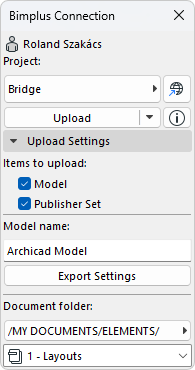
Publish models and documentation to Allplan’s Bimplus.
Note: A Bimplus account is needed in order to use Bimplus connection.
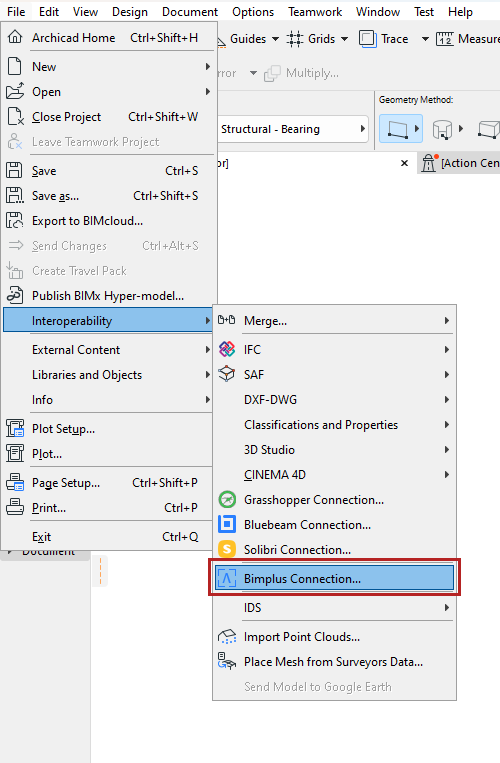
1.File > Interoperability > Bimplus Connection
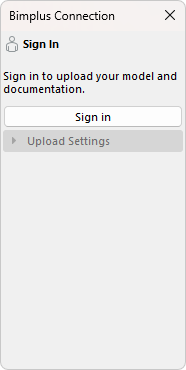
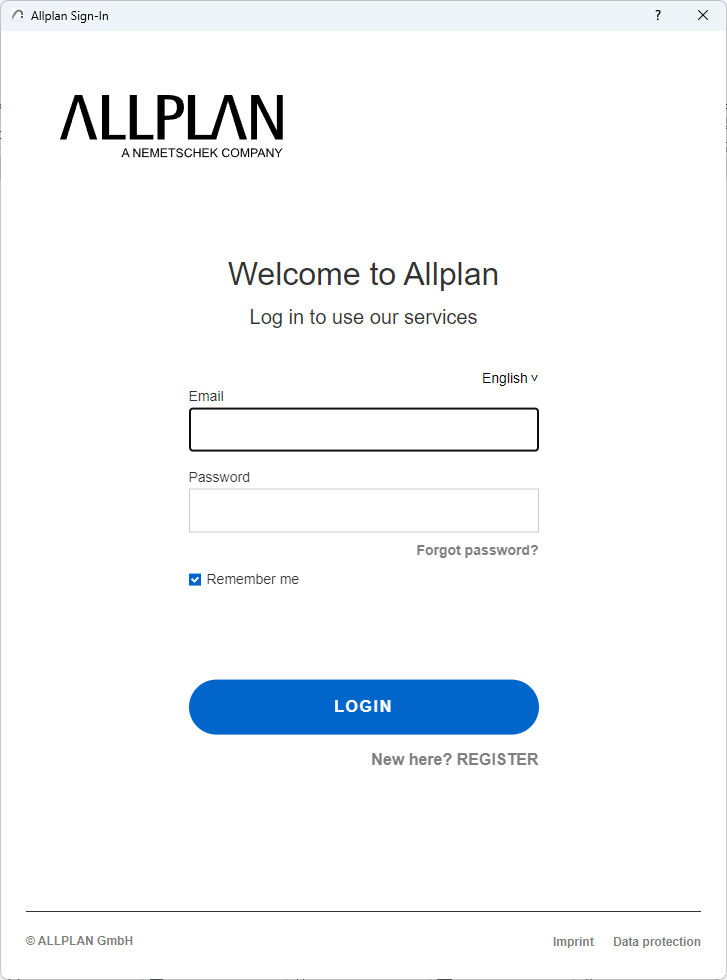
2.Log in with a Bimplus account.
3.Select the Bimplus Project.

Note: To open the Bimplus project in the browser, click the Icon button next to the Project selector. You will see the current state of the model, as well as the names or structures of the model.
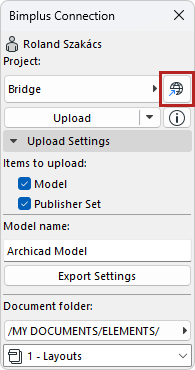
4.Set up Upload Settings.
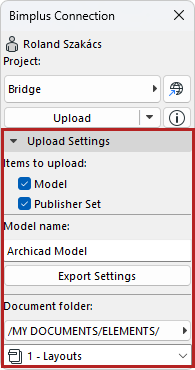
Under Upload Settings, you can:
•Choose the items to upload
•Name the model
•Set up the Export Settings
•Choose a Document folder
•Select Publisher set
Export Settings
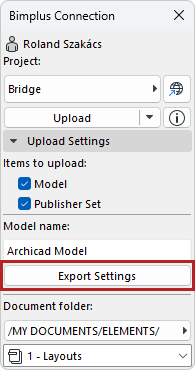
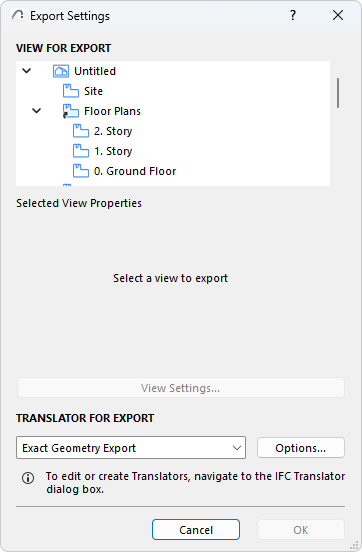
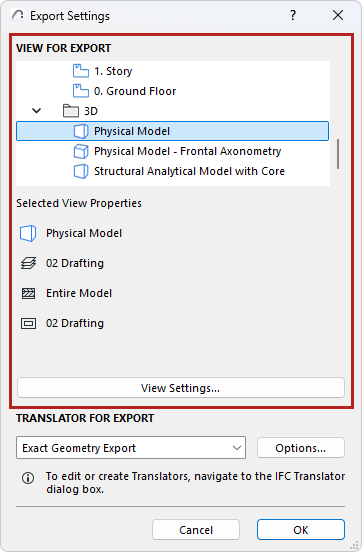
Select a 3D View and IFC Translator for export in the Export Settings panel.
NB: Select a 3D view for export to see its properties and View Settings under the Selected View Properties panel.
5.Click “Upload” to upload the Model and/or Publisher set to Bimplus.
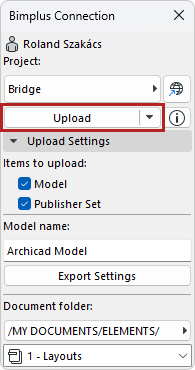
The model export, publishing and uploading processes can be canceled at any time during the upload process.
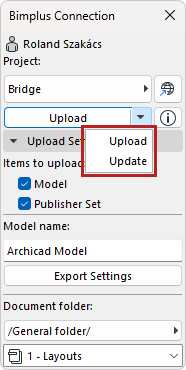
NB: In case of a file with the same name, Upload will create a new revision for the model or document. Select “Update”, in the dropdown menu, if you want to replace the existing model revision or document.
After uploading, Bimplus will process the model in a few minutes (depending on model size) and then you can explore it.
NB: Bimplus Connection can only upload documents from Archicad, and then update them to a new revision. It cannot download data from Bimplus to Archicad.