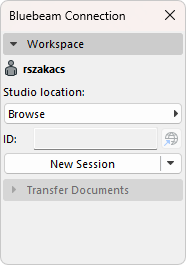
Collaborate on PDF documentation in Bluebeam using Bluebeam Studio Connection.
Note: A Bluebeam account is needed in order to use Bluebeam Studio Connection.
To use Bluebeam Studio Connection:
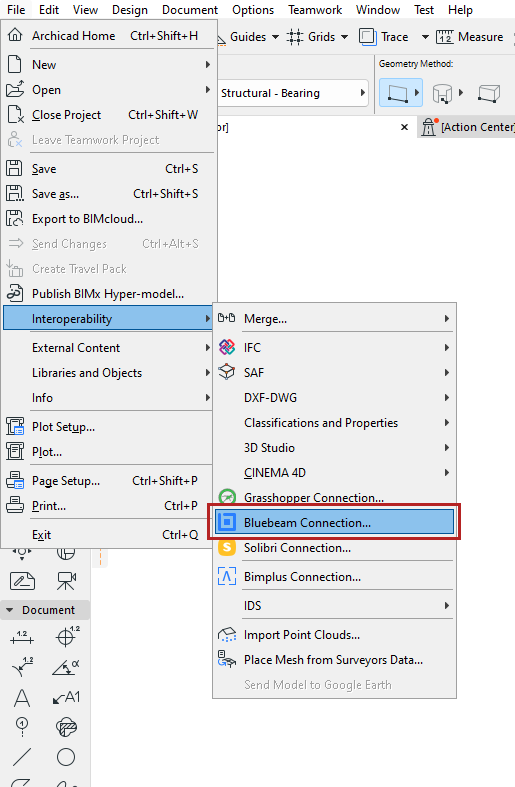
1.Open File > Interoperability > Bluebeam Connection
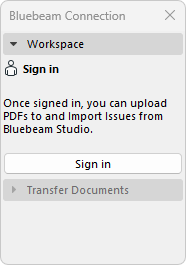
2.Sign in to a Bluebeam account

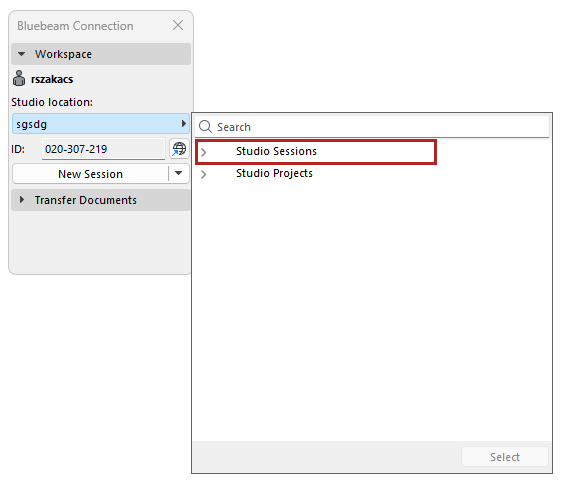
3.In the Workspace, Browse and select a Studio Location from either the Studio Sessions or Studio Projects.
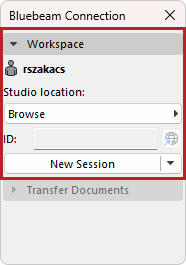
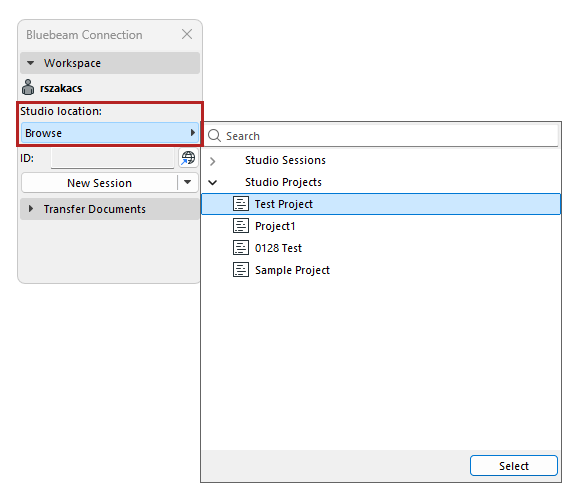
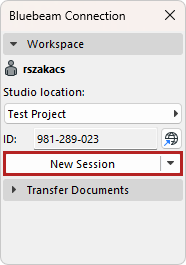
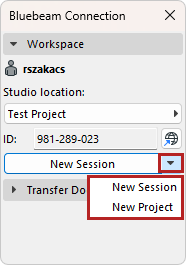
You can also start a New Session or New Project in Workspace.
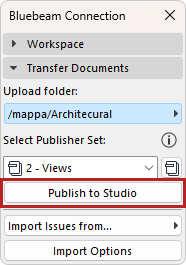
4.Publish to Studio in Transfer Documents
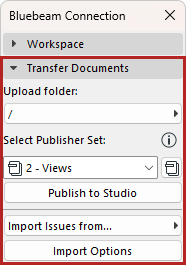
•Choose an Upload folder to publish the Publisher Set
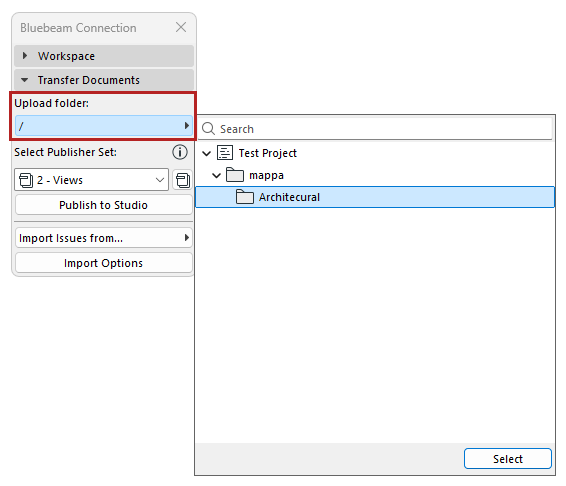
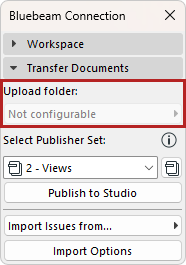
Note: Select a Studio Project as your Studio Location to browse Upload folder. If you select a Studio Session as your Studio Location, Upload folder is not configurable.
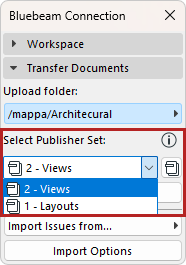
•Select a Publisher Set
•Click Publish to Studio
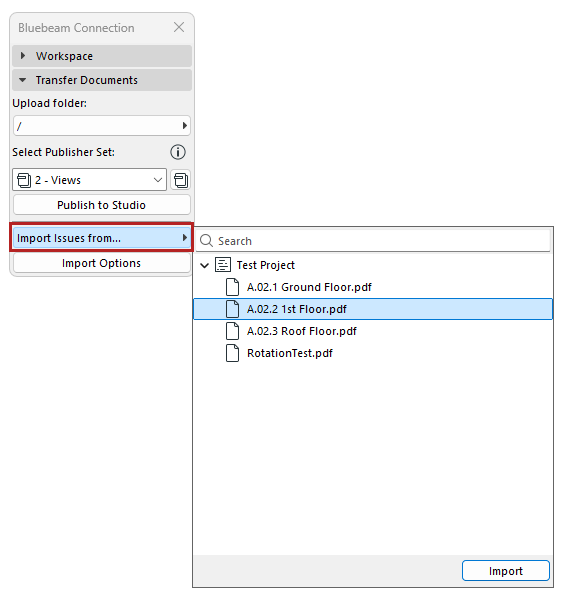
5.Import Bluebeam markups as Issues from a single PDF
•Select Issues to Import
•Set up Import Options (optional)
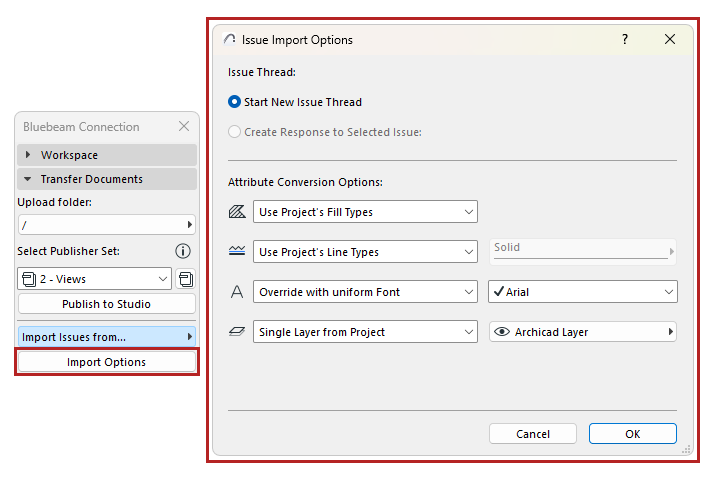
Import Options
In this dialog, define how the issues imported from Bluebeam should appear in Archicad.
Issue Thread
Choose an option for how the imported Issues should appear in Issue Organizer.
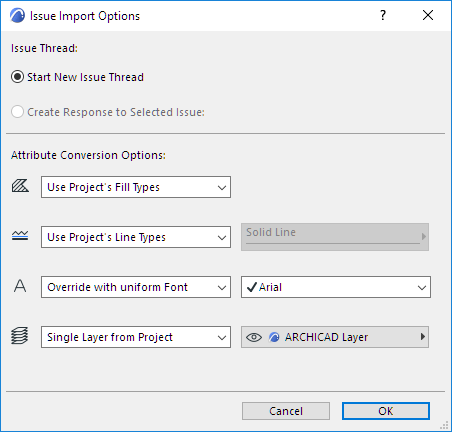
•Start New Issue Thread: The imported Issues will constitute their own thread. (In the Issue Organizer, you can sort entries by thread.)
•Create Response to Selected Issue: This option is available if an Issue is currently open in Issue Manager. Choose this to list the imported Issues underneath the currently active Issue, as sub-Issues.
Tip: To create a separate “category” for the imported Issues, first create a new Issue in Archicad, and give it a name (e.g. “Imported Issues from PDF”.) With this new entry selected, import the PDF Issues, and use the “Create Response to…” option. The imported Issues will be listed under this Issues (use Sort by: Thread).
Attribute Conversion Options
Choose how to convert the fills, line types, fonts and layers of the Issues you are importing.
Fills
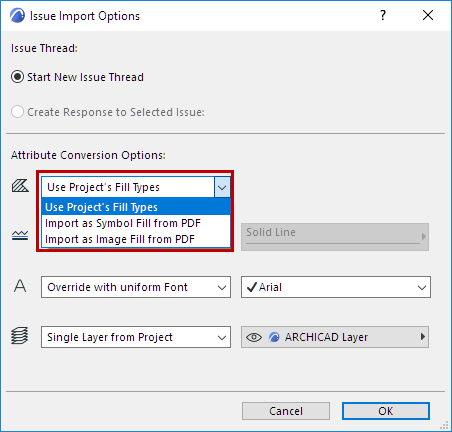
•Use Project’s Fill Types: No new Fill Types will be imported from the PDF. Any imported fills that have no counterpart in the project will be transformed into solid fills.
•Import as Symbol Fill from PDF: A new vectorial fill attribute will be created in the project and used for imported fills. (For example: “60% PDF Solid Fill”)
•Import as Image Fill from PDF: A new image fill attribute will be created for any fills, among the drawing primitives, which have no counterpart among the project’s attributes.
Note: If an image fill is generated, then this file is added to the project’s Embedded Library. If you are working in a Teamwork project, you must have the needed access right: Library Parts – Create.
Line Types
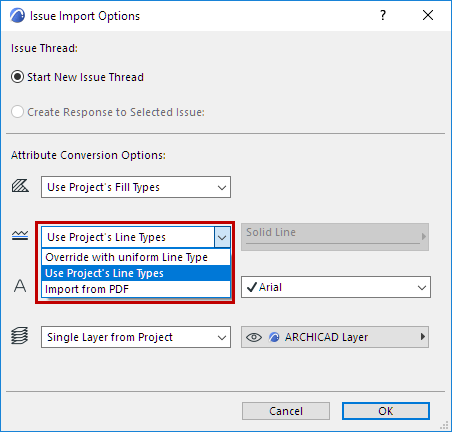
•Use Project’s Line Types: No new Line Types will be imported. Issues are displayed using similar, existing project line types (e.g. solid, dashed, dotted). If a corresponding Line Type does not exist in the project, a solid line is used.
•Override with uniform Line Type: Choose one of the project’s Line Types. Imported Issues will be displayed using this Line Type.
•Import from PDF: Line Types of Issues are imported and added to the project.
Text Font
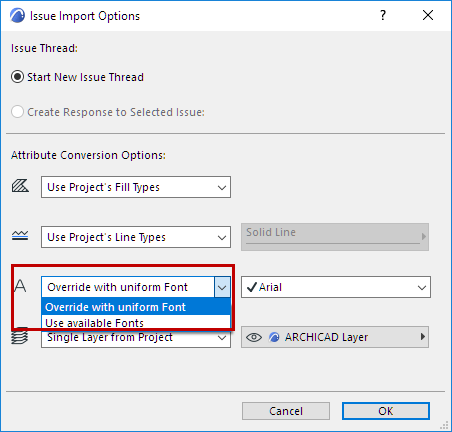
•Override with uniform Font: Choose one of the project’s font types to display text items on imported Issues.
•Use available Fonts: Imported Issue texts are displayed using similar fonts available in the project.
Layer of Issues
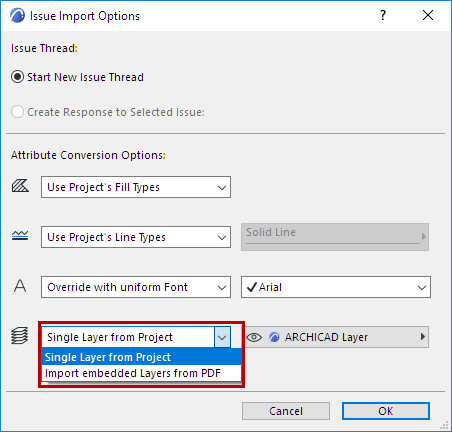
•Single Layer from Project: Choose one of the project’s Layers. Imported Issues will be placed on this Layer.
•Import embedded Layers from PDF: Issues will be placed on layers corresponding to their embedded layer assignment (if any) in the PDF source. Those embedded layers will be added to your project.