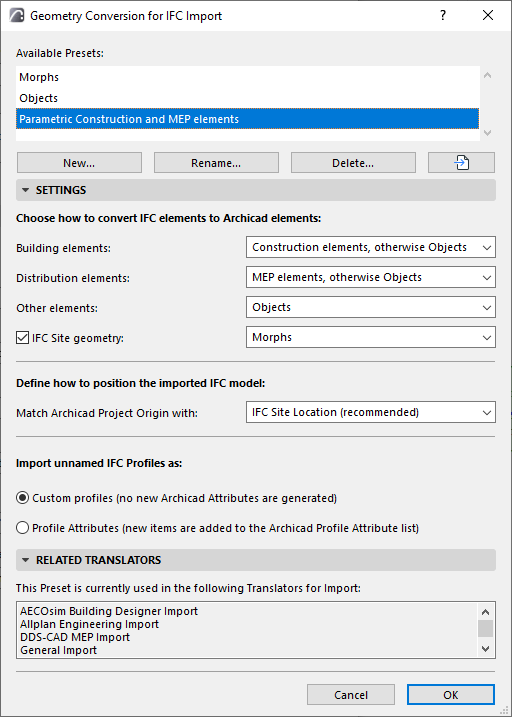
Geometry Conversion for IFC Import
File > Interoperability > IFC > IFC Translators
Choose a Translator for Import and open the Geometry Conversion preset.
Use this dialog box to define how to convert the geometry of imported IFC elements.
Building Elements
Convert to:
•Construction elements, otherwise Objects
•Construction elements, otherwise Morphs
With either of these options, IFC elements whose supertype is IfcBuilding (IfcWall, IfcColumn, IfcBeam, etc.) are imported as editable elements (“Construction elements”: Wall, Column, Beam, etc.)
The advantage of converting the imported elements to construction elements is that they remain parametric, and program functions (such as automatic intersections) will apply to them.
Even if you choose the “Construction element” option, some elements cannot be imported in this form: such as non-extruded (BREP geometry) elements, or elements having no counterpart in Archicad).
For such elements, you can choose to convert them as either an editable Morph or an Object (“otherwise Objects/otherwise Morphs”).
•Morphs
•Objects
–Conversion of elements to Morphs or Objects guarantees perfect geometry import.
–The resulting Morphs will be editable.
–The resulting Objects will be Library Parts, whose subtype will match the IFC entity type: for example, an IfcColumn converted to an Object will have the subtype “Column”.
Distribution elements
This option applies to imported elements whose domain is MEP (IfcDistributionElement).
These elements can be converted to one of three results:
•Morphs
•Objects
–Conversion of elements to Morphs or Objects guarantees perfect geometry import.
–The resulting Morphs will be editable.
–The resulting Objects will be Library Parts, whose subtype will match the IFC entity type: for example, an IfcColumn converted to an Object will have the subtype “Column”.
•MEP Elements: This option generates parametric MEP elements from the project’s MEP elements. Even if you choose this option, the MEP IFC model might not contain sufficient data to generate the parameters, in which case non-parametric MEP Equipment elements will be generated, or - in case of limited data - Objects will be generated.
Other elements
This option defines how to convert elements that are neither building elements nor distribution elements (such as furnishing and transportation elements).
•Morphs
•Objects
–Conversion of elements to Morphs or Objects guarantees perfect geometry import.
–The resulting Morphs will be editable.
–The resulting Objects will be Library Parts, whose subtype will match the IFC entity type: for example, an IfcColumn converted to an Object will have the subtype “Column”.
IFC Site geometry
Check this box if you want to include the geometry of the imported IfcSite.
Define whether the converted element should be an editable Morph or an Object. (IfcSite geometry cannot be converted to a Mesh.)
Define how to position the imported IFC model
Match Archicad Project Origin with:
•IFC Site Location (Recommended)
•IFC Global Origin
Import Unnamed IFC Profiles
Choose how to handle unnamed imported IFC profiles:
•Custom Profiles (this option does not create any new attributes in the project)
•Profile Attributes (new Profile attributes are added to the project)
Notes on Geometry Conversion
•The number of newly created geometric elements (when generating Morphs) or Library Parts (when generating Objects) is kept to a minimum.
•Objects can be placed in the project’s Embedded Library, or else saved to a given linked library (see IFC Local Preferences).
•Some IFC models may contain elements with special geometry which cannot be converted to Morphs, even if you choose the Morph conversion option. In this case, Archicad will generate Objects, to achieve perfect geometry import.
•Imported IfcSpace elements will always be generated as Zones, which will always retain the imported elements’ original geometry.