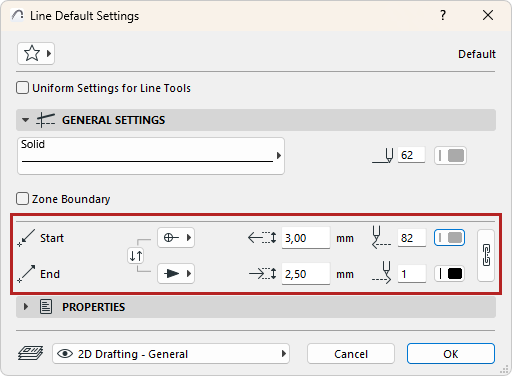
Applies to Line, Arc, Polyline and Spline.
Uniform Settings for Line Tools: Check this to apply the settings made in this dialog box to all line-type tools: Line, Arc/Circle, Spline, Polyline.
Favorites of any of the four Line-type tools (Line, Arc, Polyline, Spline) can be applied to any of the other Line-type elements.
•Select a Line type from the pop-up selection palette.
•Type a Pen number (1-255) for the Line/Arc/Polyline/Spline.
•Click the color for a Pencolor selection palette for the Line/Arc/Polyline/Spline.
•For polylines only: Choose a preference for handling the pattern of a dashed line type.
•Check the Zone Boundary box to allow lines to delimit automatically placed Zones.
Arrowhead
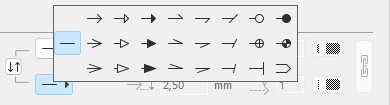
Use the Arrowhead type picker to add arrowheads at the start and end of a Line/Arc/Polyline/Spline.
•Enter height values for the Start and End Arrowhead marker.
•Type a Pen number (1-255) for the Start and End Arrowhead marker.
•Click for Pencolor selection palette for the Start and End Arrowhead marker.
•Click and choose an arrowhead from the Arrowhead pop-up icons for selection of marker types.
Note:
–If you choose the no arrowhead option from the Arrowhead pop-up icons, the size and pencolor become unavailable.
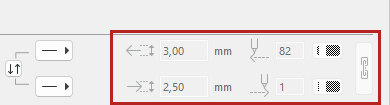
–Swap or link arrowhead sizes and pencolors.


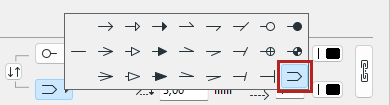
–For Line tool: The last arrowhead type doubles the line. The cursor snaps to the invisible axis line between the two visible lines.
The Line Properties panel is identical for the Line, Arc/Circle, Polyline and Spline tools.
Lines, Circles, Polylines, Splines
Working in Tool Settings Dialog Boxes