Migrating a Teamwork Project
Migrate from Archicad 29 and earlier
To migrate an older-version Teamwork Project to Archicad 30, you will need:
- Both the older Archicad and Archicad 30 installed on your client machine.
- Access to BIMcloud for version 30, either on the same or on different machines.
The migration process entails two phases:
- Prepare Project for Migration (you do this in the older Archicad); and
- Migrate Prepared Project (you do this in Archicad 30).
Prepare Project for Migration
- Start the older Archicad.
- Open your Teamwork project in the older Archicad.
- Make sure that all other users send in their changes and leave the project. (If they do not, they will lose any unsent changes.)
- Go to Teamwork > Project > Migrate Project > Prepare for
Migration.

- Click Prepare.
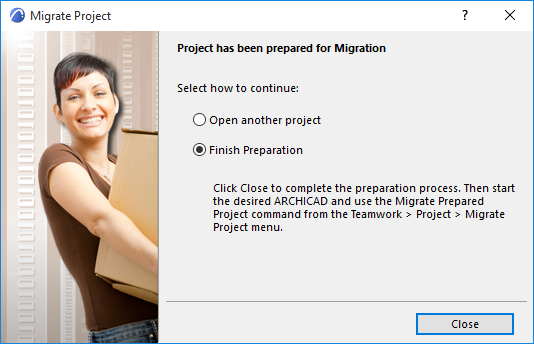
- The project is prepared for migration.
- Do one of the following:
- Once you have prepared all the projects you need, move on to the next phase:
- Start Archicad 30.
- Choose Teamwork > Project > Migrate Project > Migrate
Prepared Projects.
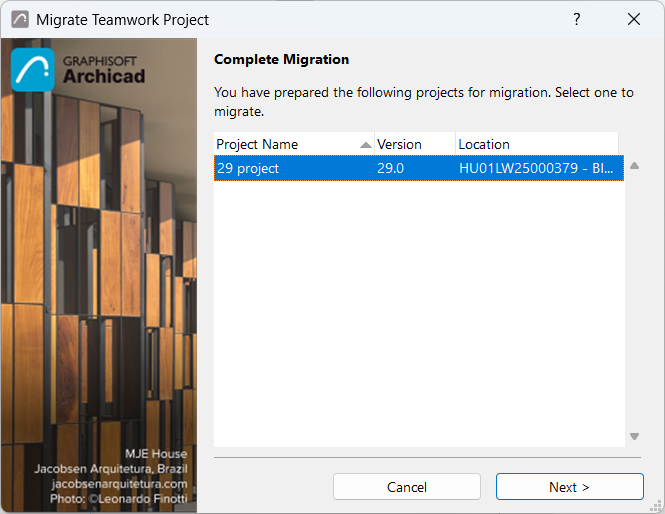
- The dialog box lists all the prepared projects: Select one to migrate it.
- Click Next.
- Choose a destination server for the project. Note: If you are uploading to a BIMcloud: You have an additional option to define the Host Server for the migrated project.
You must be logged on to this server, and you must have the correct permissions to add a project to the BIMcloud.
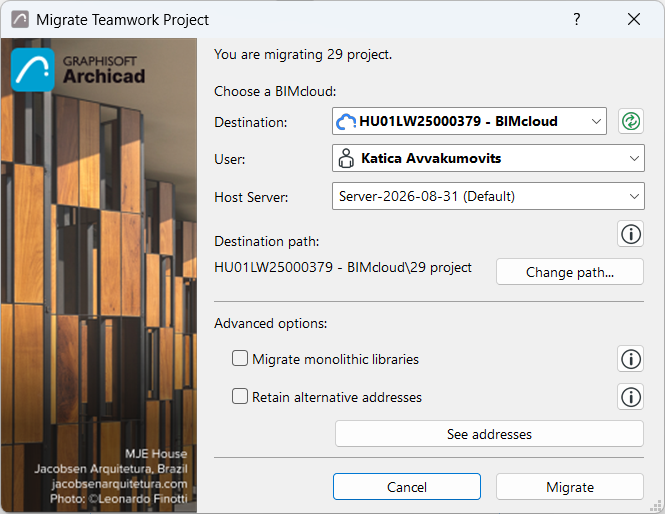
- The project content will be uploaded to the chosen BIMcloud, including existing users and their roles.
- Advanced options:
- Migrate monolithic libraries: Relevant if the migrated project uses version-based Archicad libraries (Archicad 27 and earlier). Check this option to update the project's library parts based on the Monolith Migration library (equivalent of Archicad 27 library). If you leave this unchecked, the migrated project will continue to use its current Archicad libraries.
- Retain alternative addresses: Relevant if the migrated project includes content that
was shared using alternative BIMcloud addresses. If you leave this unchecked, all
content will be relinked to the primary BIMcloud address.Note: Click See Addresses to view the BIMcloud's alternative addresses, if any. Alternative addresses are defined during BIMcloud installation. See Server Connections
- Click Migrate.
- In the appearing completion dialog, you can opt to join the new (migrated) project, or migrate another prepared project.
- Now that the original project is migrated, you can manually delete it from the BIM Server.
Hotlinked Modules and Drawings
If the migrated project contains hotlinked modules or drawings linked from older Archicad Teamwork projects, you must also migrate each of those Teamwork projects to Archicad 30, following the steps above.
If those hotlink/drawing source projects were on the same Server as the migrated host project, then the host project will automatically locate and link the source projects, after they are all migrated.
If those hotlink/drawing source projects were on a different Server than the migrated host project, you must re-link the hotlinked modules and drawings manually, once the source projects are all migrated.
Temporarily Missing Library Objects
Some objects in your migrated Teamwork project may be listed as “Temporarily Missing” in the Library Manager. As soon as other users do a Send and Receive, this problem will be solved automatically.