Updates
Archicad automatically checks for updates each time you start the program. You can choose which update types to check for (regular updates, hotfixes, and/or Update Previews).
These automatic checks provide Graphisoft with data about your program version; they include no personal information.
By default, updates are downloaded automatically, in the background.
It’s possible that some or all preferences for update checks and downloads are managed by your company admin. In this case, you’ll see fewer options for setting these preferences.
Change default update settings
Important note for Teamwork users
Default update settings
By default:
- Archicad checks for available hotfixes as well as the latest updates (but not Update Previews)
- If an update is available, it will be downloaded automatically in the background. This option is recommended, because it saves you steps and keeps your program up to date with minimal effort.
- For BIM Managers: You can set the automatic download preference for companywide installation. See Command Line Parameters (Custom Install) .
Change default update settings
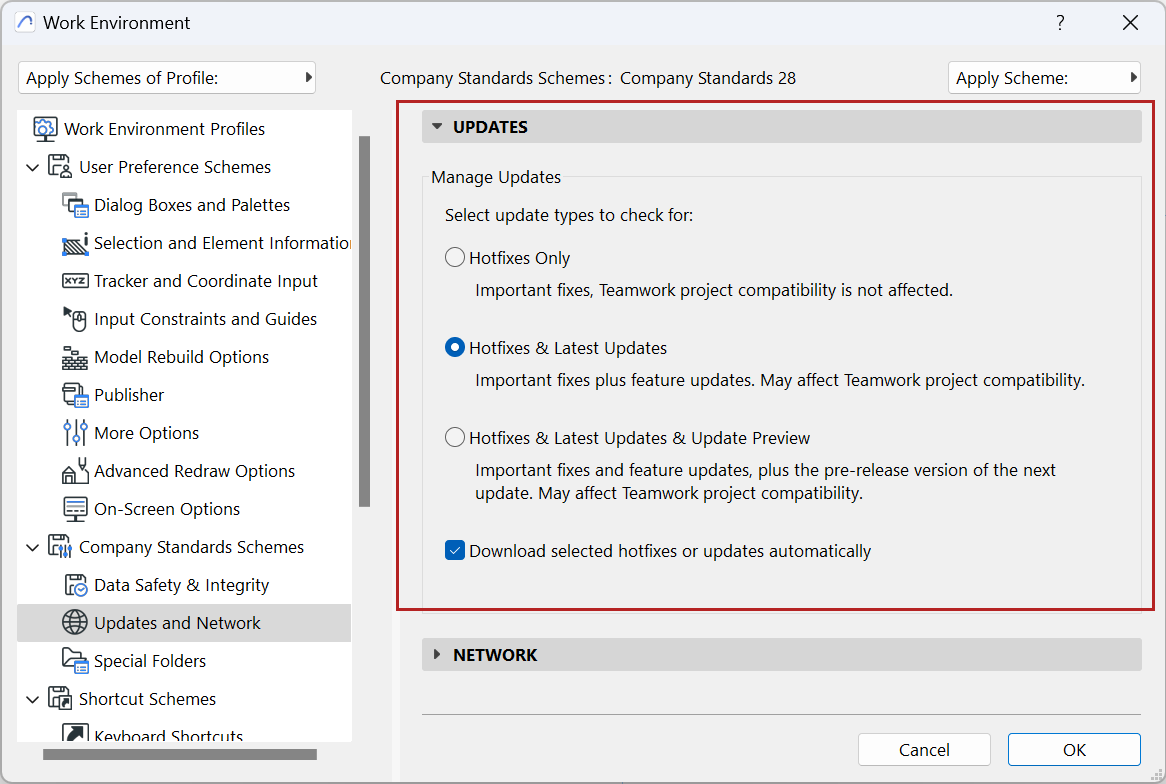
Change these defaults (update type to check for, and whether to download automatically) at:
Options > Work Environment > Updates and Network
Update types
Choose which updates to check for. By default, you’ll also download these updates automatically when they become available.
- Hotfixes Only: Critical fixes issued from time to time. Installing hotfixes will not affect Teamwork project compatibility.
- Hotfixes & Latest Updates: Also check for/download regular updates, with feature-level improvements.
- Hotfixes & Latest Updates & Update Preview: Also check for/download any preview version. A preview is issued a few weeks before a regular update. It is a fully functional update, tested by Graphisoft. Install and test the Update Preview, and report any issues or bugs. Please use it at your own risk.
Important note for Teamwork users
If you are working in Teamwork, check with your BIM manager to coordinate installation of updates and Update Previews - because all users joined to a Teamwork project must be on the same program version.
Install update
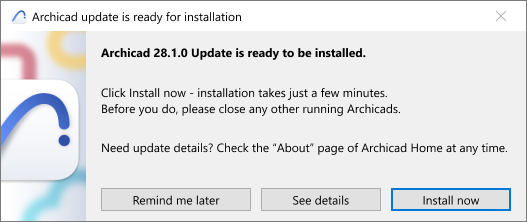
When the update or hotfix is available and ready to be installed, you’ll be notified - both when you start the program, and when you quit.
Click Install now. You have to close the program. When the installation is complete (this takes just a few minutes), the program starts up again.
Note:
Details about updates
To find out more about your new update:
Read more
See more on Graphisoft Community: Easy Archicad Update