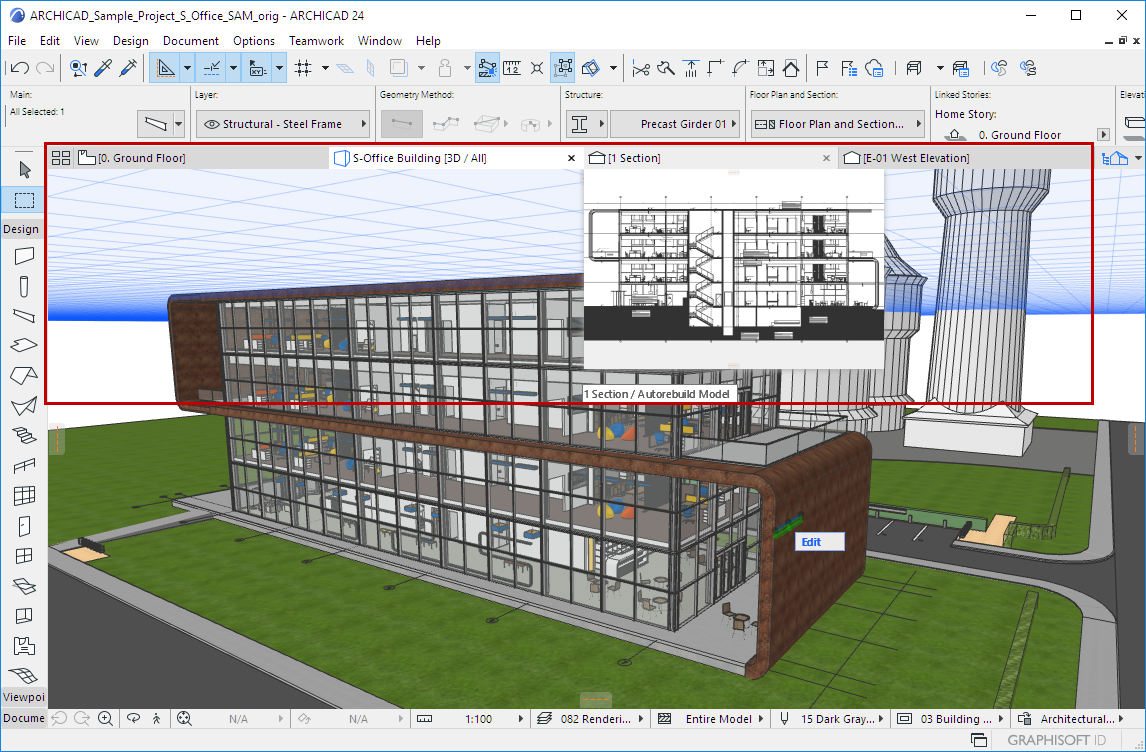
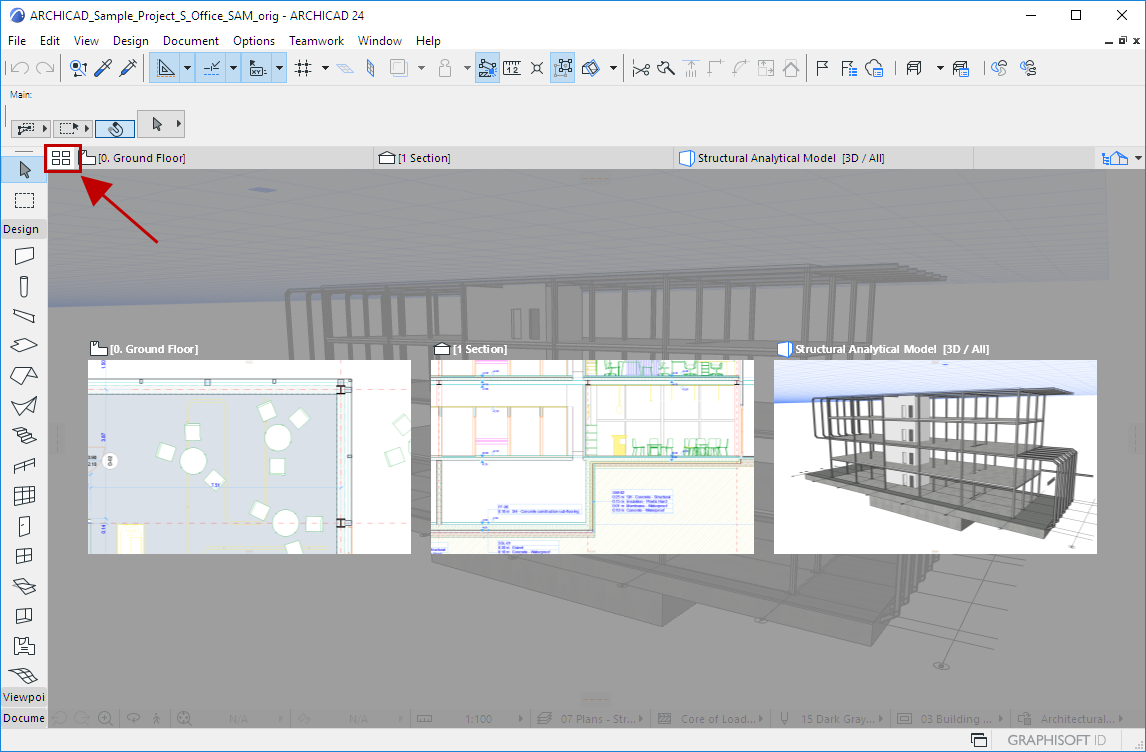
Use the Window > Show Next Tab or Window > Show
Previous Tab commands
Note: If you do not see these
commands in the menu, use the Options > Work Environment > Menus dialog box
to add them.
Each new Tab is appended to the right end of the Tab Bar.
Tab Bar Context Menus
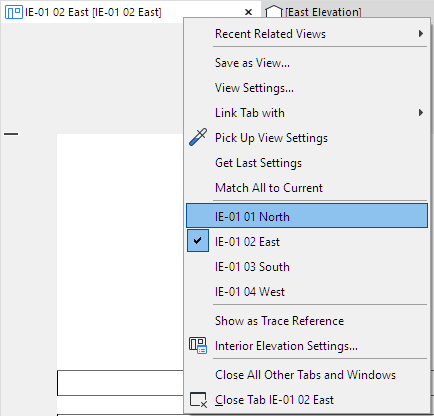
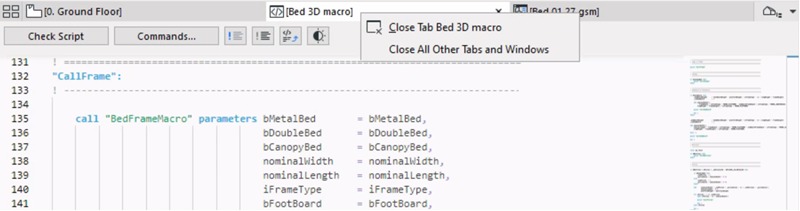
Available items vary depending on the type of view/viewpoint.
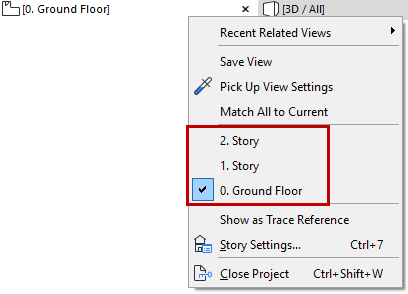
From the Story tab, navigate to any story
From an Interior Elevation view tab, navigate to any other IE in the
same group
From a 3D window tab, switch between Axonometric and Perspective
views
From a GDL editing window, switch back to the Master window
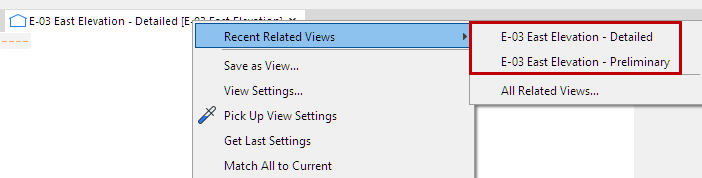
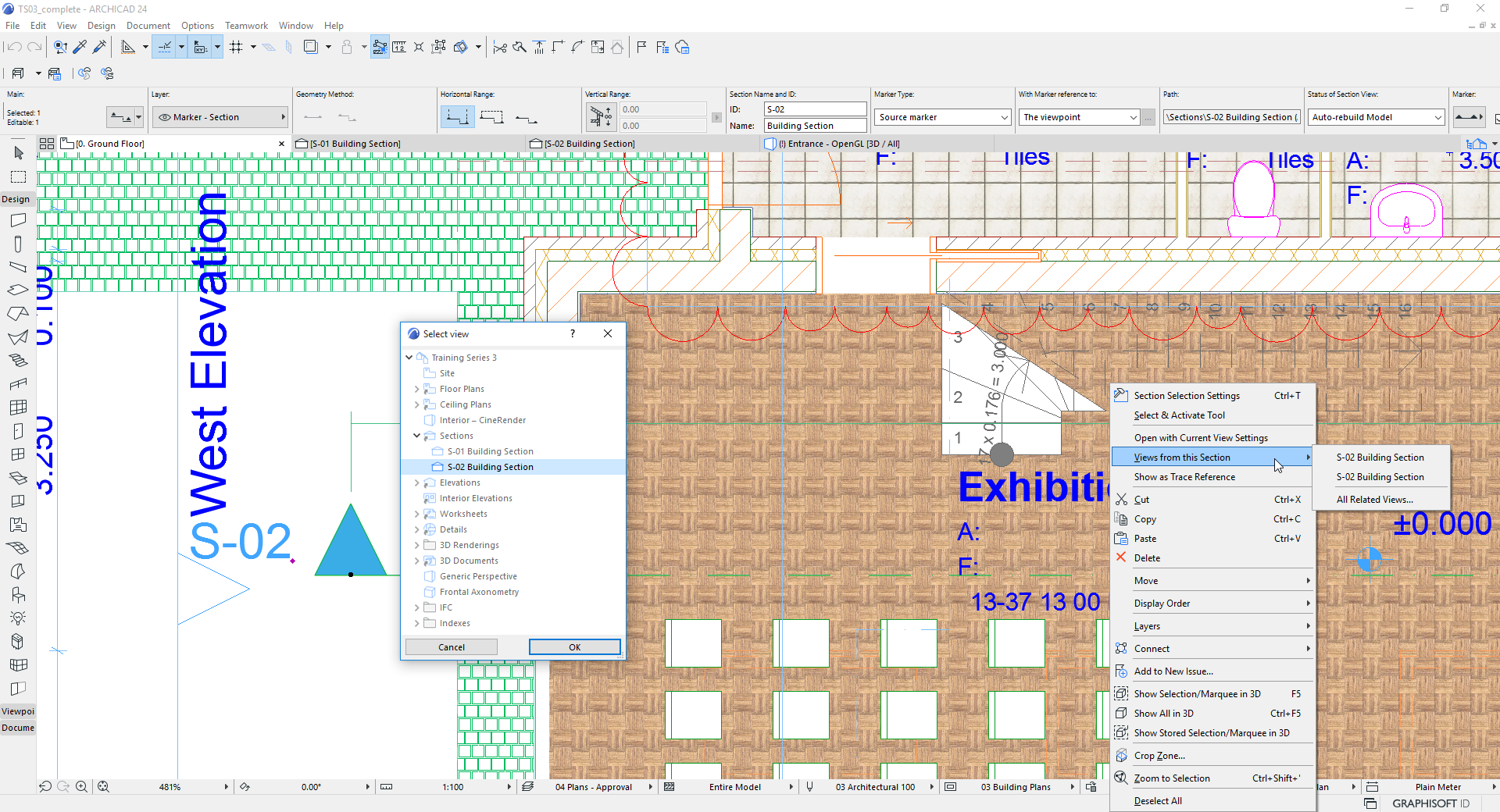
From any viewpoint or view, find recent views created from the same viewpoint.
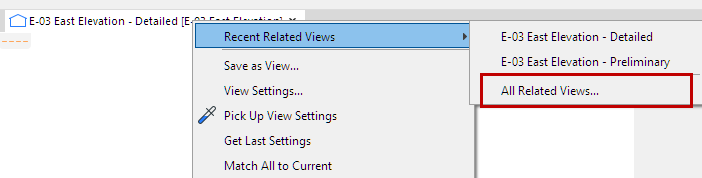
Click All Related Views to access, in a tree structure, all
the views created from the same viewpoint as the tab:
Open a Tab from a Marker
Use a placed marker to navigate to any view created from a particular
viewpoint.
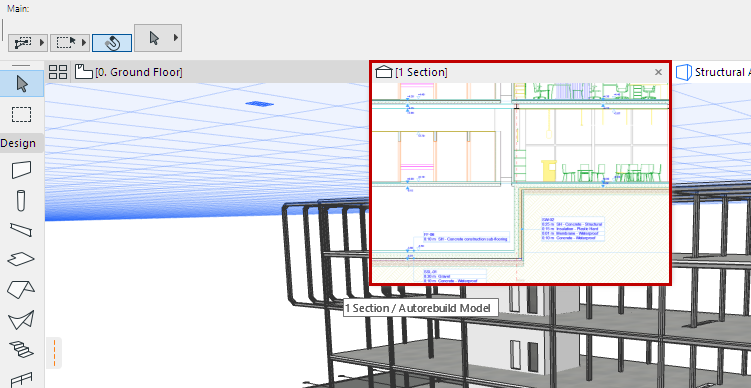
Figure 2. Select Placed Marker, Then Right-Click to Open Any Related View
Overflow Items on the Tab Bar
You can have any number of tabs open at a time. If they no longer fit
into the width of the tab bar, a double-arrow pop-up appears at the right edge of the Tab
Bar.
Click to see a list of the additional tabs.
The last visible tab is also listed here, shown with a checkmark.
Click on any of these to activate it and add it to the visible tabs on
the Tab Bar.
Close Tabs
Do one of the following:
Click the X on the tab
Use the Close Tab command from the tab’s context menu
Use the Close Tab command from the Window menu
Click the mouse-wheel over the tab
To close all tabs except the currently active one, use Window >
Close All Other Tabs and Windows.
Dock/Undock Tabs (Mac)
Do one of the following:
Use the Undock command from the tab’s context menu
Use the Window > Undock command.
To dock a tabbed item, use the Window > Dock command.
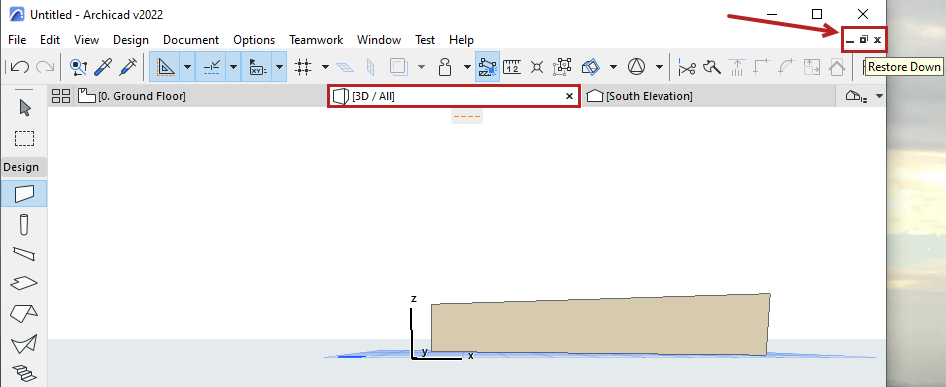
Dock/Undock Tabs (Win)
Undock or minimize the active tab using the icons in the upper right
corner.
Open New View/New Layout Preference
When you open a new view or new layout, it can either replace the opened
one (of the same type, in the case of views), or be opened in a separate new tab. Change
this tab-opening preference in Options > Work Environment > More Options.
Exception: You can have only one Floor Plan
and one 3D window open at a time.