Apply a Favorite
Apply a stored Favorite to selected element(s), or apply it as default Tool settings (if nothing is selected).
Favorites can be applied from three different locations, each shown below:
- Favorites Chooser in the Toolbox or Info Box
- Favorites Palette (Window > Palettes > Favorites)
- Tool Settings Dialog box
For information on Favorites controls in Library Part tool dialog boxes, see Settings of Library Part Elements.
In every case, select the Favorite, then double-click to apply to a selected element.
Or select a Favorite and click Apply (button or context menu).
Text-type Tools
Text tool Favorites can be applied to any text-type items when Dimensions, Labels, and Fills with Area Text are selected.
Line-Type Tools
Favorites of any of the four Line-type tools (Line, Arc, Polyline, Spline) can be applied to any of the other Line-type elements. For example, apply a Line Tool Favorite to a selected Arc.
From Favorites Chooser (Toolbox/Info Box)
This is the fastest way to apply Favorites to a selected element as you work.
- Access the Favorites Chooser by doing one of the following:
- Search or browse, then double-click the desired Favorite.
See also Search Favorites.
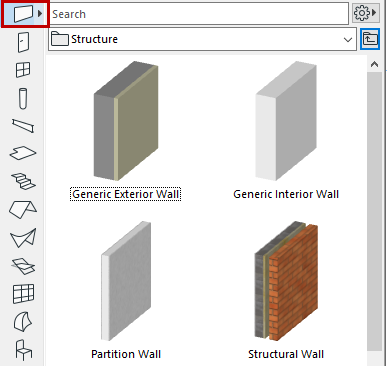
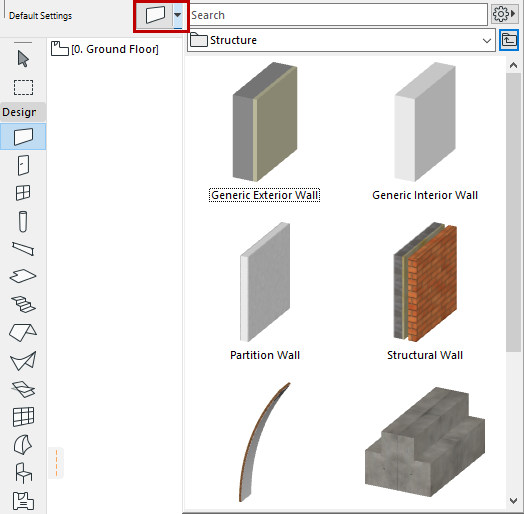
From Favorites Palette
From the Favorites Palette (Window > Palette > Favorites), search and browse, then do one of the following:
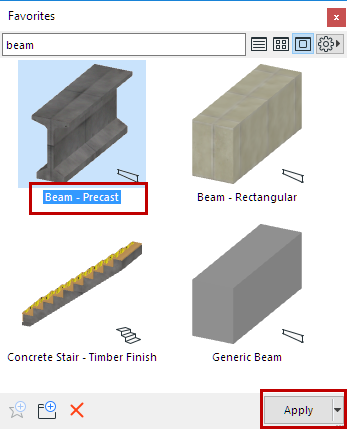
From Tool Settings
- Open the Tool Settings dialog box.
- Click the Favorites (star) button at top left.
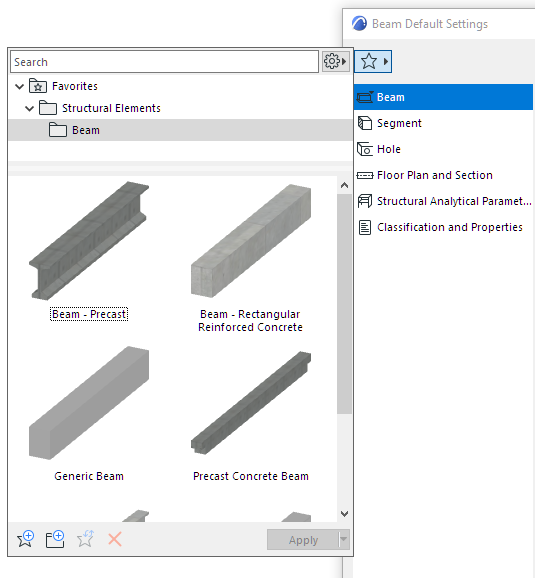
- Search and browse, then do one of the following:
- Double-click the desired Favorite, or
- Select a Favorite and click Apply
See also Search Favorites.
- Click OK to close the Tool Settings dialog.
Apply a Different Transfer Set
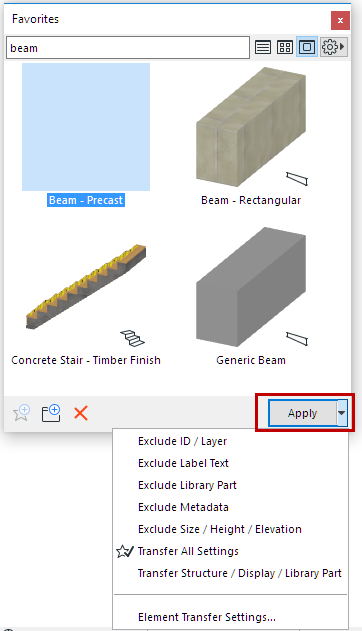
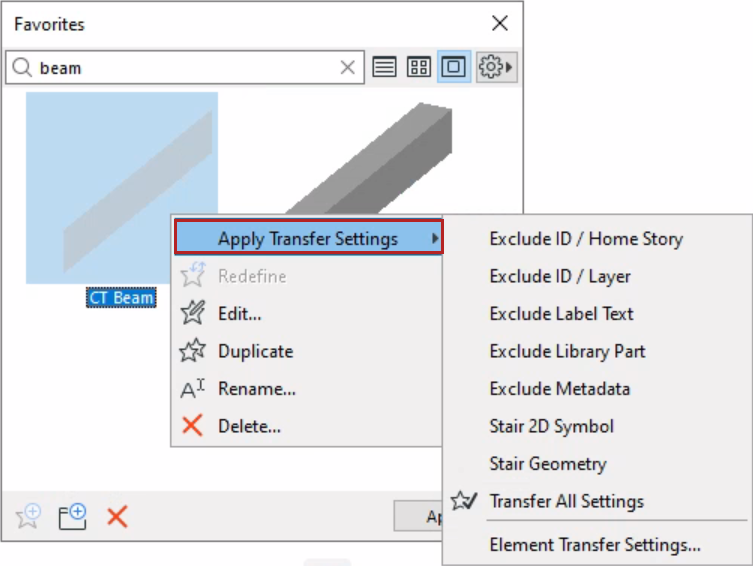
To see the list of the project’s stored Transfer Sets:
- Use the Apply button’s pop-up, or
- Click Apply Transfer Settings from a selected Favorite’s context menu
The Transfer Set defines the list of parameters applied with the Favorite.
Change to a different Transfer Set, if needed: Click on any Set name to apply it.
- Define and manage Transfer Sets here: Element Transfer Settings
- One of the sets is tagged (checked star icon) as the default to use when applying Favorites.