Layer status
For each layer, you can define the following statuses:
Throughout the interface, icons indicate each layer’s status.
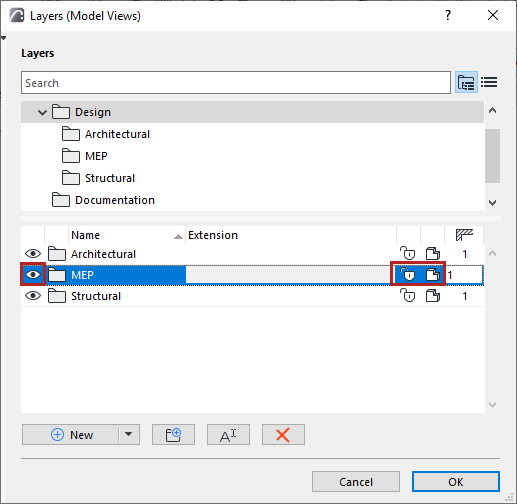
Edit these statuses in Layer Settings: Select one or more layers or folders, and click the icons to change their status.
Lock/unlock


Lock a layer to prevent its contents from accidental modification. Elements on a locked layer cannot be edited or deleted and no new elements can be placed on it.
The “mixed” status is shown on folders that contain items of varied status.
Show/hide


Set the layer’s show or hide status. Elements on a hidden layer are not displayed.
The “mixed” status is shown on folders that contain items of varied status.
Show all layers
Do one of the following:
3D view mode


Choose Shaded vs. wireframe to display this layer’s elements in 3D views.
For example, you can place operator elements of Solid Operations on wireframe layers, and their target elements on solid layers.
Another way to change layer status: Use the shortcuts in the Quick Layers palette.
See Quick Layers.
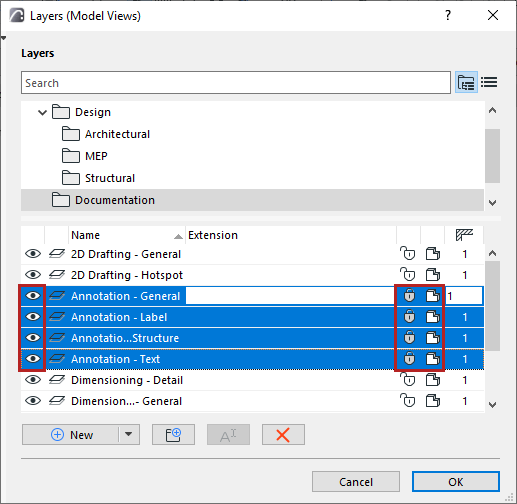
Edit status of all layers in a folder
In folder view: You can select a sub-folder from the bottom list. This way, you can edit the status of all the layers inside that folder.