Applies to:
- Layers
- Surfaces
- Composites
- Building Materials
- Fills
- Lines
Open attribute
settings
Flat list or folder
view
Resize panels in folder
view
Use folders to organize
attributes
Locate item in folder structure (Layers)
Sort attributes
Rename attribute
New attribute
Duplicate
attribute
New based on Selected
(Layers)
New folder
Open attribute settings
Use one of the following:
- Options > Element Attributes
- command from the Attributes toolbar (Windows > Toolbars >
Attributes)
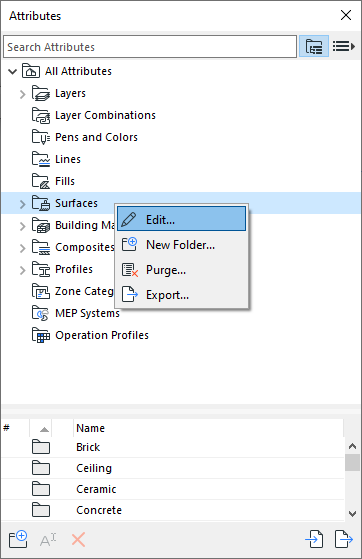
- From Attribute palette:
- Double-click any listed attribute
- Use the Edit context-menu command from a selected attribute or
the attribute-type folder
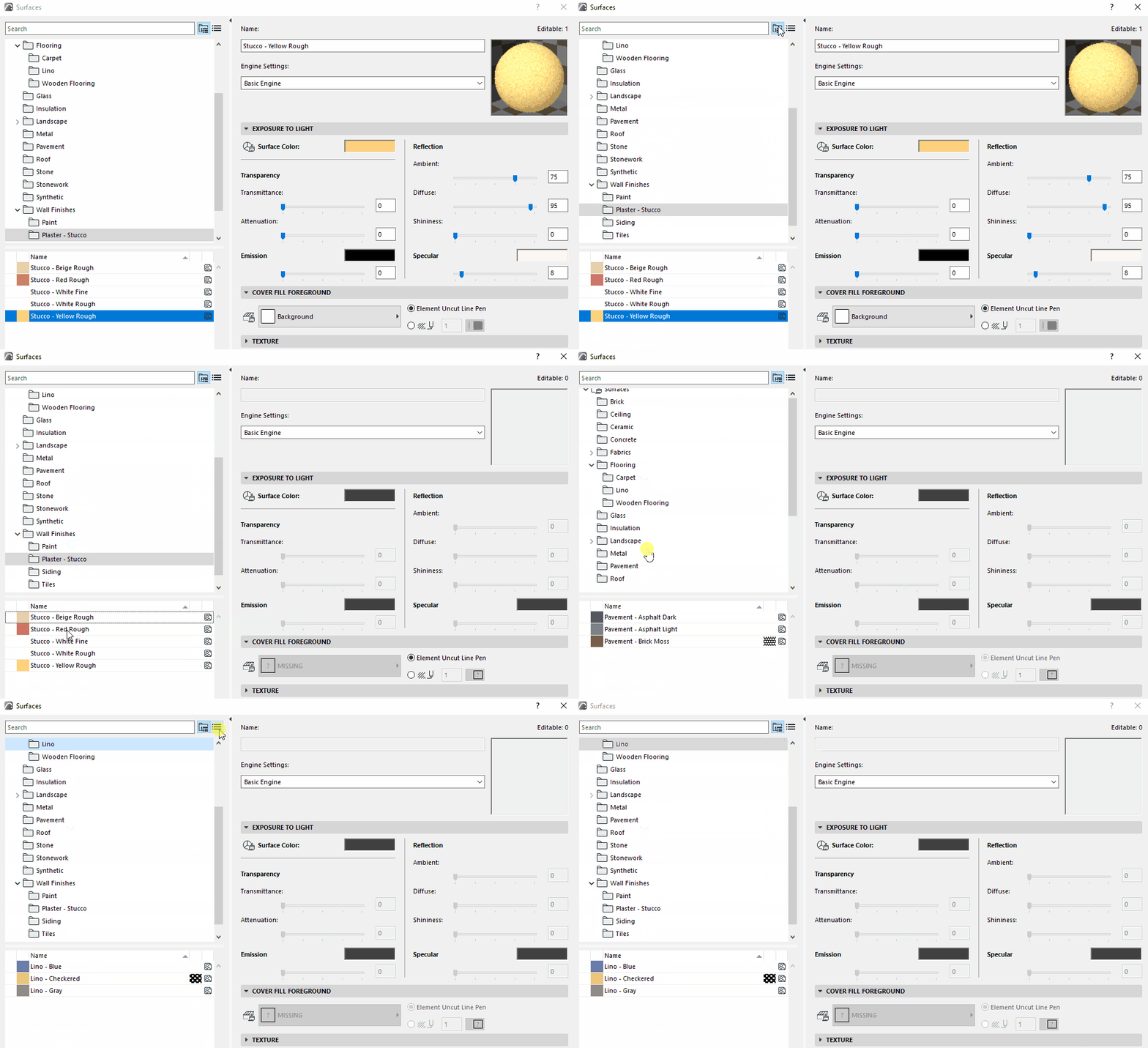
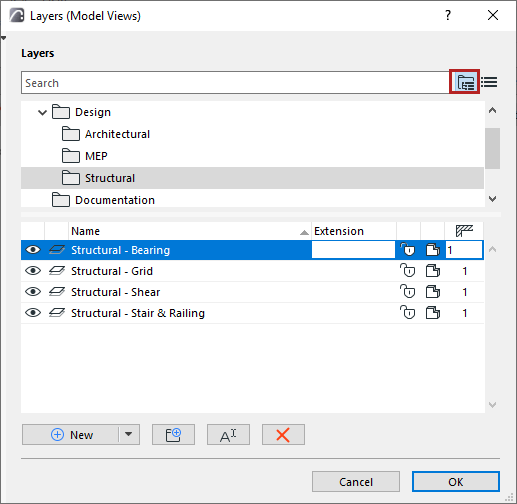
Flat list or folder view
The list of attributes can be displayed in folder or flat-list view.
Use the icons to switch between flat list and folder view.
In folder view, click on any folder to see its contents (attributes or
sub-folders) in the list below.
Open/close left panel
- Double-click anywhere on the splitter bar panel
- Click the black arrow at the top of the splitter bar
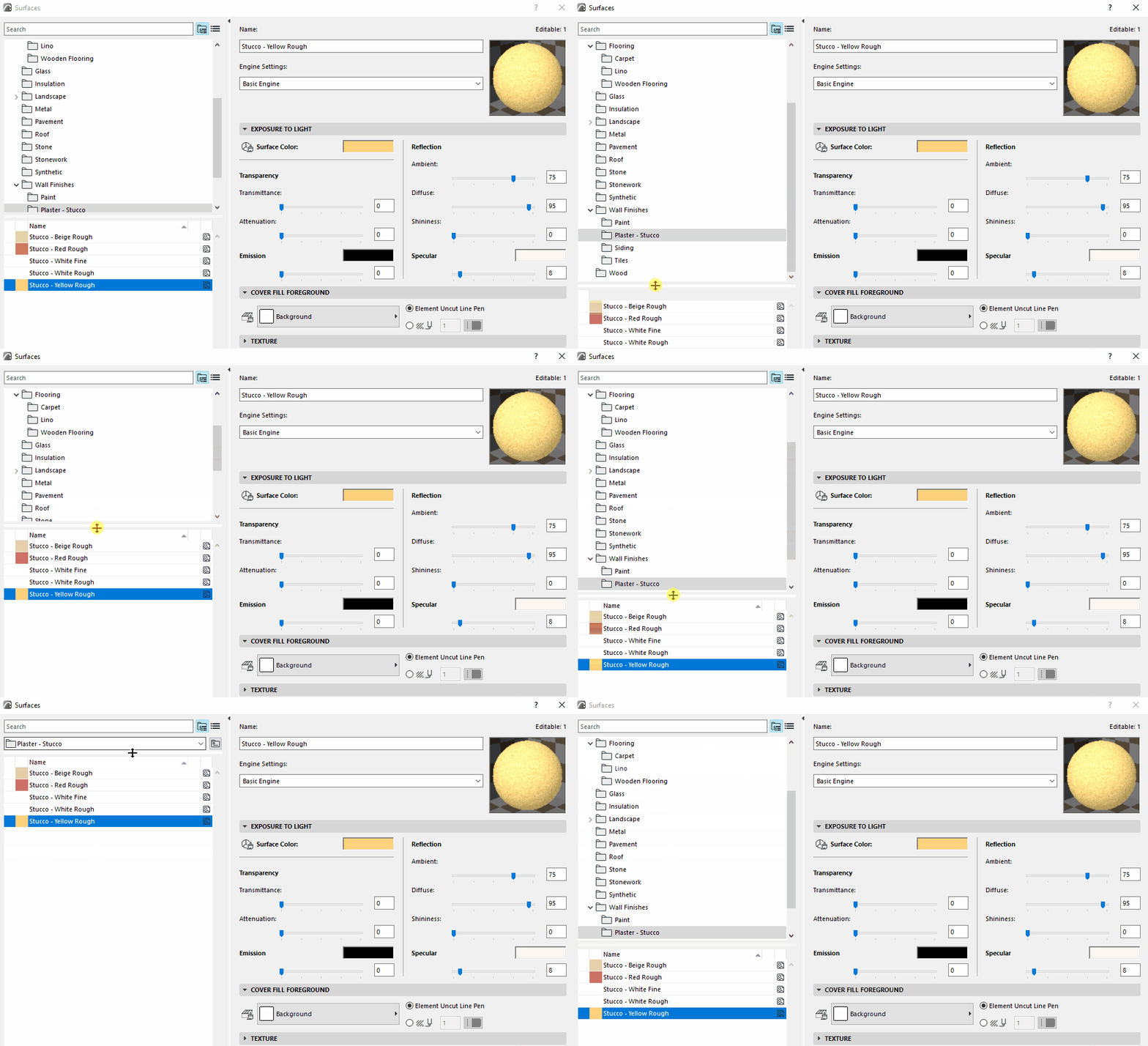
Resize panels in folder view
- Drag the splitter to the top to make the top panel disappear
- Double-click the splitter to open/close panels
Use folders to organize attributes
Folders are containers to help you keep track of your attributes. Use
them to organize your attributes in any hierarchy.
In folder view, click on any folder to see its contents in the list
below.
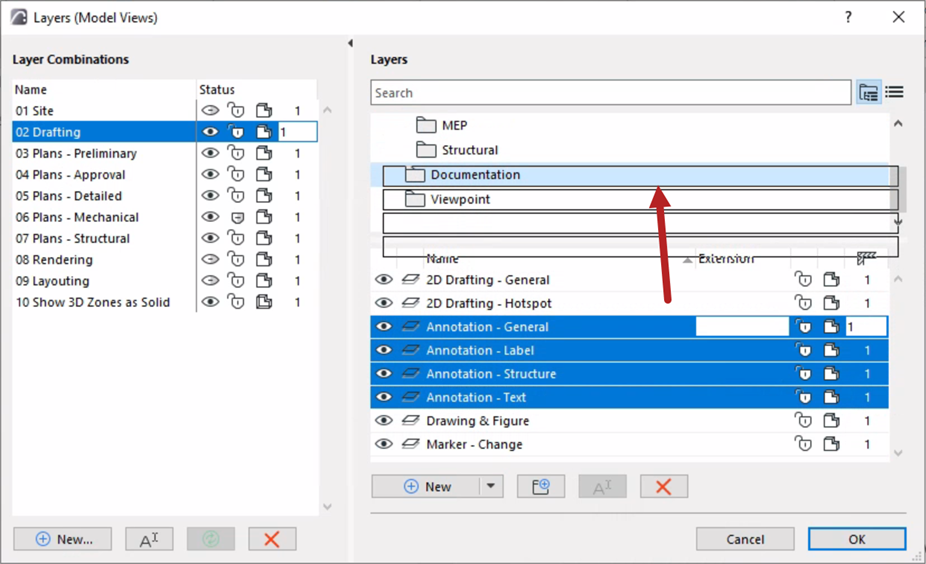
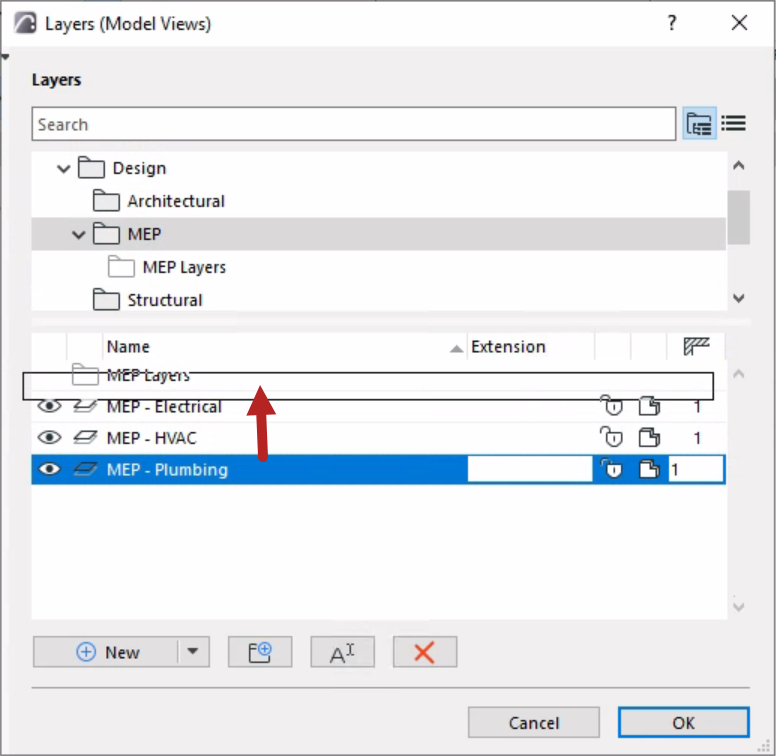
To reorganize the hierarchy and folder contents, just drag and drop
attributes and/or folders from the bottom list into other folders.
Locate item in folder structure (Layers)
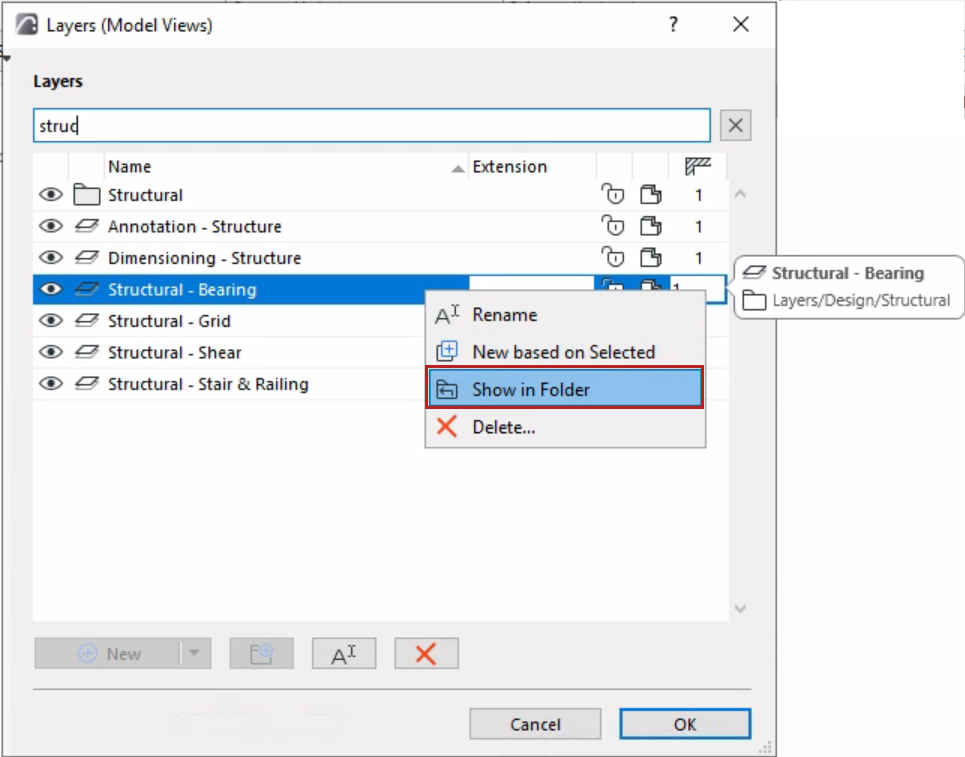
To see where a layer is located in the folder hierarchy, do one of the
following:
- Select the item, then use the “Show in Folder” context menu
command
- Hover to see the info pop-up
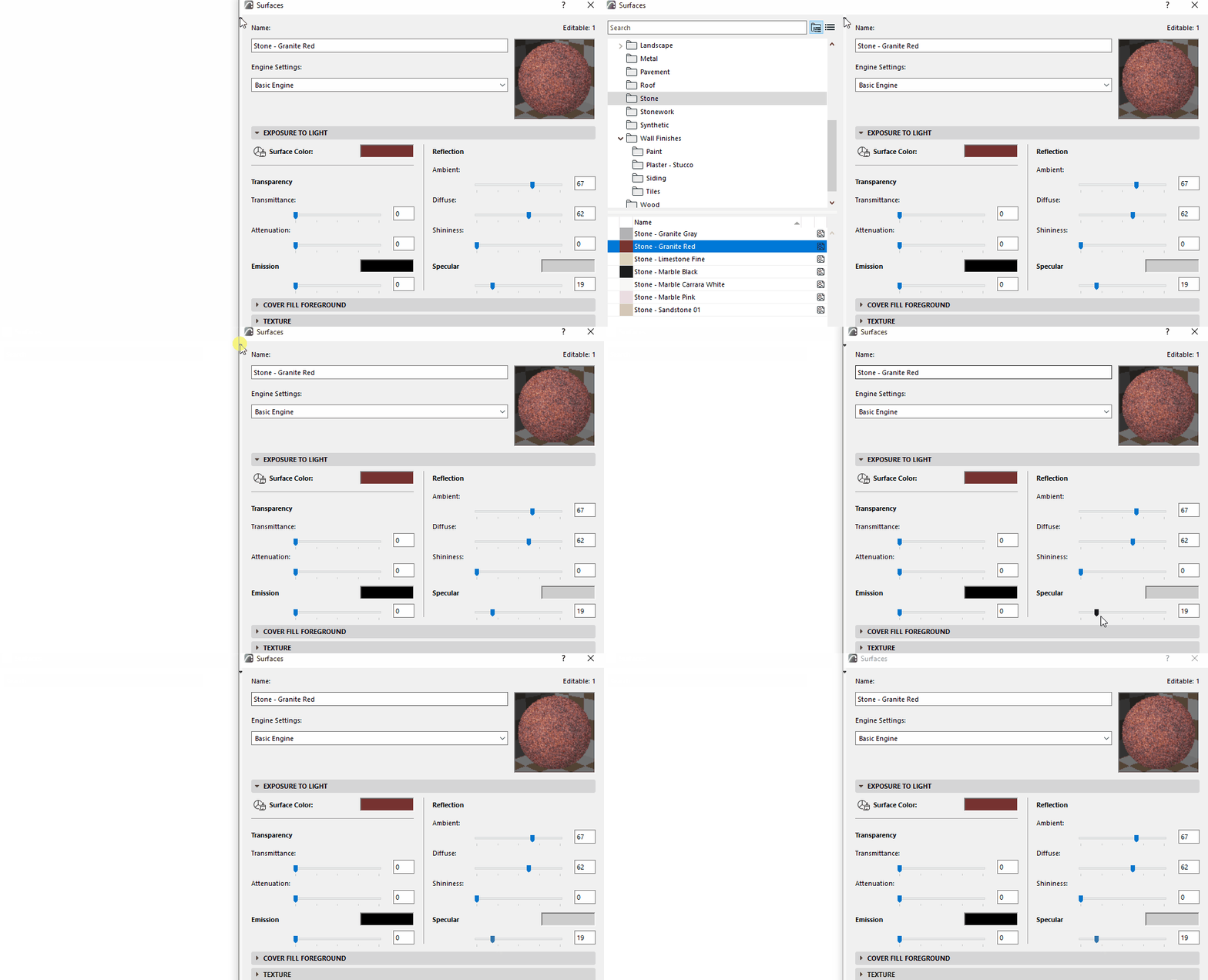
Edit all items in sub-folder
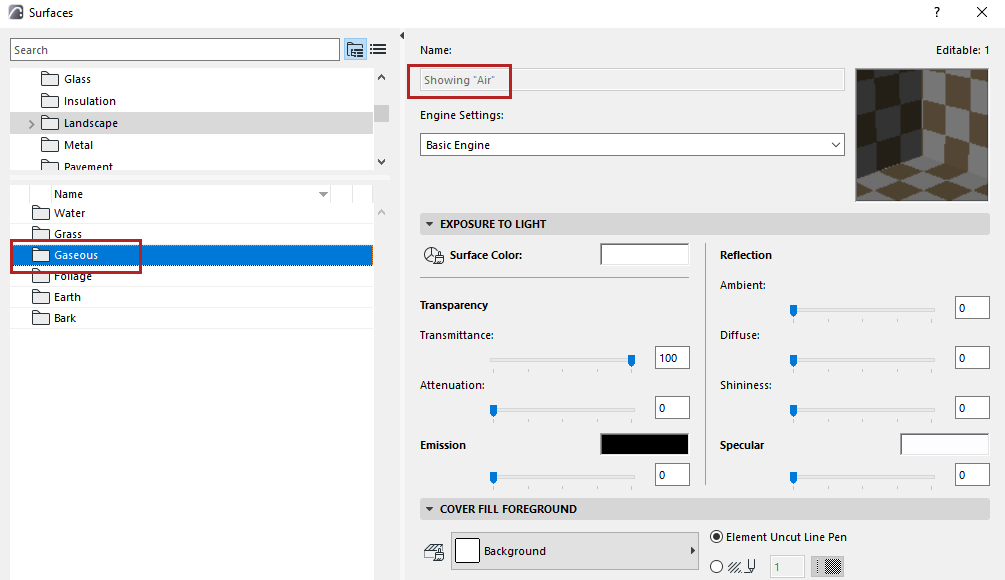
In folder view, select a sub-folder to edit all its contents at
once.
Tip: In folder view, select a sub-folder to edit all its
contents at once.
Sort attributes
In any list:
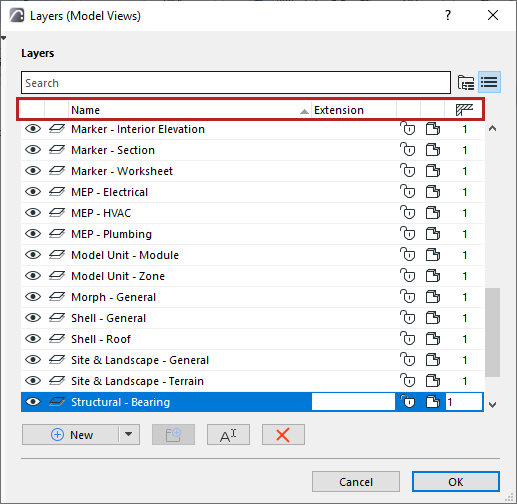
Items are sorted alphabetically by default.
Sort the list by clicking on any column header.
Rename attribute
Do one of the following:
- Click Rename from the attribute dialog, the Attributes
palette, or the item’s context menu
- Edit the Name field directly
Note: A
bubble informs you if you try to use a name that already exists
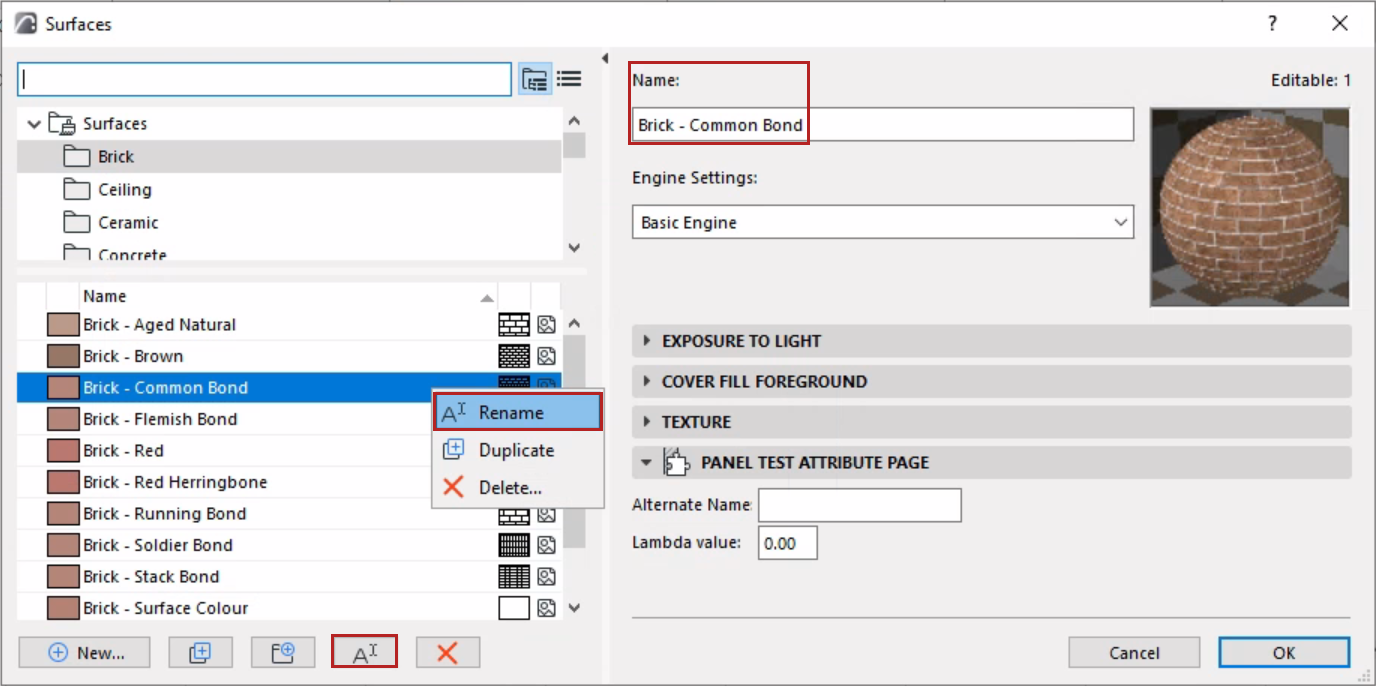
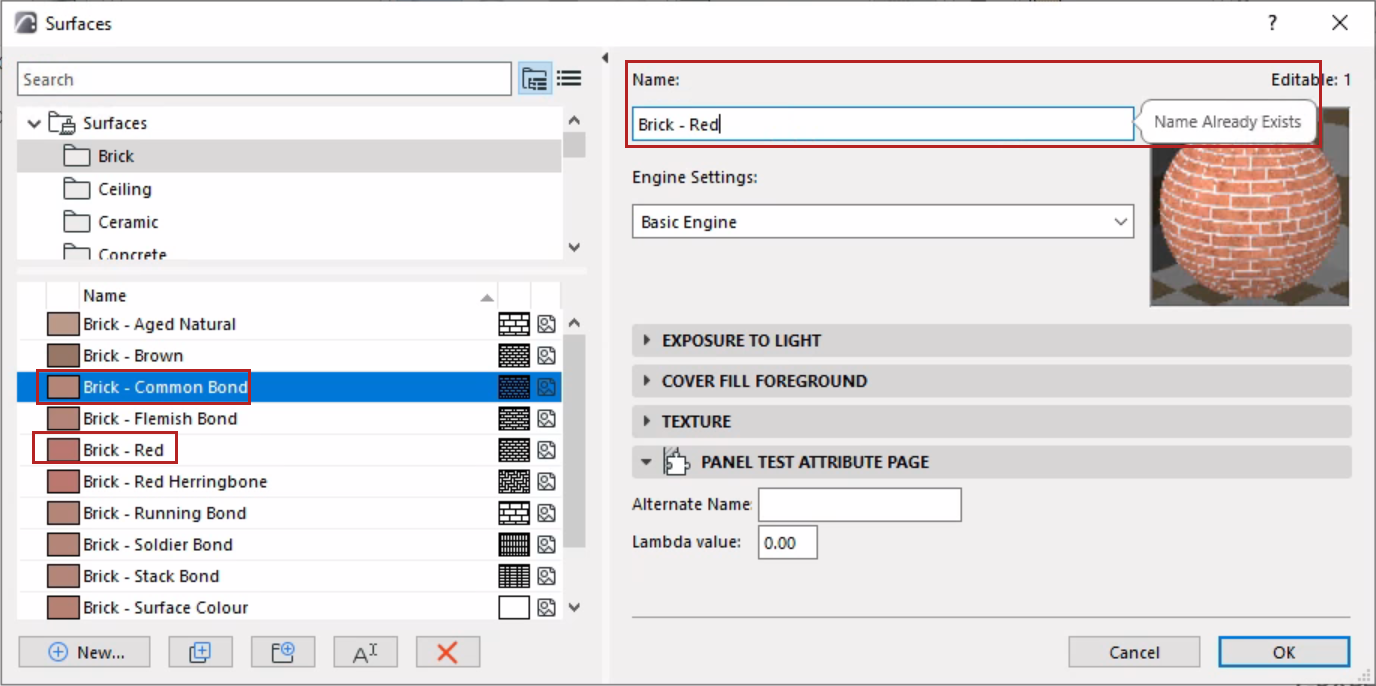
- Select an attribute or folder, then click its name to rewrite it
Search for attributes
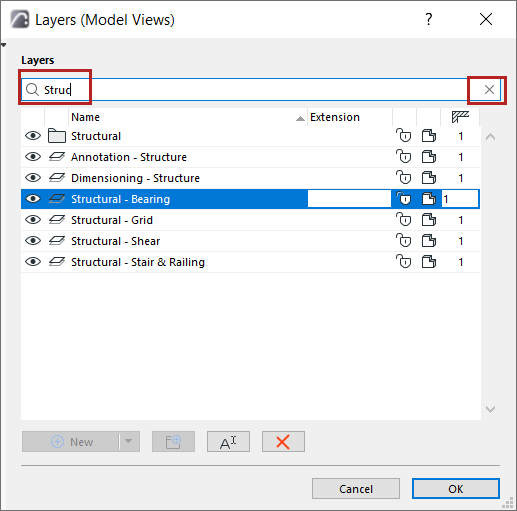
Use the search field to locate attributes or folders by name.
Click X to exit the search.
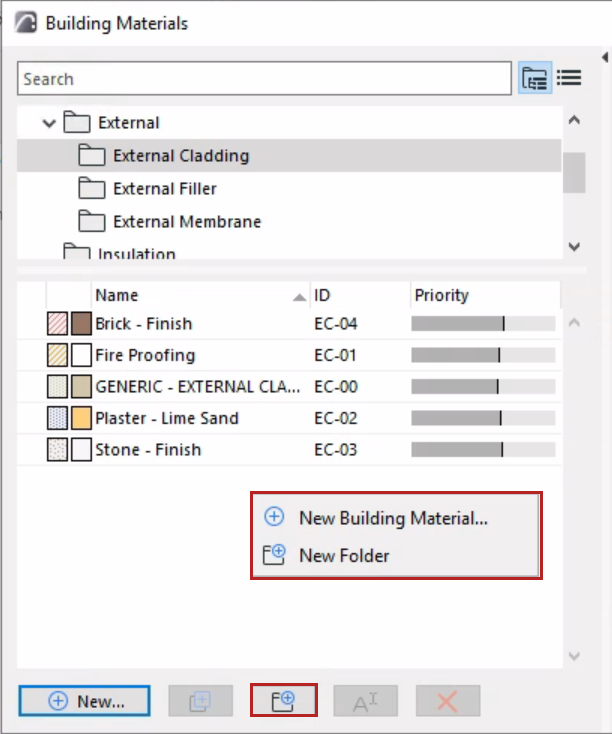
New attribute
Do one of the following:
- Click the “New...” button
- Right-click in empty space in the bottom list to access the New
command
Duplicate attribute
Do one of the following:
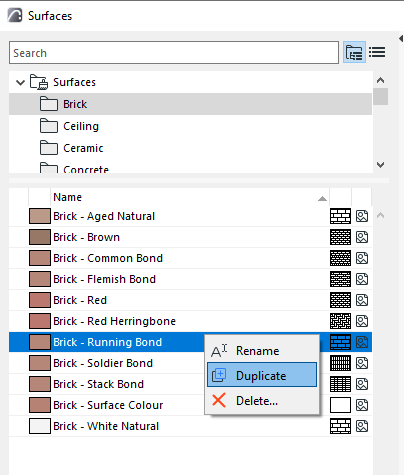
- Select any listed attribute, then click the Duplicate button
- Select any listed attribute, then context menu command
- Click the “New...” button, and use the Duplicate option from the
appearing dialog
New based on Selected (Layers)
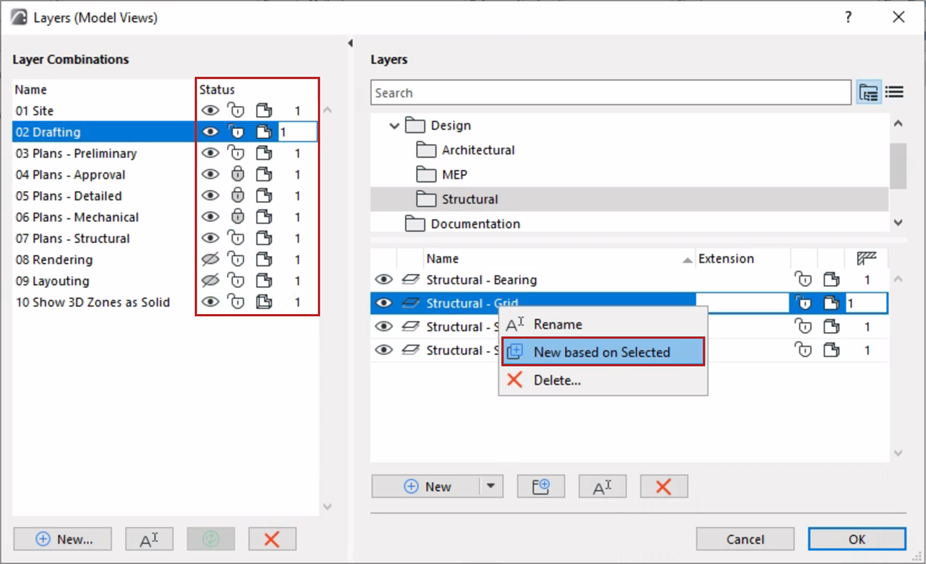
The new Layer will inherit the statuses (e.g. show/hide, lock/unlock)
of the currently selected layer in all Layer combinations.
New folder
Do one of the following:
- Click “New Folder” button
- Select any folder, then context menu command
- Right-click in empty space in the bottom list to access commands