Delete attributes
When migrating a file, using file merge or working with hotlinks, you may need to get rid of the unneeded attributes.
Deleting an attribute folder means you delete all its contents.
Deleting attributes can result in missing attributes
- in model elements which use those attributes
- in other attributes which are using the deleted item. (For example, if you delete a fill type that is also used as part of a composite.)
To avoid missing attributes, the Delete and Replace dialog pops up to help you choose replacement attributes.
Delete and Replace
- from the attribute dialog or Attributes palette
- the item’s context menu
- your keyboard Delete or backspace button
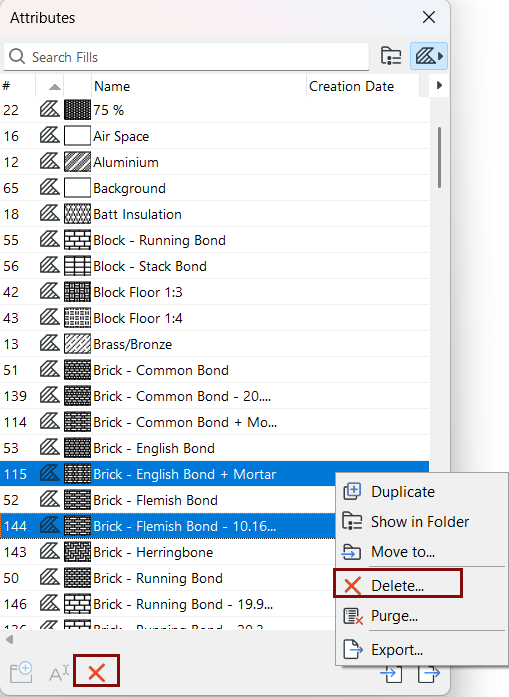
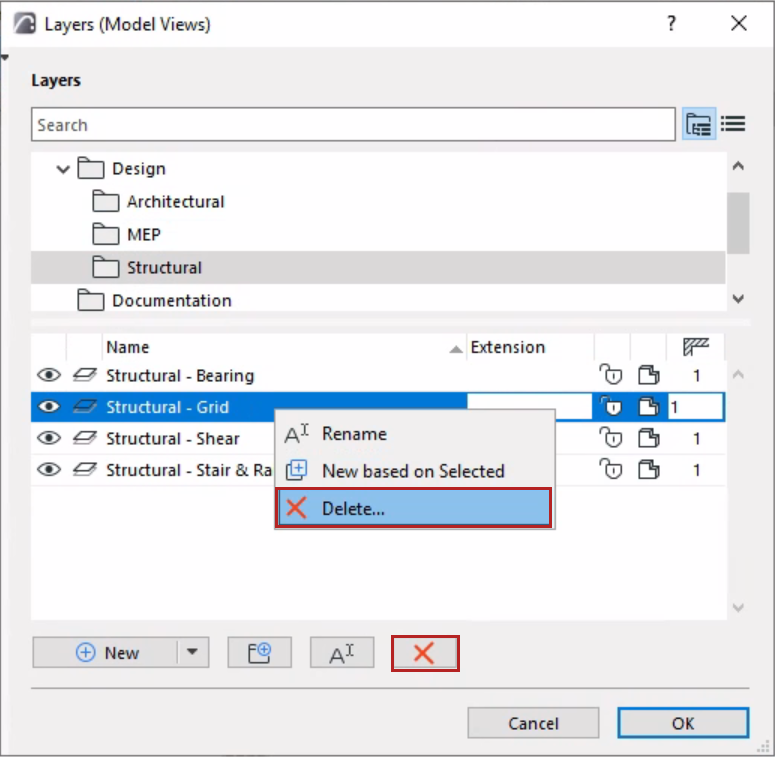
The Delete... button opens the Delete and Replace dialog for the following attributes:
- Layers (except the Archicad Layer) - see Delete Layers and Move Elements.
- Lines (except the Solid Line)
- Fills (except Background, Foreground, Gradient Fills)
- Surfaces
- MEP Systems
- Building Materials
- Profiles
- Zone Categories
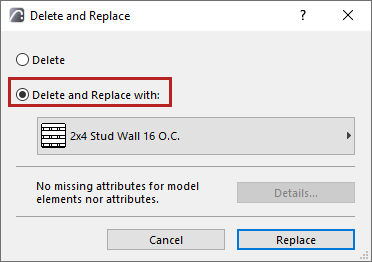
In the Delete and Replace dialog: Choose either Delete, or Delete and Replace.
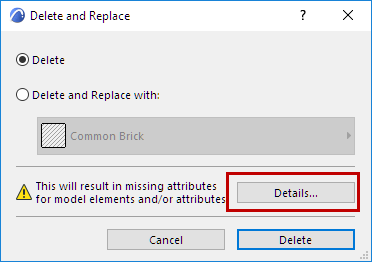
The warning icon is displayed if missing attributes will result. Click Details to show the number of missing attributes. For further detail on these items, click Show Details in Browser.
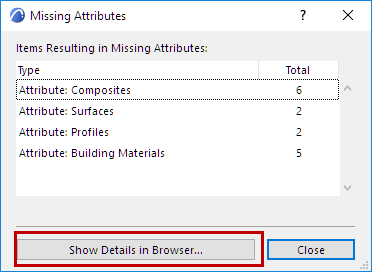
In Teamwork, Details will show the number of elements or attributes that will result in “Missing” attributes which are not reserved by you.
Delete and Replace
Choose this option to select a replacement attribute.
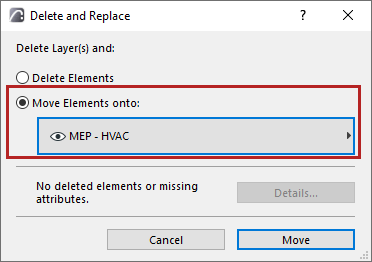
Delete Layers and Move Elements
If you delete a layer, you have the option to move its elements onto a different layer. Otherwise, when you delete a layer, you will also delete all the elements that the layer contains.