Reposition Editing Plane
Use Editing Plane commands to change the default editing plane position, either before or after beginning element input. The available commands vary depending on your editing situation.
Where To Find Editing Plane Commands
To reposition the editing plane in the 3D window, either before or during editing, use the commands from one of the following places:
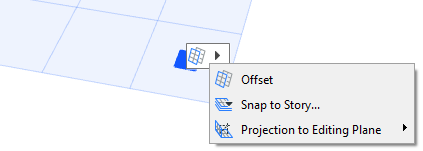
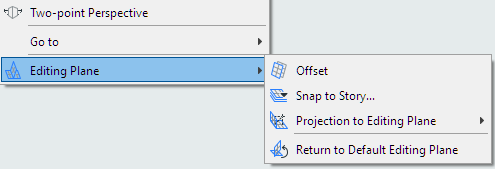
Snap Editing Plane to Story
Use this command prior to element input.
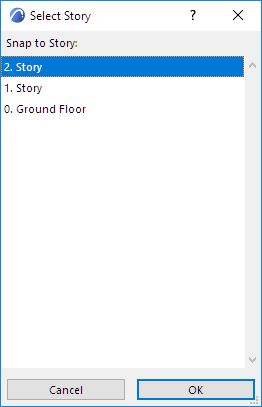
To snap the editing plane to a specific level corresponding to a project story:
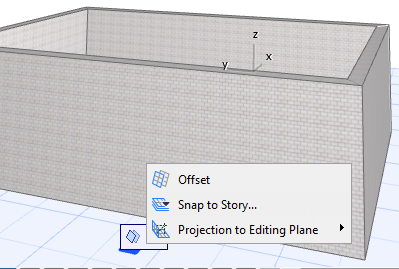
Offset Editing Plane
Use this command prior to element input.
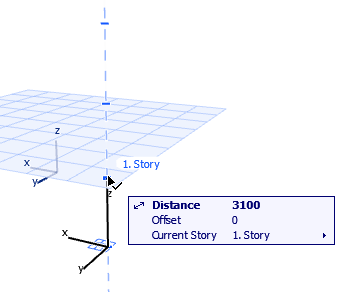
Other Editing Plane Commands during input
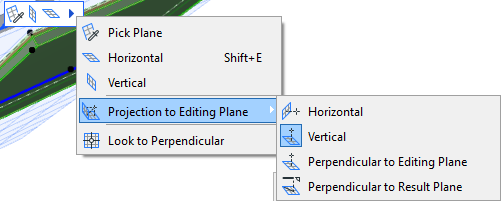
Choose one of the options for your preferred editing plane orientation (the available options vary depending on the orientation of the current editing plane).
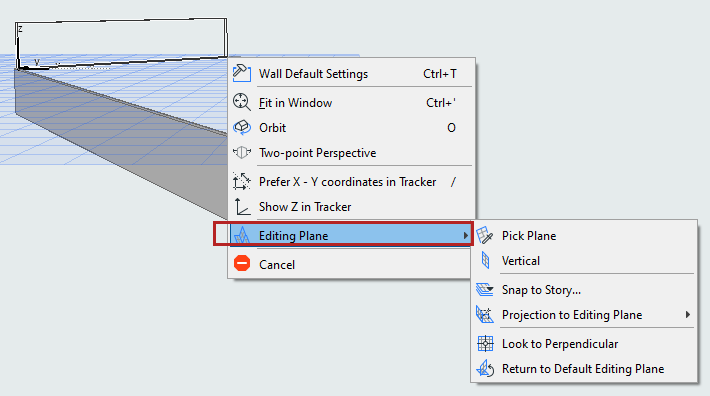
- Next Plane: Click this to switch to the next editing plane that makes sense in the editing context.
- Pick Plane.
See Pick Plane.
- Horizontal: Rotates the editing plane to a horizontal position.
- Vertical: Rotates the editing plane to a vertical position.
- Offset.
See Offset Editing Plane.
- Look to Perpendicular: Sets up the 3D window so that it is perpendicular to the Editing Plane.
- Projection to Editing Plane.
- Lock to Plane.
See Lock to Plane.
Pick Plane
Once you click this command, the gray rectangle “plane chooser” feedback appears.
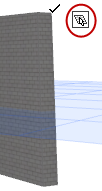
Do one of the following to pick the desired plane for the editing plane:
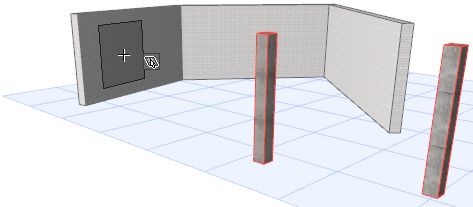
Cursor Projection onto Editing Plane
By default, as you perform graphical editing, your cursor is moving on the editing plane. If needed, you can redefine the direction of this cursor projection.
To change the cursor projection with respect to the editing plane:
Lock to Plane
Use this command lock input to the existing editing plane before you start creating the new element.
This is useful, for example, if you wish to create an element on the existing editing plane, by tracing the shape of an existing element (e.g. roof) on another plane.
- Bring up the Editing Plane commands.
- From the Projection to Editing Plane sub-menu, choose the Lock to Plane toggle.
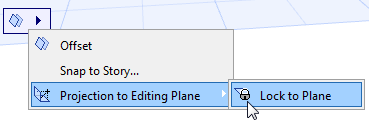
The new element will be placed onto the editing plane, even if your cursor is on another plane.