Magic Wand
The Magic Wand (shortcut: Spacebar) saves you work by finding and tracing a linear or polygon shape from among existing elements, and then generating a new element based on that polygon.
- If you click on an edge or node, the Magic Wand traces the element and/or element chain.
- If you click in empty space, or on a surface, the Magic Wand traces the closed geometric area formed by the nearest elements.
How to Create an Element with the Magic Wand
Using the Magic Wand to Add/Subtract Polygon Shapes
How to Create an Element with the Magic Wand
Graphical Feedback
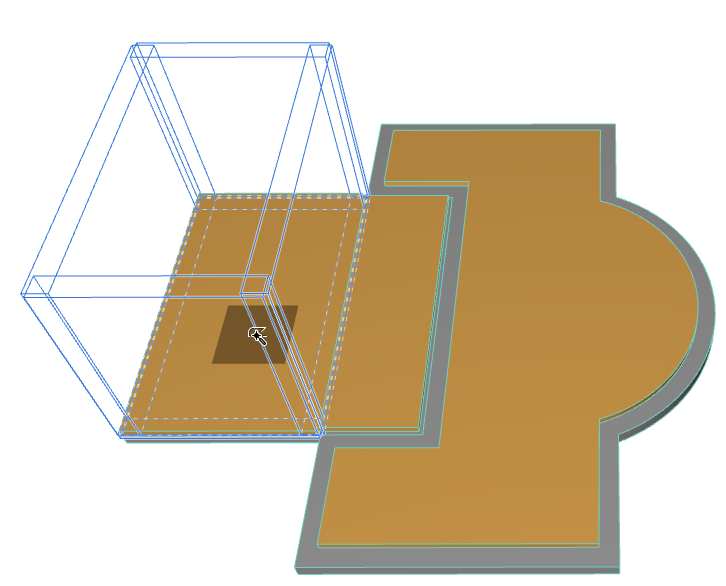
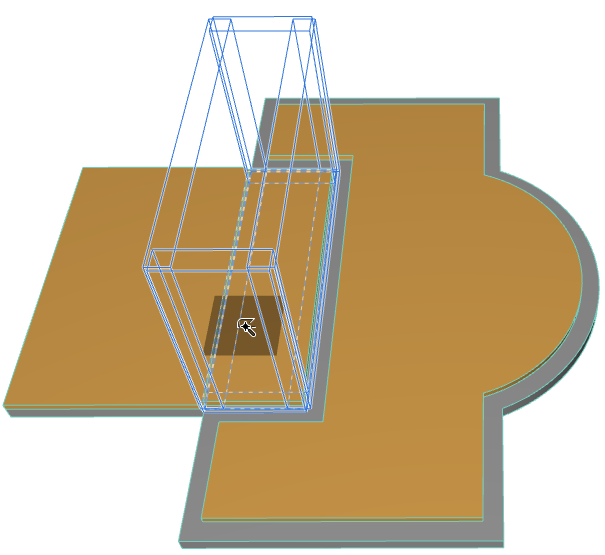
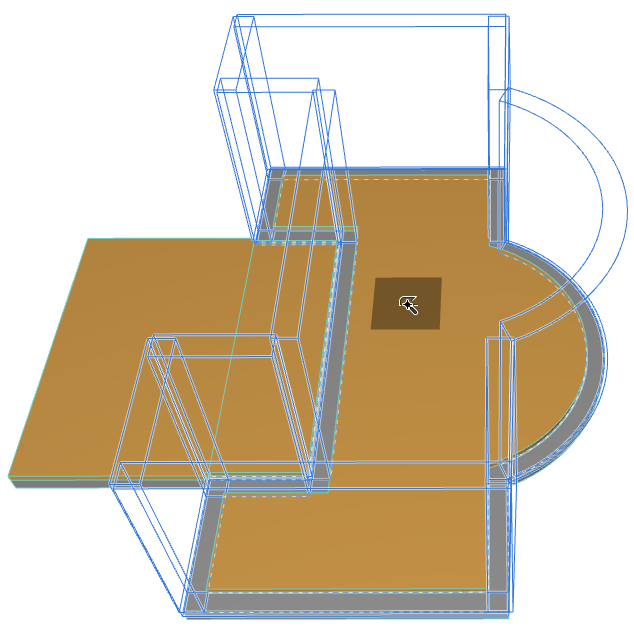
While the spacebar is pressed, move the cursor around to view feedback on the possible resulting elements. Here, if you are using the Magic Wand to create Walls atop two intersecting slabs, the feedback shows you the possibilities:
Magic Wand Cursor Icons
The Magic Wand has three different shapes for identifying:
|
nodes |
 |
|
edges |
|
|
empty space and surfaces |
 |
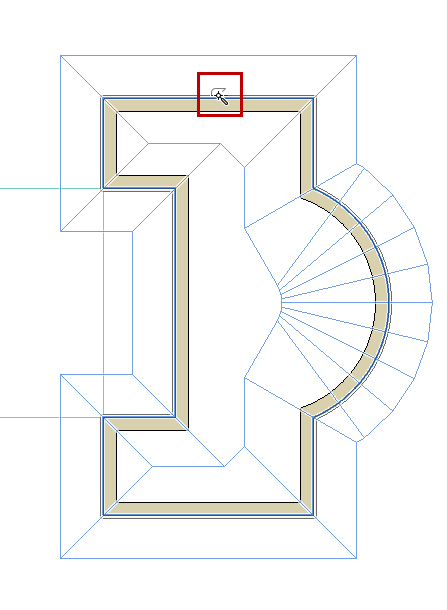
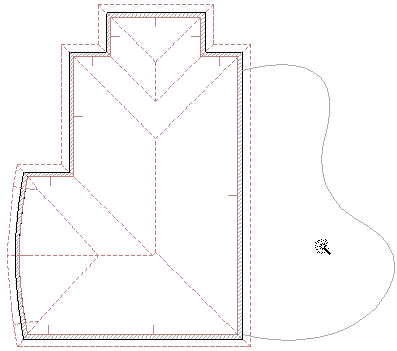
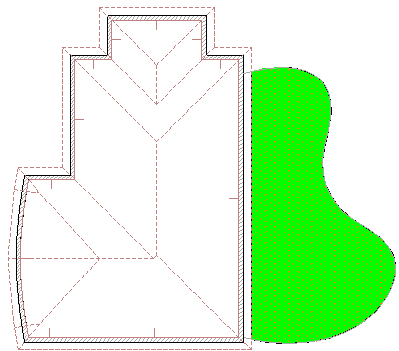
Magic Wand Examples
Hints and Tips
- New elements use the current default settings of the corresponding tool. You should always check that these are correct either before or after using the Magic Wand, especially if the elements are intended to have a specific relationship to each other, such as a roof resting on a Wall.
- You can refine the Magic Wand function by selecting one or more elements. In this case, the Magic Wand will only take the selected elements into account when searching for chained elements or a bounded area.
- When creating curved Walls and polygon-type elements based on Arcs, Circles and Splines, the approximation is defined in Magic Wand Settings.
See Magic Wand Settings.
- The new elements are not linked to the originals and can be manipulated independently.
- If Offset or Multi-Offset has been activated, you can complete the offset function after the Magic Wand has created the new polygon.
- If you are creating a single Roof, you must first draw a pivot line and define the pitch before creating the polygon with the Magic Wand.
- If you are creating a Fill with a custom origin, you will first generate the polygon with the Magic Wand, then draw the fill orientation vector.
Using the Magic Wand to Add/Subtract Polygon Shapes
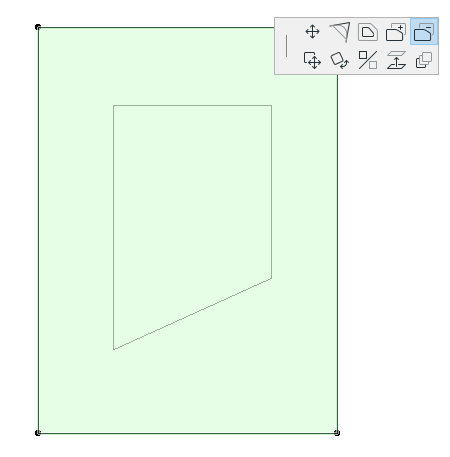
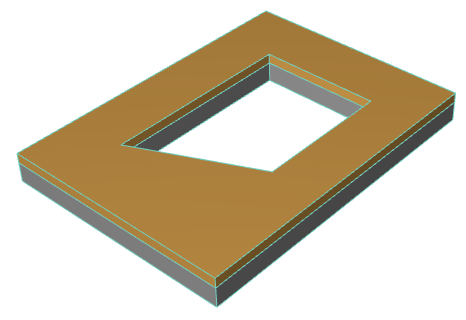
Use the Magic Wand to add or subtract the shape of an existing polygon (of the same or a different element type).
- Select the polygon from which you wish to subtract another shape. In this example we want to subtract a polygon from a slab.
- Choose the “Subtract from Polygon” icon in the pet palette.
- Move the cursor onto the polygon that you want to subtract and activate the Magic Wand (press the spacebar).
- Click to complete.