Parallel and Perpendicular Constraints
Use these commands to draw new elements that are either parallel to or perpendicular to a reference line or existing element edge.
The Parallel and Perpendicular constraint commands are accessible from the Drafting Aids toolbar:
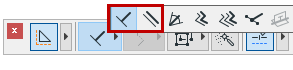
They are also accessible from the Control Box.
See Control Box for more information.
- Make sure that Grid Snap is off.
See Deactivate Grid Snap.
- Choose the Perpendicular or Parallel icon and click it to make it active.
- Select a line or an element edge as a reference by clicking it (the Mercedes feedback will indicate an edge), or draw a temporary reference line using the cursor. The cursor icon will indicate which method (parallel or perpendicular) is active.
- Draw the new element, which will be perpendicular or parallel to the reference line.