Distance Guides
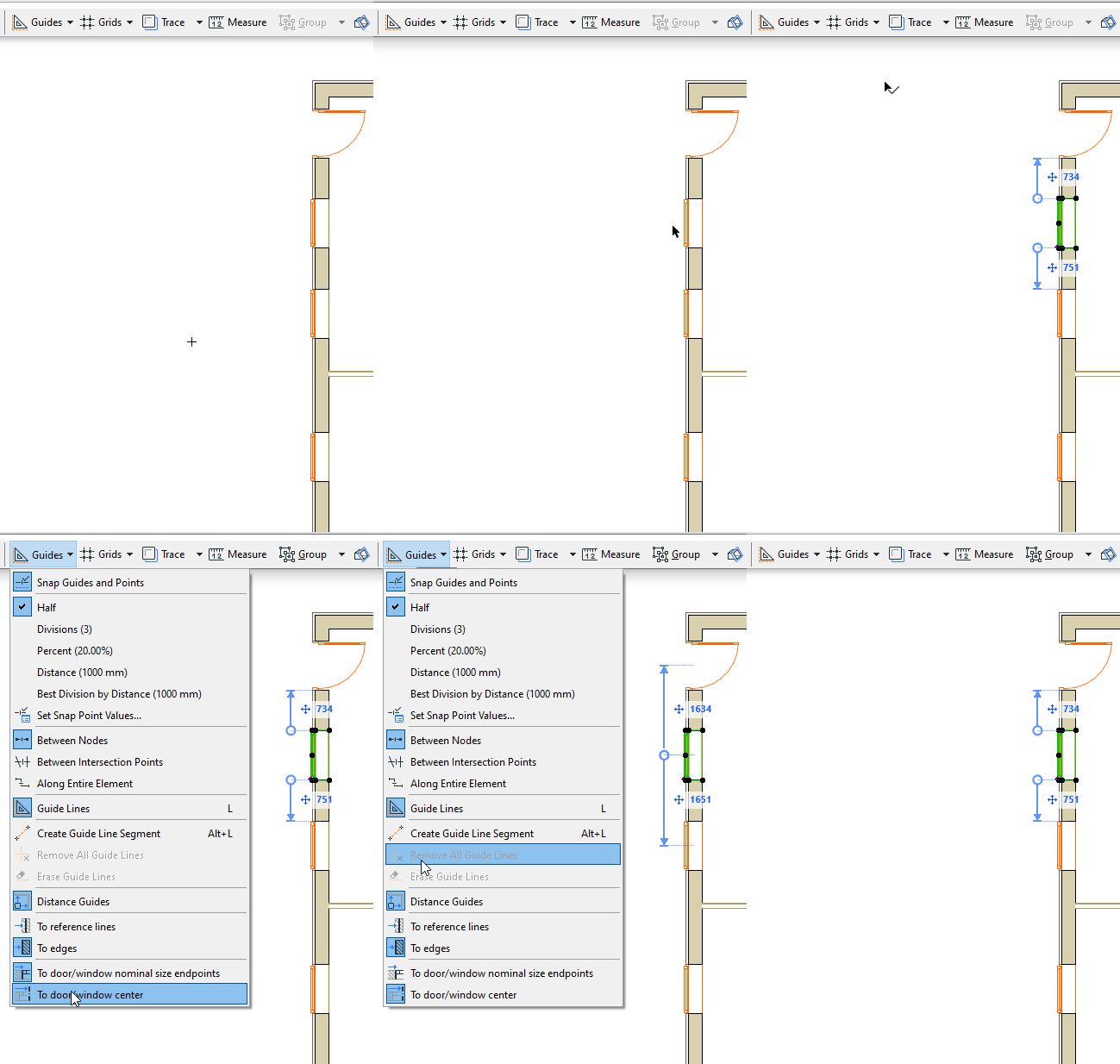
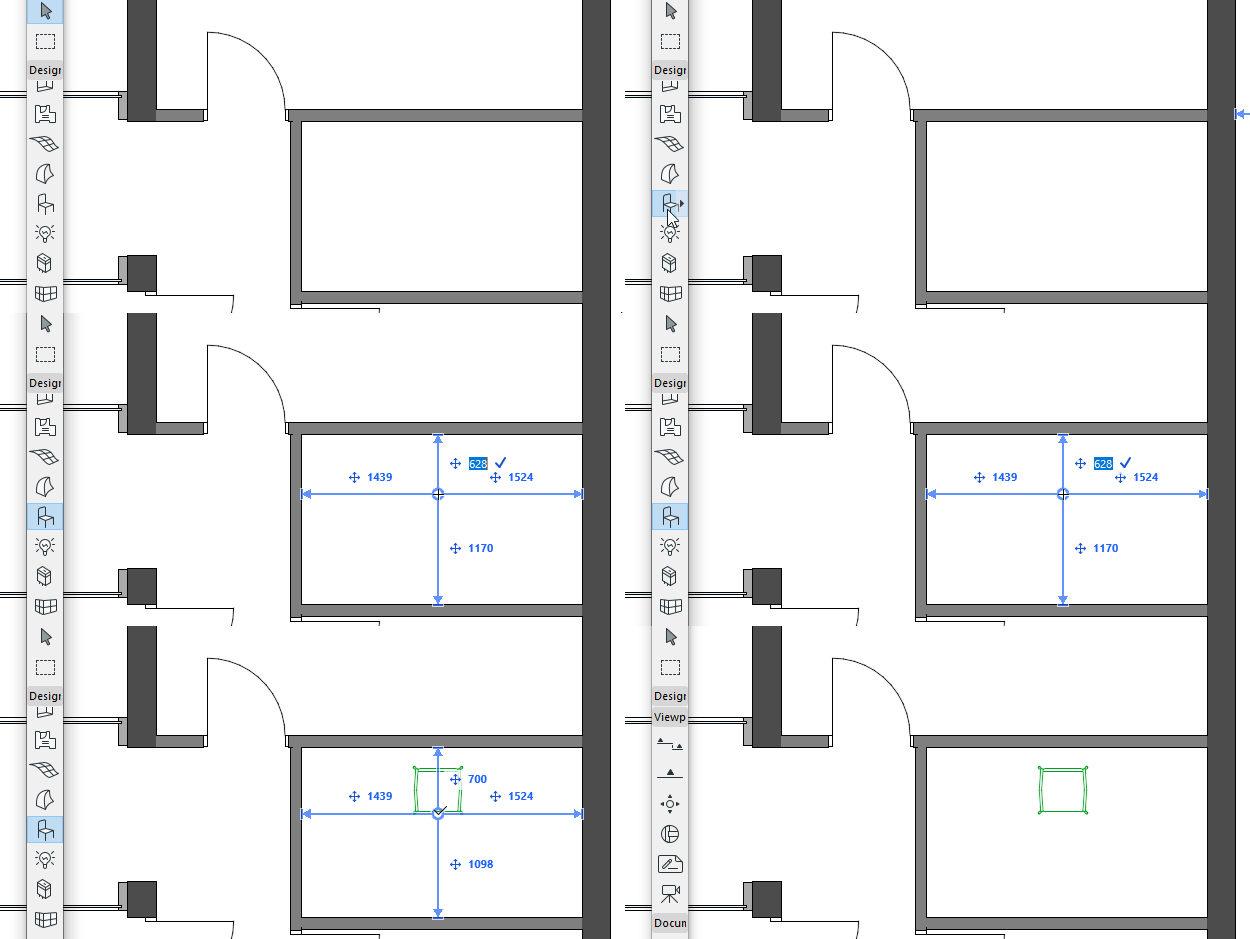
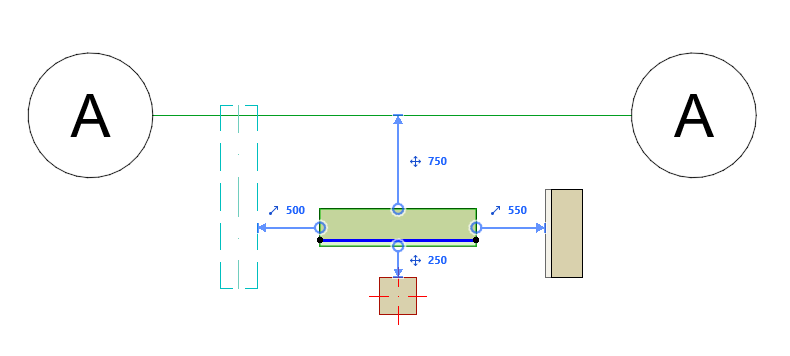
Use Distance Guides to input and move elements accurately on the Floor Plan, with pop-up guides that show dynamic distances from surrounding “context” elements. You can use Distance Guides both during and after element placement.
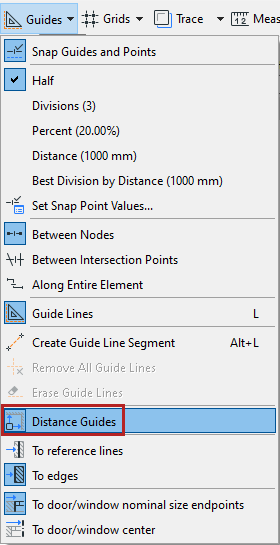
Enable Distance Guides
Distance Guides are enabled by default.
Turn them on or off in the following ways:
Distance Guide color can be customized at Options > Work Environment > Tracker and Coordinate Input.
Set Distance Guide Preferences
From the toolbar toggle:
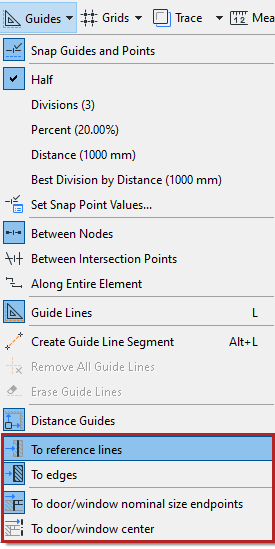
- Set whether the guides should measure from element edges, or from their reference lines
- Set which door/window reference points to use. See Door/Window Reference Points.
Which elements display Distance Guides?
The following “context” elements show Distance Guides when you select or input a standalone element:
Distance Guides - Priority
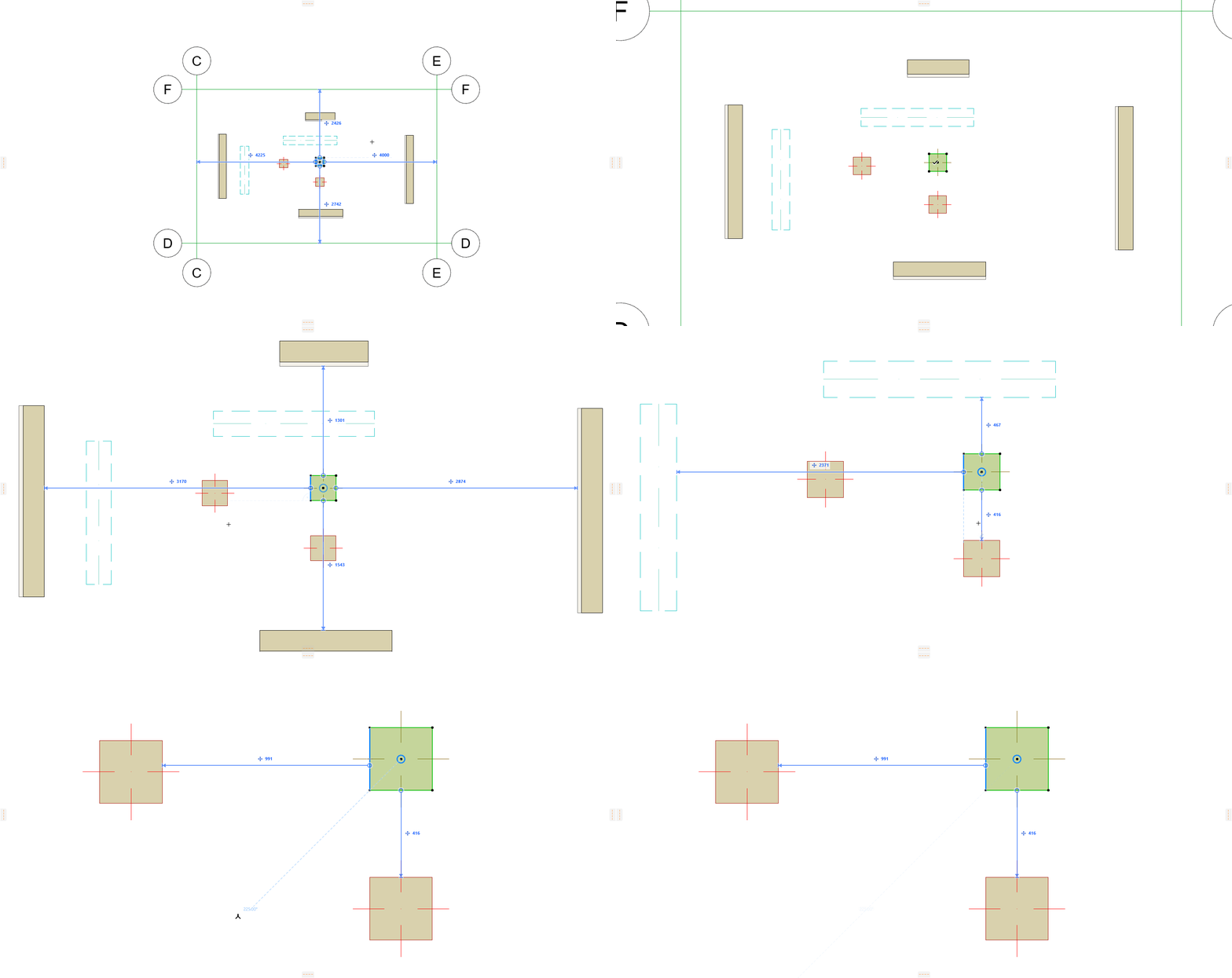
When several element types (visible in the current zoom) can all be used as context elements, Distance Guides “prefer” elements in the following order:
Use Distance Guides to edit selected element
Note on Distance Guides with walls and beams
When using Distance Guides to "move" these elements lengthwise, they will stretch or shrink (instead of moving from one place to another). Connected walls and beams will not break as a result.
Use Distance Guides for element input
- Activate one of the following element tools:
- Define cursor location by using the Tracker. You must use the keyboard to enter the Tracker and edit the values.
- Distance Guides indicate the perpendicular distance from cursor position to the surrounding “context” elements. (Curved elements are not supported.)
Relink Distance Guide to another reference edge
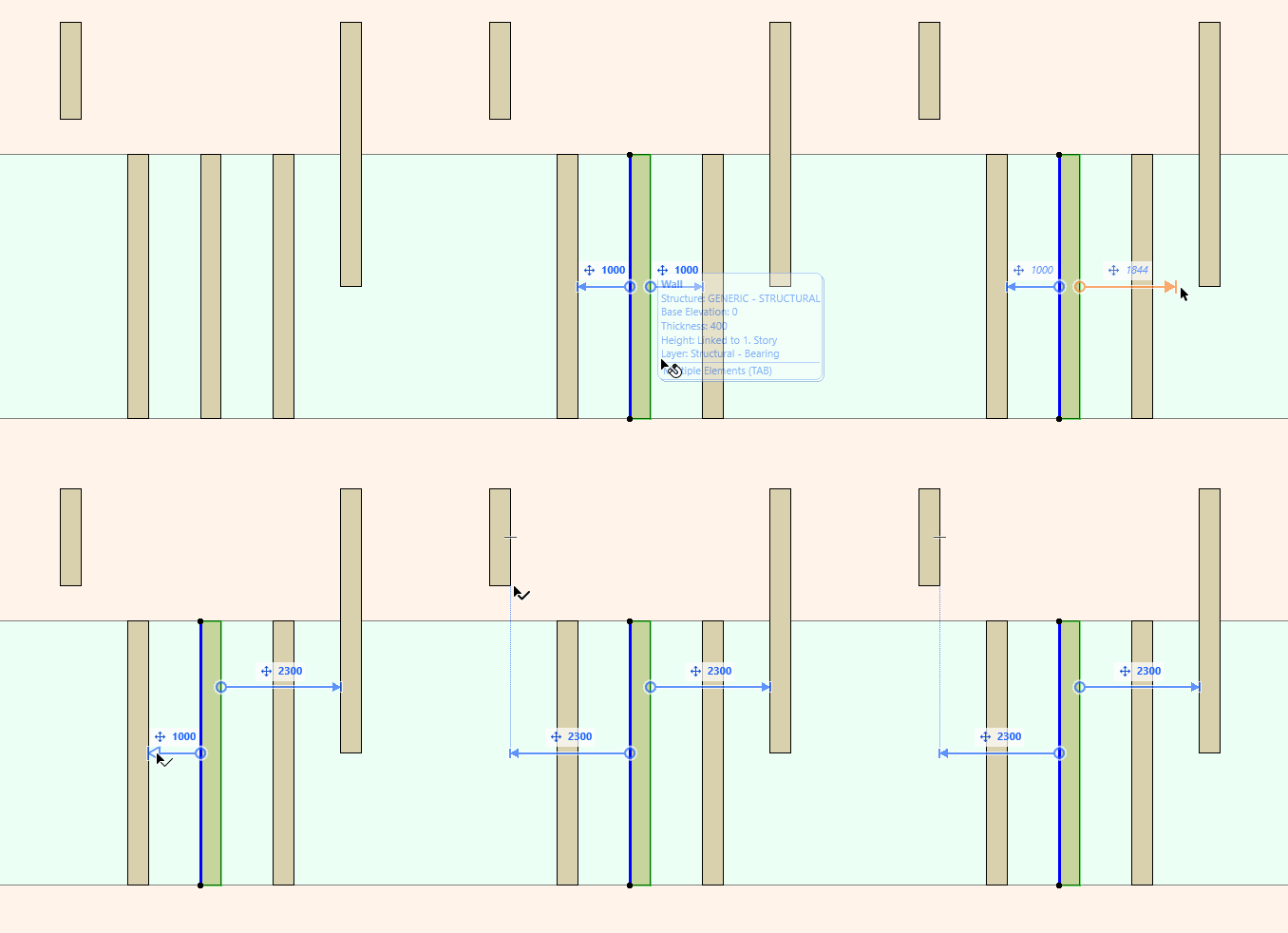
For a selected element on the Floor Plan, you can manually relink the Distance Guide to another edge.
Door/Window Reference Points
Choose which door/window reference points to use: