Mirroring Elements
Mirroring creates a mirror image of selected elements on the Floor Plan or in the 3D Window.
To Mirror an element:
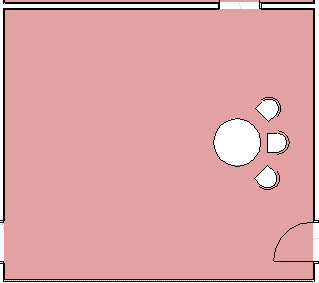
- Select the Element(s) you want to mirror. Here, we want to place the table and chairs in the facing direction, at the other side of the room.
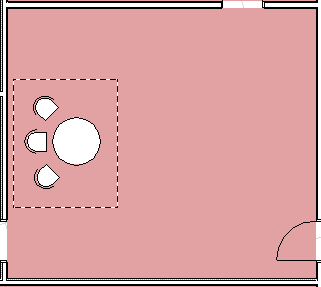
- Select the Edit > Move > Mirror command, or choose the Mirror command from the context menu, the Drag Elements toolbar, or the pet palette.

- Define the mirroring axis with two clicks, as if you were drawing a Line.
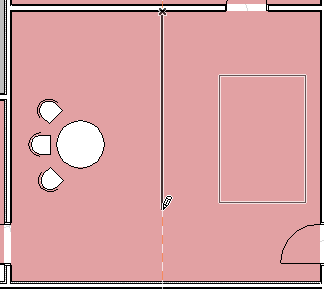
The mirrored elements will be placed after the second click.
Note:
- To Mirror a Copy, press Ctrl while executing the regular Mirror command.
- Any number of Doors and Windows can be mirrored at a time. The mirrored Door/Window will always be in line with the wall that contains the original. Select the Door/Window; click once. This click is the axis of the mirroring action.
- Text, Line arrowheads and Dimensions will not be mirrored, only their bounding box.
- Mirrored Text blocks, Labels, Dimensions and Fill polygon area labels are always readable from the bottom and the left side of the drawing.
- Zone stamps cannot be mirrored.