Create a Fillet or Chamfer
Use the Edit > Reshape > Fillet/Chamfer command to fillet or chamfer the intersection of two straight lines/polylines, walls, or the corner(s) of a polygon element.
These commands are also available in the Standard toolbar.
For special fillet/chamfer options available with Morphs, see Basic Morph Editing: Fillet/Chamfer a Morph.
To open the Fillet/Chamfer dialog box, select the two lines, or the polygon element.
Then do one of the following:
- Choose the Edit > Reshape > Fillet/Chamfer command, or
- If the selected element is a polygon, choose the Fillet/Chamfer icon from the pet palette.
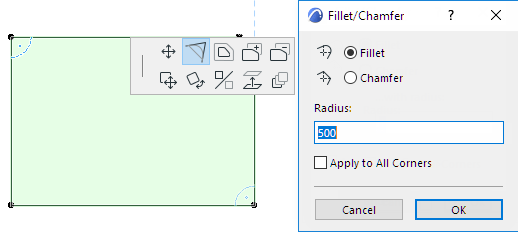
Choose either Fillet or Chamfer:
- Fillet joins the endpoints of two straight segments endpoints with an Arc.
- Chamfer joins the endpoints of two straight segments with a straight segment, cutting off corners.
- Enter a radius for the fillet/chamfer. (The chamfer does not have a radius, but it will be drawn as the chord of arcs of the specified radius.)
- Click OK.Note: The Fillet, Chamfer and Intersect commands are not effective on grouped elements, unless Suspend Groups is on.
See Suspend Groups.
Apply to All Corners
To apply the Fillet or Chamfer to all corners of the selected polygon, check the Apply to All Corners checkbox.
If you have selected a polygon and then the Edit > Reshape > Fillet/Chamfer command, the checkbox is selected by default and uneditable; the fillet/chamfer will apply to all nodes.
To apply the Fillet/Chamfer to a single node of the polygon, click on that node and use the pet palette command to open the Fillet/Chamfer dialog box.