Revolved Shell: Define Contours in Section
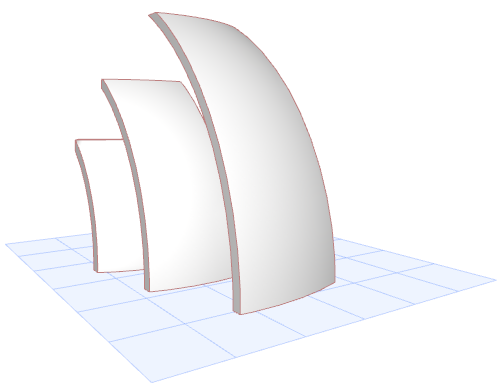
Here, you draw several revolved Shells having a common endpoint for their profiles, but slightly offset from each other.
Then, in the Section window, select each Shell separately and draw its contour in the shape of a rectangle - use progressively smaller rectangles. The result is several overlapping Shell segments, each of a slightly different size.
- Ensure that the default Shell elevation is 0.
- Draw the first revolved Shell on the Floor Plan as shown.
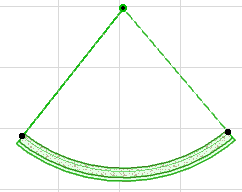
- Draw two more revolved Shells using the same profile starting point, but each slightly larger and offset from the previous one.
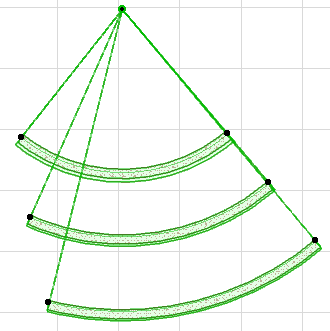
- View the result in 3D.
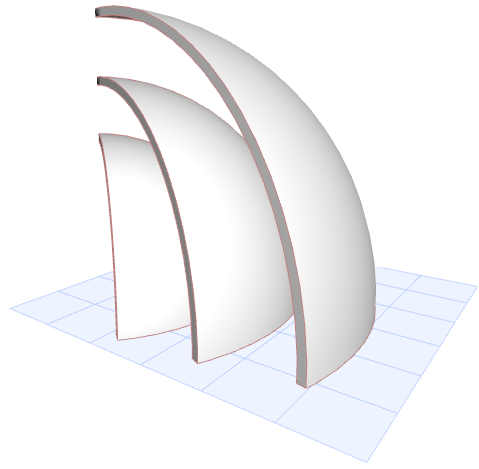
- Now create a Section for these Shells and open the Section window.
- Select the Shell closest to you. From the context menu, choose Define Shell Contour.
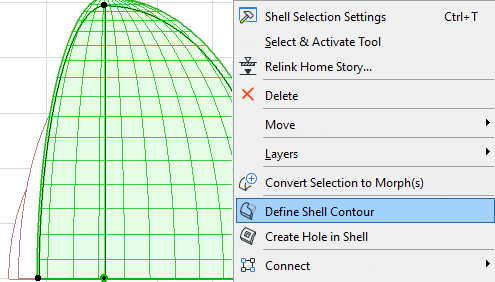
- Draw the contour as a rectangle.
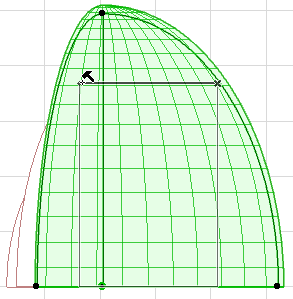
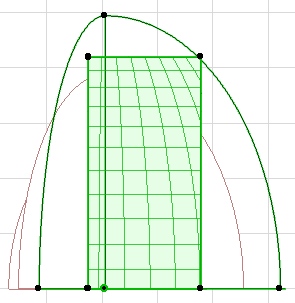
- Select the other two Shells and define rectangular contours for them.
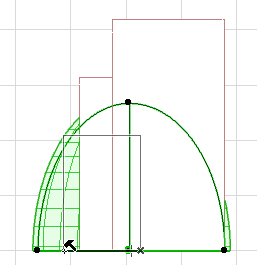
- View the result in 3D and fine-tune as needed.