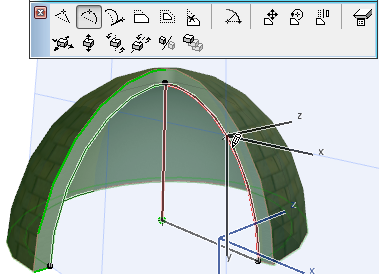
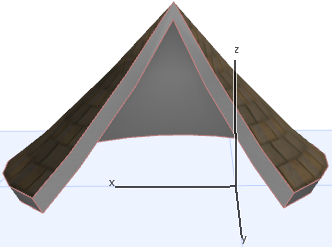
Options for Editing Revolved Shells
Select the axis or the profile of the Revolved Shell. One end of the axis is distinguished by a larger hotspot; this represents the Shell’s base height.
Click anywhere on the profile of the selected Shell to bring up this command in the pet palette. Choose Edit Revolution Angle.
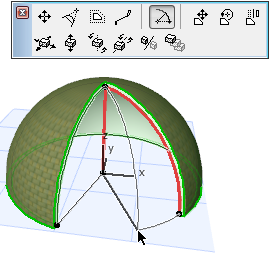
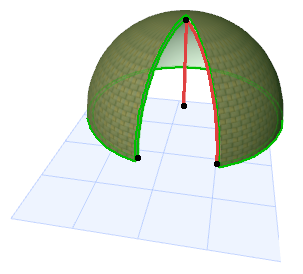
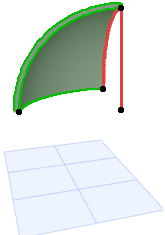
To bring up the next two commands in the pet palette, click on the endpoint of the Revolution Axis.
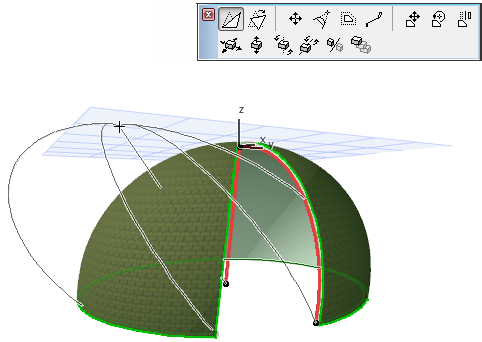
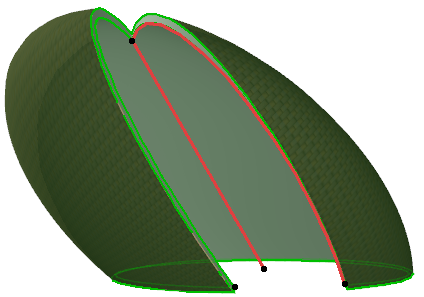
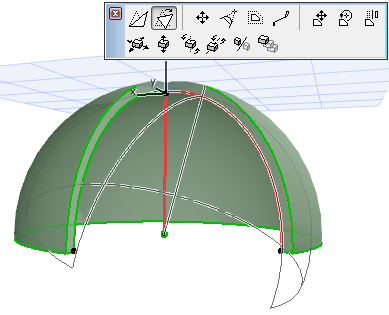
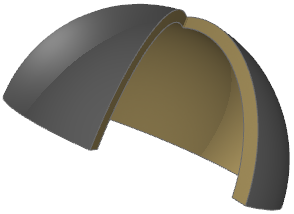
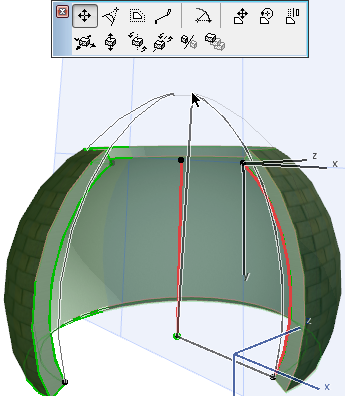
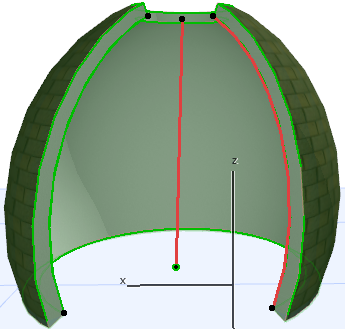
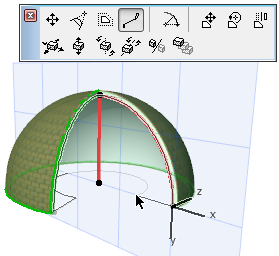
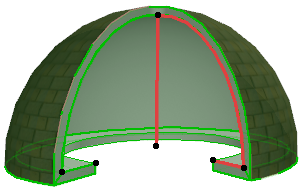
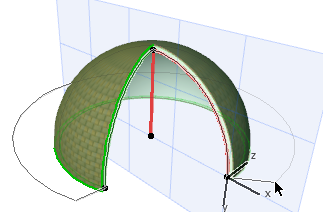
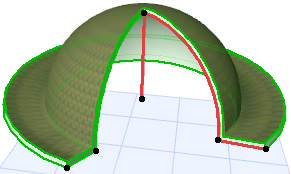
Select the Rotate profile command from the Pet Palette. Then (as when rotating other elements) click on a point, then draw a rotation axis. Click to complete the rotation.
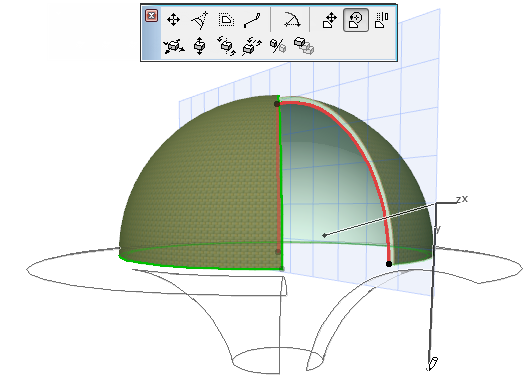
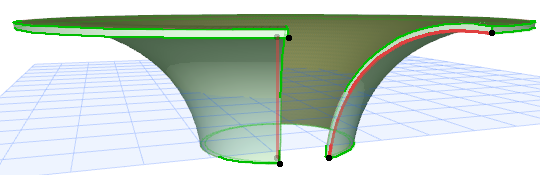
Click anywhere along the Shell profile to bring up this command on the pet palette.