Stringers Flight and Landing Structure
This page is shown in the Stair Settings tree structure
- if the Flight or Landing Structure is set to Stringers Only, or
- if the Stair has any other Flight Structure that uses Stringers
Select Stringer to Edit
Edit the left and right stringer separately, as needed.
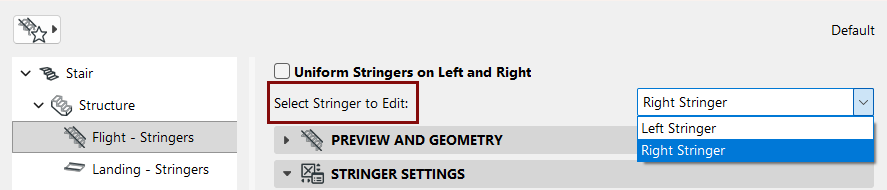
Alternatively, check Uniform Stringers on Left and Right, to apply the same settings to both Stringers.
Note:
- Stringers attributes must be set separately for Flight and Landing.
- The Connection and Ending settings are
included in the “uniform” settings. If you want to use identical Stringers but with varying
connections (e.g. to the Landing), you must uncheck the Uniform box!
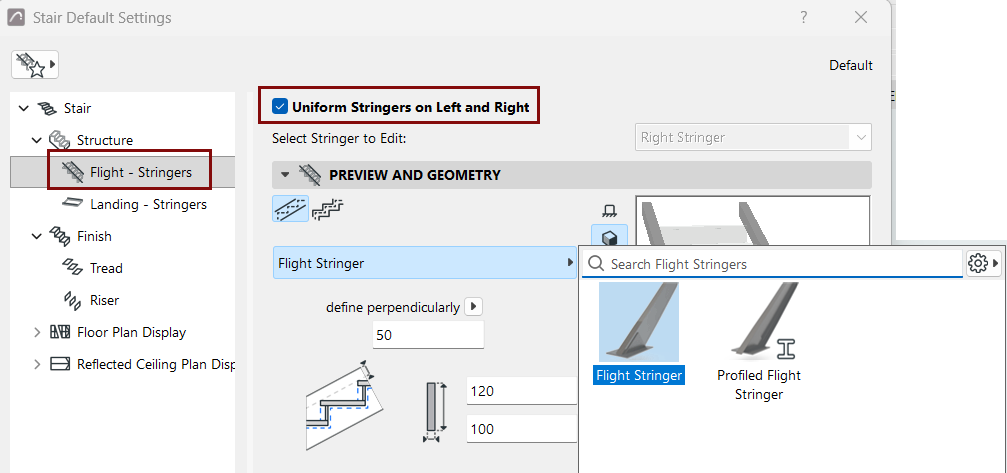
Preview and Geometry
Choose a GDL component from the pop-up to serve as the Stringer.
See Use Open Stringer (Beam Flight Structure).
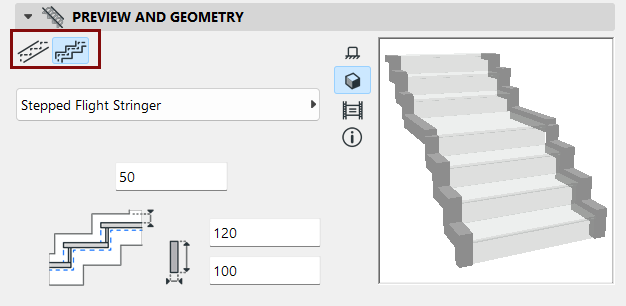
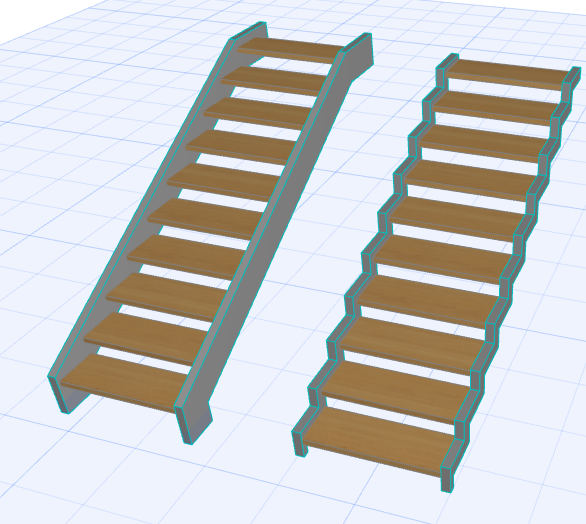
For a Flight Stringer: Choose a shape for the Stringer, either flat or stepped.
Add End Plates
End plates can be placed at Stair top and/or bottom (for a Flight Stringer), or at Lead End and/or Trail End (for a Landing Stringer).
The chosen Stringer’s settings are in the panel below.
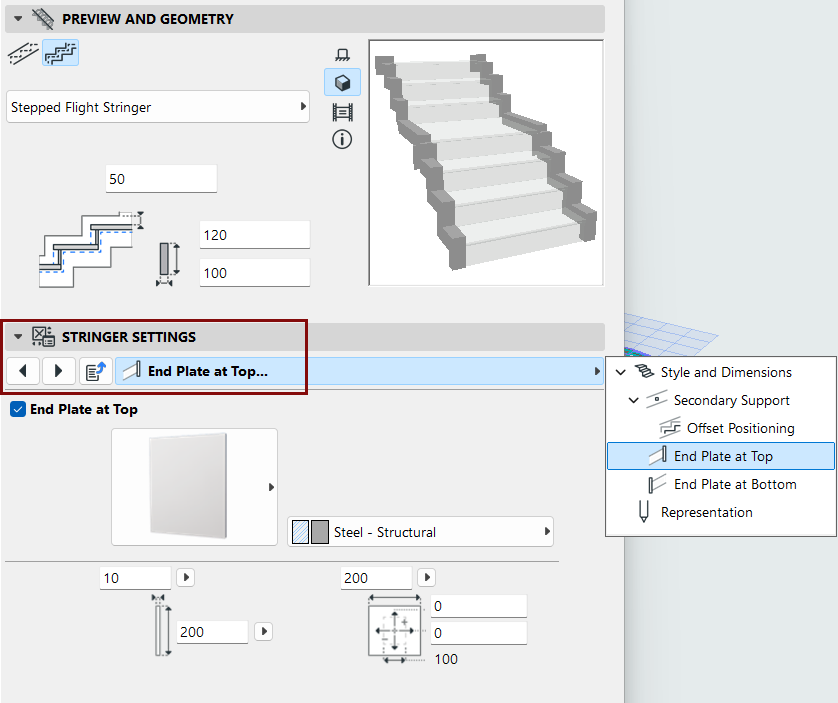
Define components as Core/Finish/Other
In the Representation section of the Settings dialog: set the components as Core/Finish/Other. (When editing Beam, Cantilever, and Stringer structures: uncheck the "Uniform Component Types" to set each component separately.)
Defining component types in this way allows you to control their display via Partial Structure Display. For example, to display structure-only coordination views, choose "Core only" as the view's Partial Structure Display setting. This will hide stair components that are defined as "Finish" or "Other".
Profiled Stringer: Special Options
- The profile Stringer can be mirrored: For
example, place mirror-image Z-shaped profile stringers on both sides of the Stair.
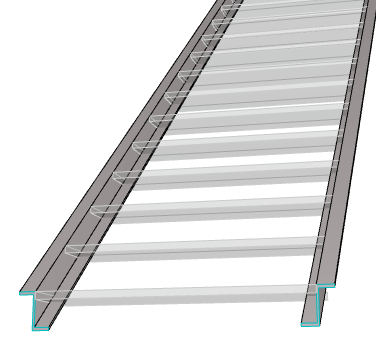
Z-Profile Stringers - Mirrored
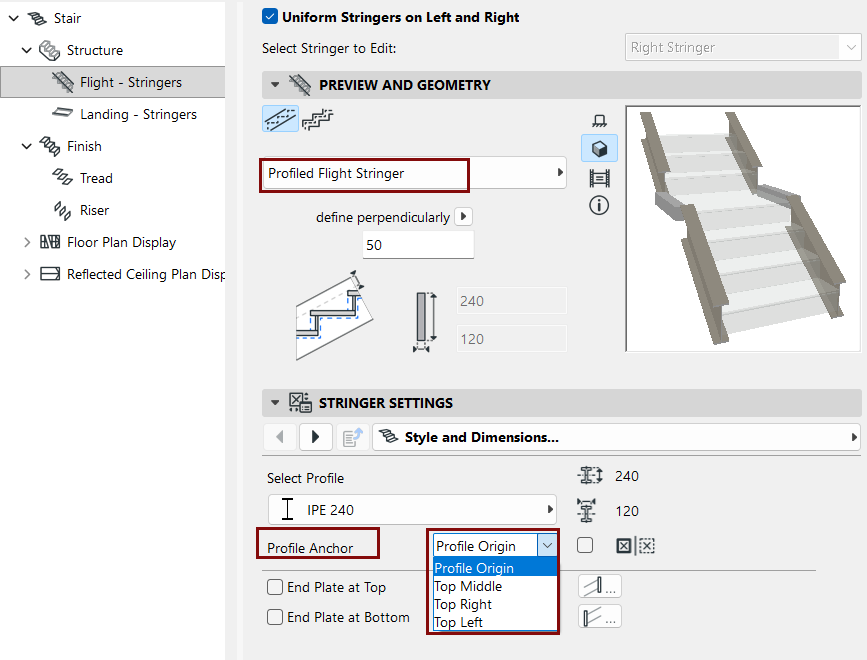
- Adjust the Profile’s Anchor point (by default, it is the point defined as the Profile Origin) using the pop-up.
- Important: If using the Profile
Origin as Anchor Point, make sure that the Profile Origin is defined at the top of
the profile, to ensure correct connections. (Alternatively, set the Anchor Point to one of
the “Top” options in the pop-up.)
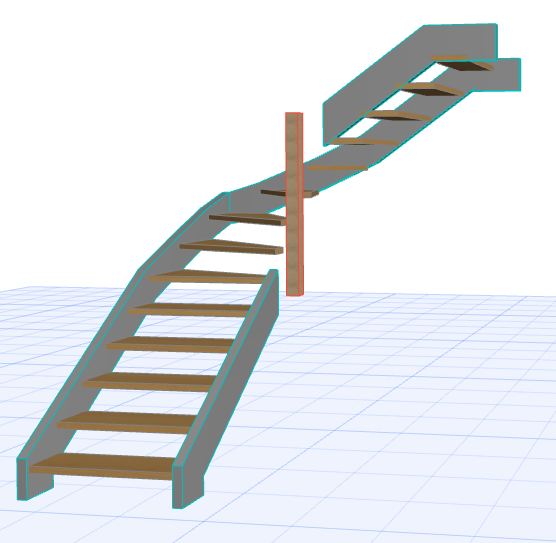
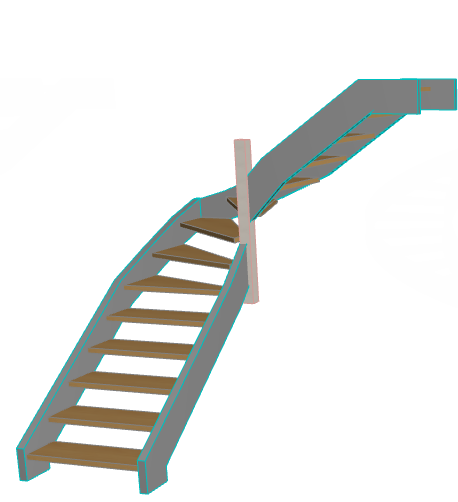
Winder Stair with Stringers
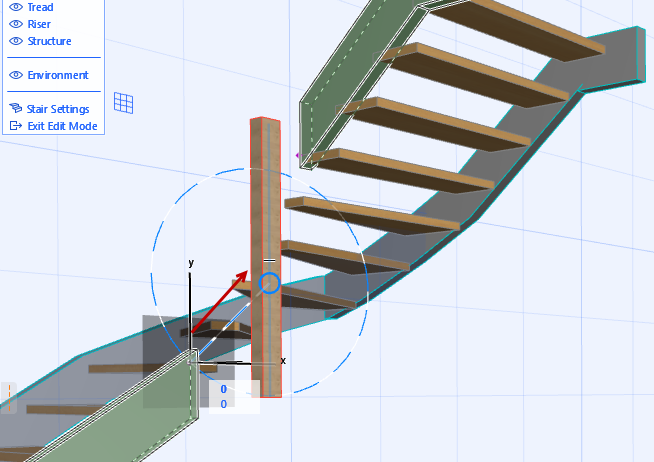
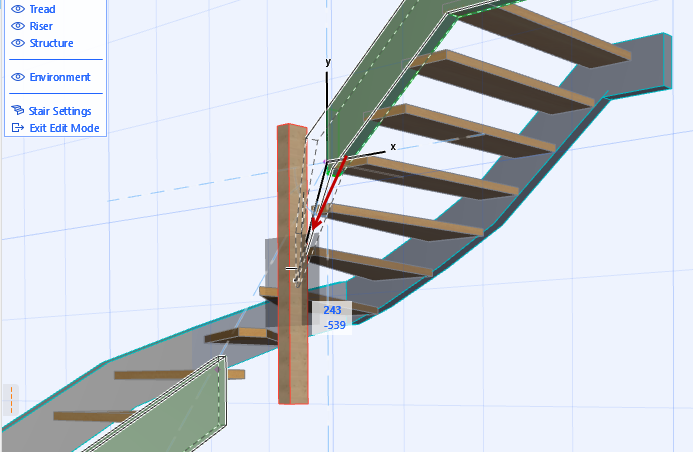
If a winding Stair uses Stringers on both sides, the inside Stringer cannot automatically follow the steeply rising Stair geometry. In this case, the program will disconnect the inside Stringer, so that you can adjust it manually as needed.
(The Column at the inside of the Stair is a separate element.)