Custom Sub-Elements for Stairs and Railings
Stairs and Railings include GDL sub-elements. Many pre-defined sub-elements are available by default, through the element and component settings dialogs. Each such GDL sub-element can be configured with its own Building Material and/or Custom Profile.
To create your own sub-element, you can customize an Archicad element and save it as a specialized Library Part.
For more information on this function, see Create Custom Library Parts and Components.
For Stairs and Railings, use this function to create custom Treads and Risers (Stairs), and custom Panels and Posts (Railings).
Some examples follow.
Create Custom Stair Tread
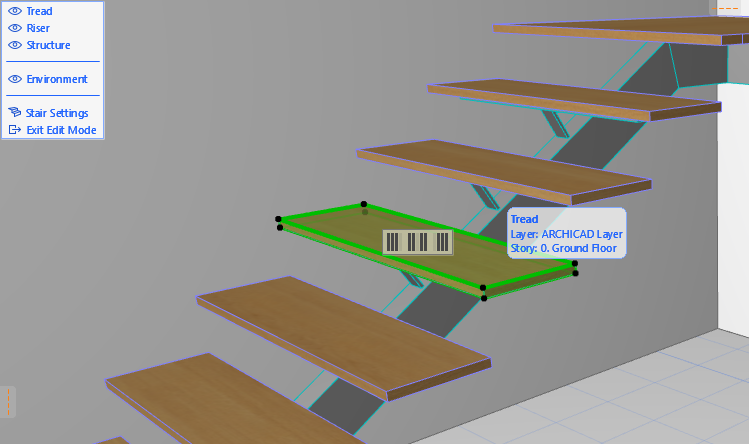
- Select the Stair and enter Edit mode.
- Select a Tread.
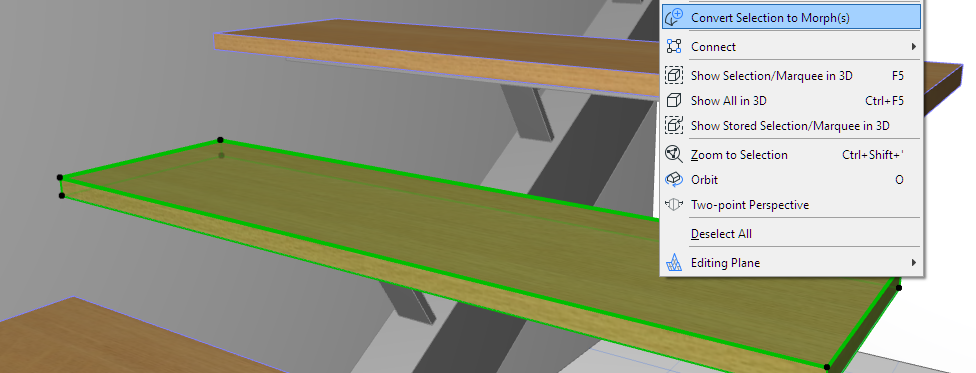
- From the context menu, use Convert
Selection to Morph. The selected sub-element is now a Morph, and no longer part of
your Stair.Note: It is also possible to start with any Morph element; it is not necessary to transform an existing Tread to a Morph first.
- Exit Edit mode.
- Edit the Morph as needed - here, use the
Bulge command to create small recesses on either end.
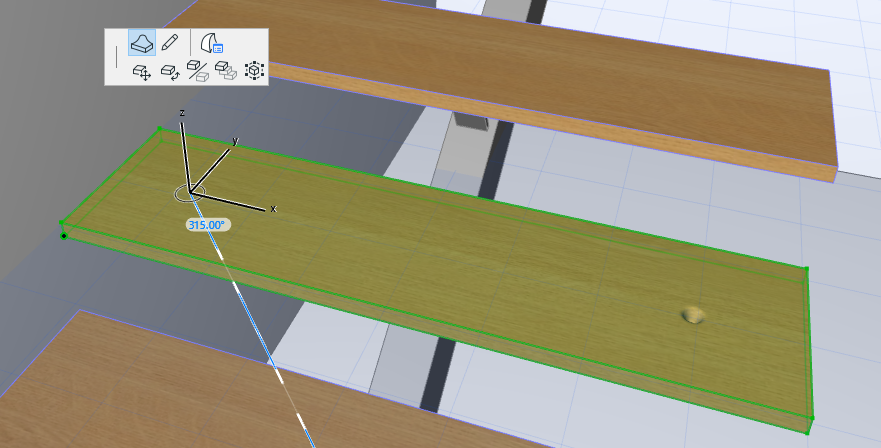
- With the Morph selected, use File
> Libraries and Objects > Save Selection as...
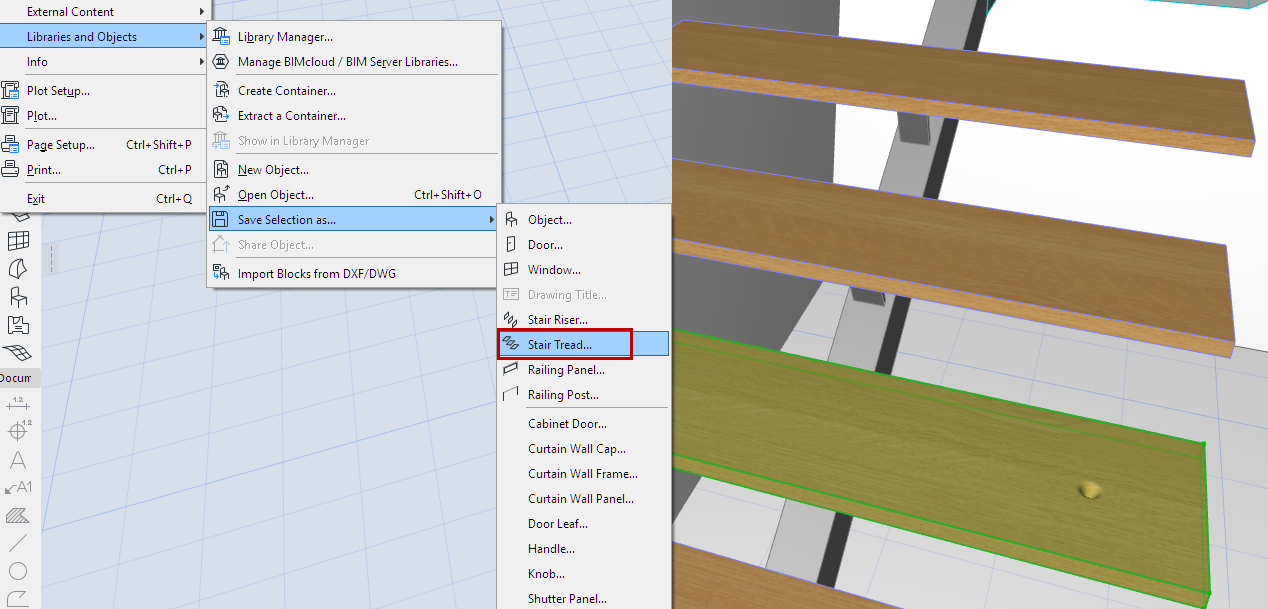
- Select Stair Tread as the
predefined sub-type, and save it to the Embedded Library.
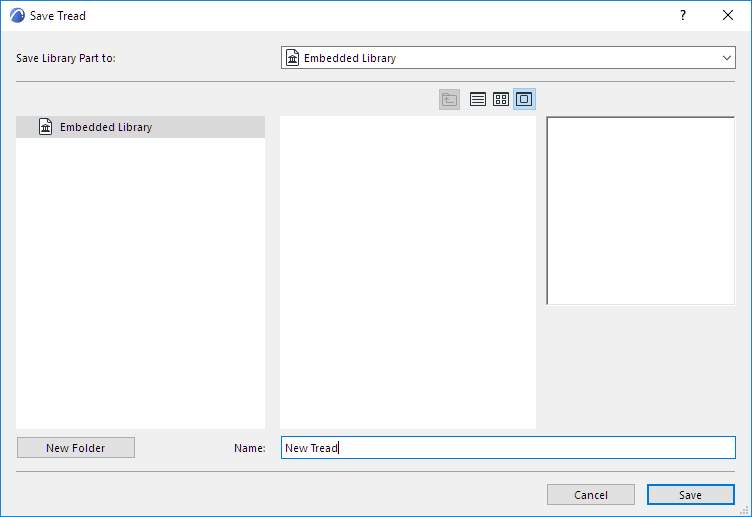
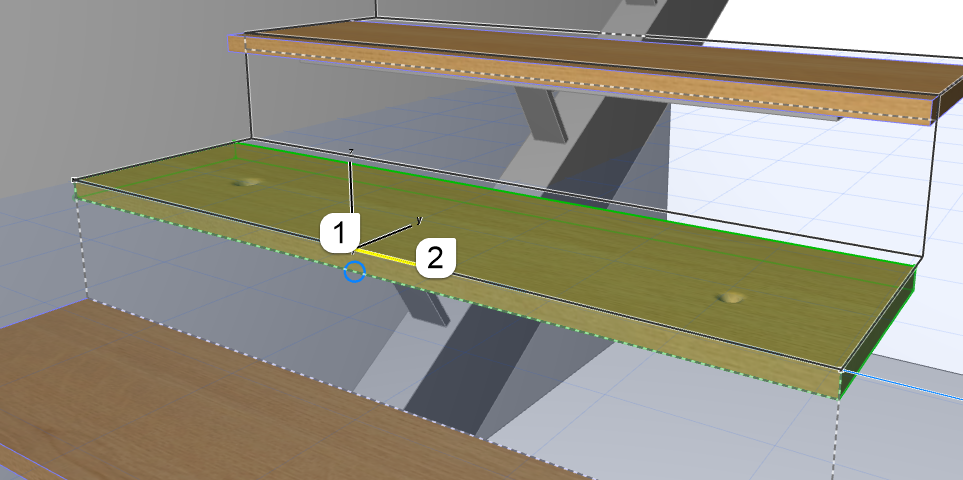
- A Stair-like ghost feedback appears to help you orient the new Tread object:
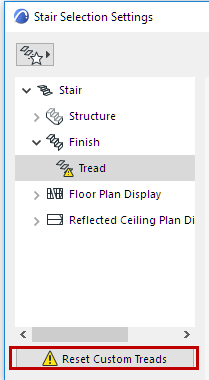
- Select the Stair and open Tread Settings.
- The dialog indicates a custom Tread,
because the Tread you converted into a Morph is now missing. Click the Reset Custom Treads
button to resolve this.
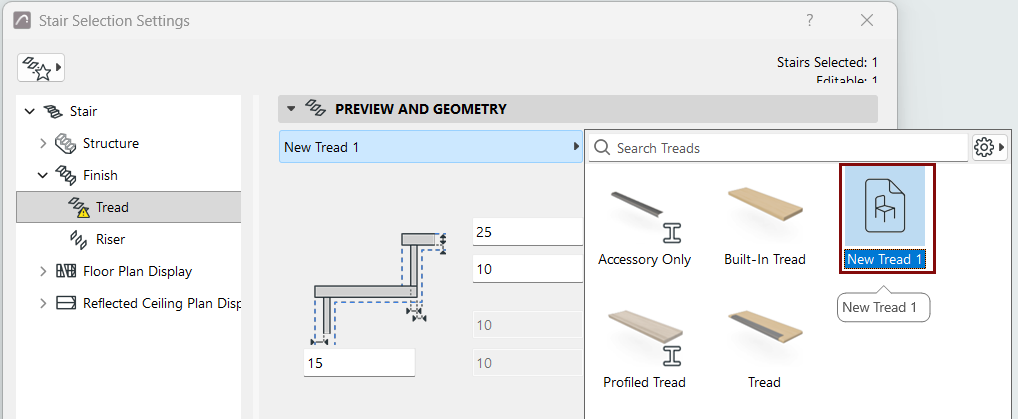
- The new custom Tread is available from
the pop-up: Select this Tread to apply it to the entire Stair.