Stair Display Layouts (Show on Stories)
Choose the stories on which the Stair’s 2D symbol should be displayed.
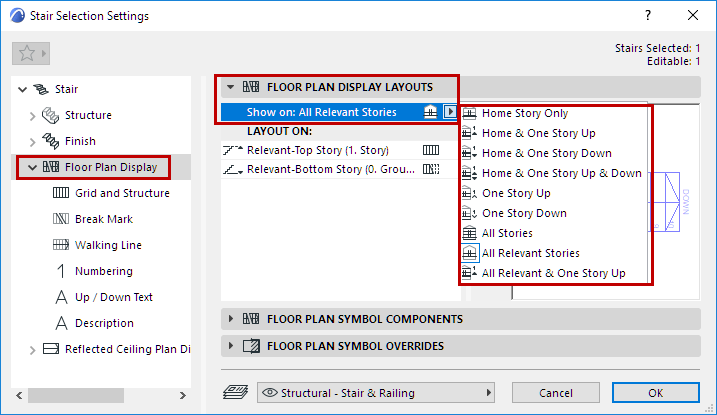
The stories you define (for example, “All Relevant & One Story Up”) are listed in the field below (under “Layout On”).
Relevant Story
A Relevant Story is one which the Stair physically intersects. When defining Stories for Stair display, multistory Stairs can have, for example:
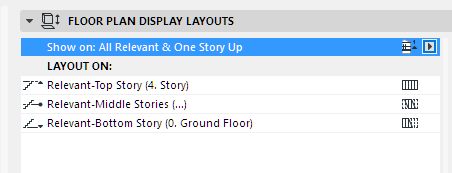
Layout On (Stair Display On Each Story)
Under Layout On: Click on each Story name, then choose how to display the Stair on that story:
- Break Mark: With or without a Break Mark
- Visible vs. Hidden Attributes: To use either Visible or Hidden attributes on the displayed parts of the Stair. The set of attributes (for hidden and visible parts) is defined for each symbol component on its own settings page.
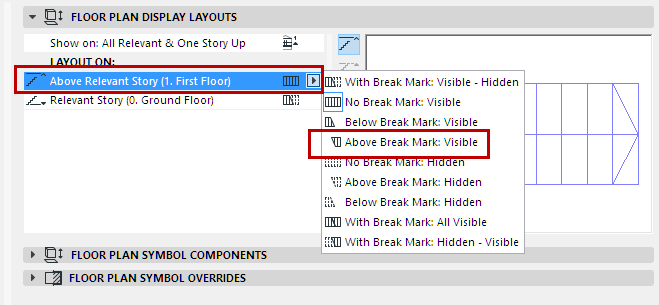
Use the Preview to get an idea of the Stair’s 2D display on each story.
Stair Layout Examples
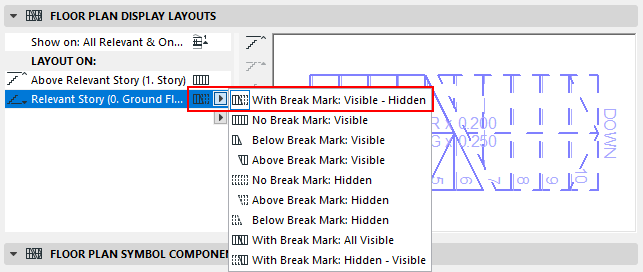
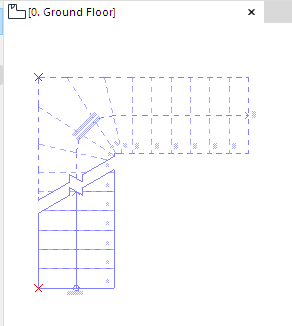
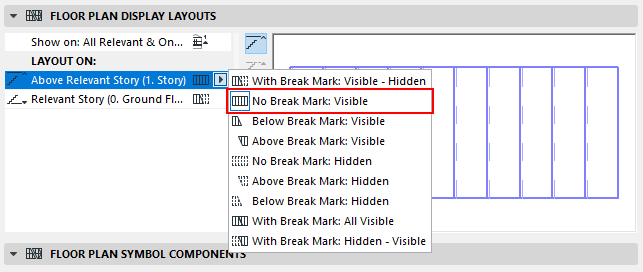
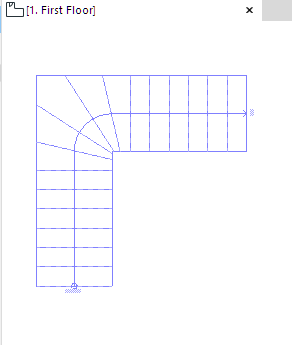
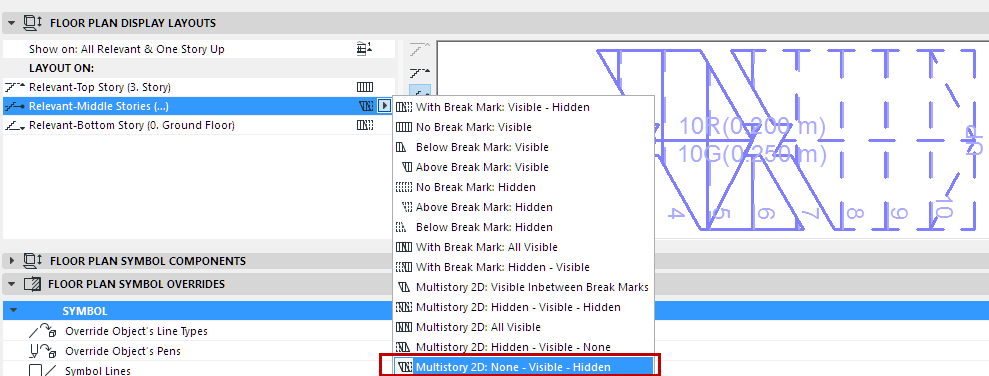
Additional Layouts are available for multistory Stairs, with multiple Break Marks.
See also Relevant Story.
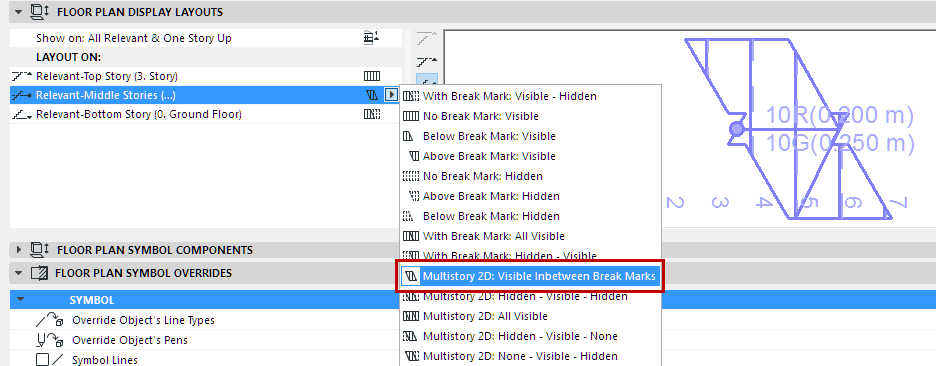
On a given Story, you can just display the part between Break Marks.