Use Column Settings, or use the two-point method to define Column slant
graphically in the 3D window.
Set Slant Angle in Column Settings
Define Slant Angle in Settings
- From Column Settings (Column page, Placement panel) or the Info Box,
choose the Slanted icon.
- Enter a slant angle in degrees.
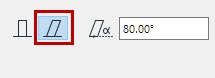
- Choose a Placement Method from the Info Box, then place the
column.
Two-Click Column Input
Use this to freely define the column slant during input. This is easiest
in the 3D window.
Do not define a slant angle before input.
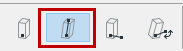
- Click to place the Column base.
- Click again to complete the Column.
- In the 3D window, you can snap to existing elements, and/or click
Shift to constrain input to an editing plane.
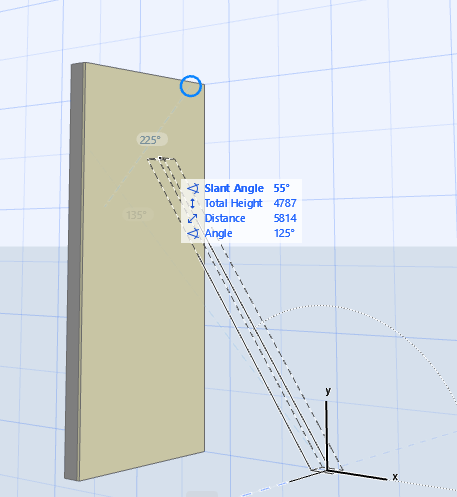
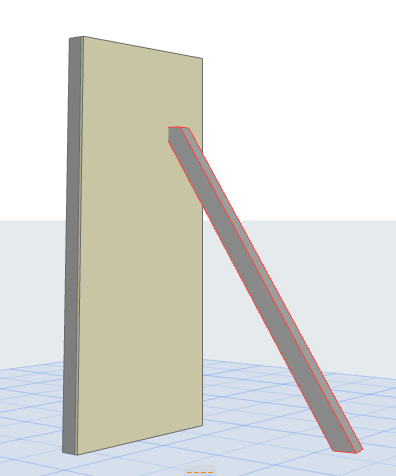
- The second click defines the Column’s slant angle and (in the 3D
window) its height.
- When creating a two-click Column on the Floor Plan, the Column height
is fixed.
Related Topics:
Place a Column