By default: the Opening displays the host element’s surface, with no override.
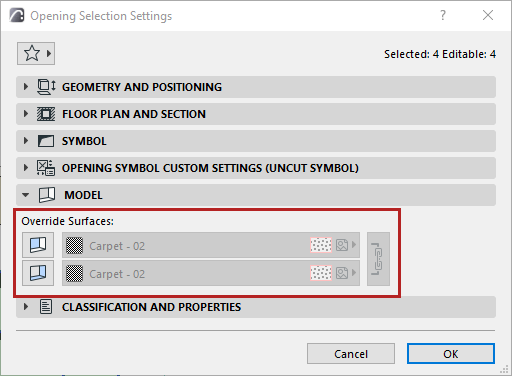
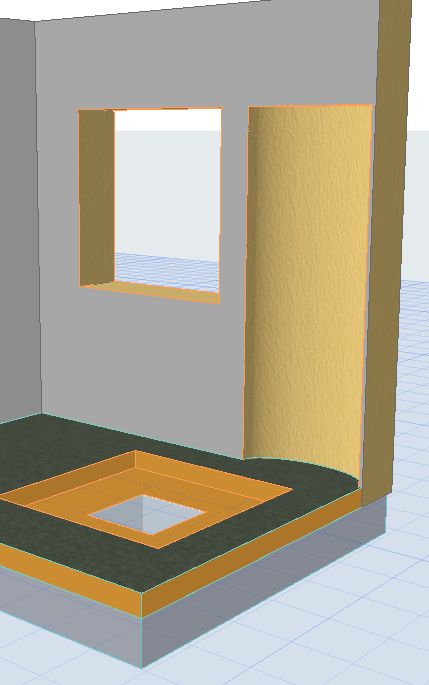
Override Opening Surface
If needed, you can apply a different surface to the Opening extrusion and/or ends.
- Extrusion: The sides of the Opening body, where it cuts through the host elements
- Ends: One or two ends of a limited Opening body, where it meets but does not cut through the host element (e.g. niche or recess).
- Select the Opening
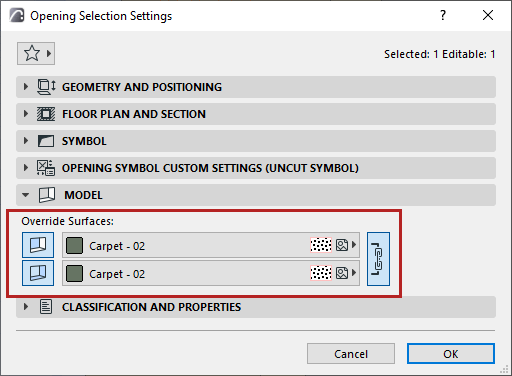
- Open the Override Surfaces control
- in the Info Box, or
- in the Model Panel of Opening Settings
- Activate the toggle of the ends surface and/or extrusion surface
- From the pop-up, choose the desired surface.
Note: Click the Chain icon (“Link Surfaces”) to apply the same surface to ends and extrusion.
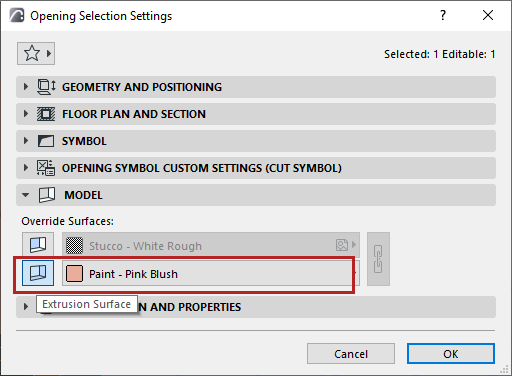
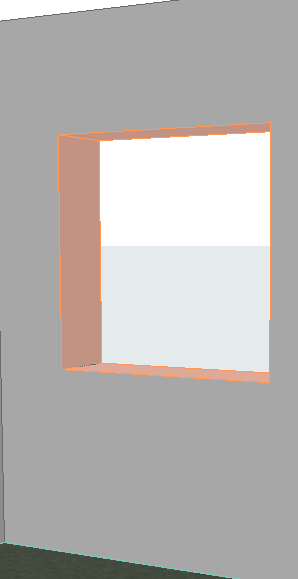
Override Opening surface - extrusion
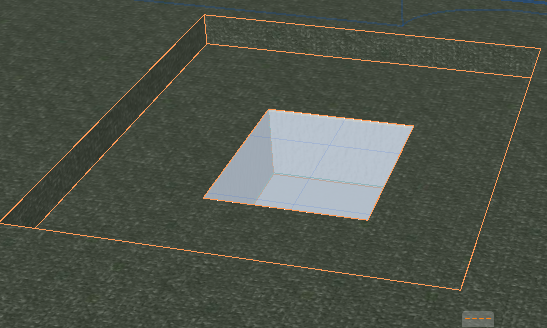
Override Opening surfaces - both extrusion and end
Related Topic
Opening surface in Surface Schedule