Apply Profile to Element
Profiles are available for Walls, Columns, Beams, Railing components, or Library Parts.
Note: Profiles for Library Parts are available only for GDL elements that include a profile selection option - such as Curtain Wall and Stair components.
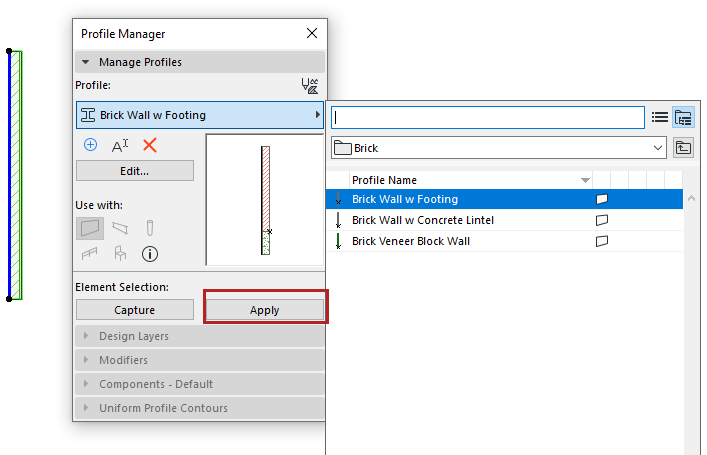
Apply a profile to an element in element settings or from Profile Manager.
From element settings (wall, beam, column):
- Open the element settings.
- In the Geometry and Positioning Panel, click the “Complex Profile” icon.
- Use the pop-up to select a profile.
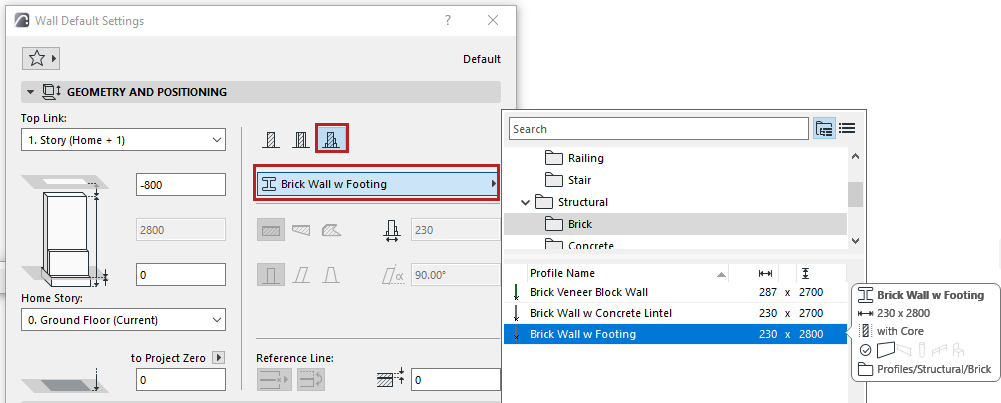 Note: This pop-up lists profiles whose “use with” setting includes your element type: see “Use With” - define profile availability
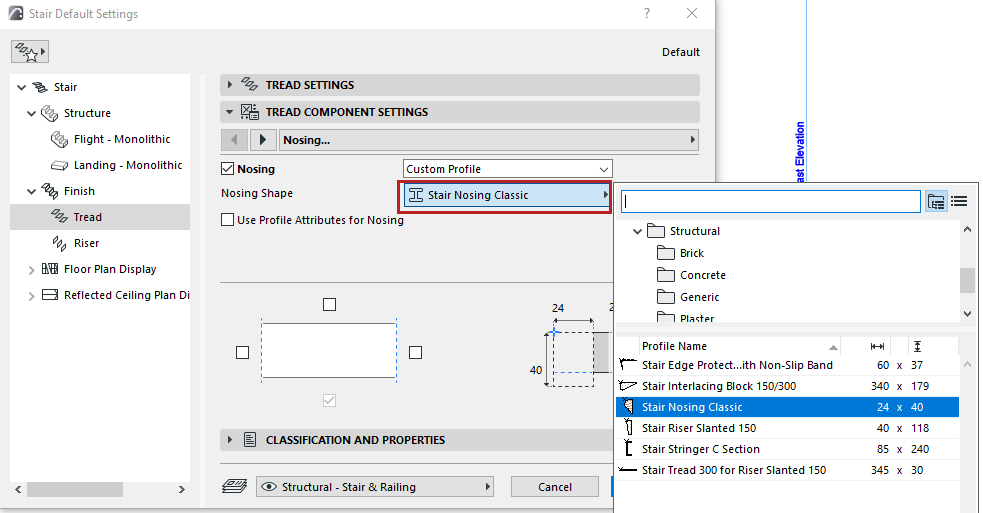
From component settings (Railing, Stair, Curtain Wall):
For example: Choose a profile structure for railing components, Curtain Wall frame, Stair tread.