Automatic Trim: Example 2
Suppose you have the following Shells and Walls:
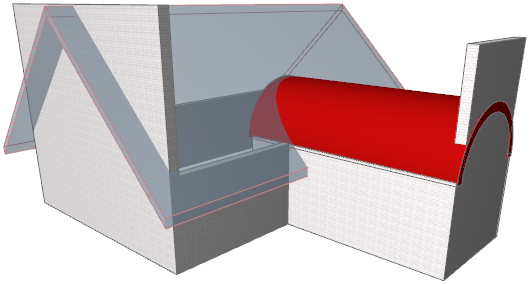
- Select all the elements shown (Roof, Shell, Walls).
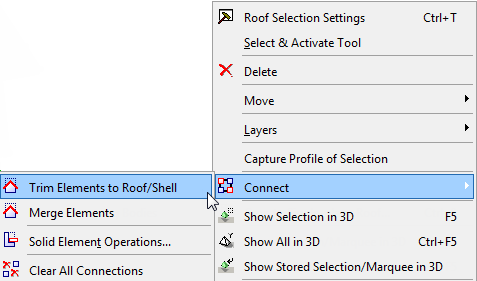
- From the context menu, go to Connect and choose Trim Elements to Roof/Shell (also available in Standard toolbar).
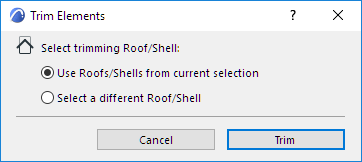
- In the appearing dialog box, click Trim.
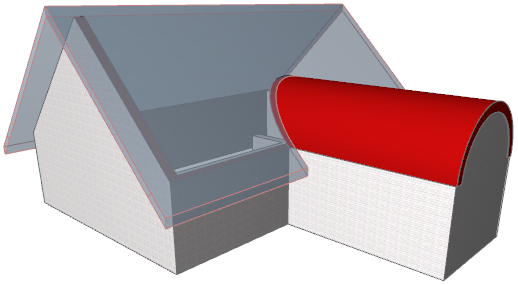
- View the result in 3D:
For another example of an automatic trim, see Cross-Gable Roof.