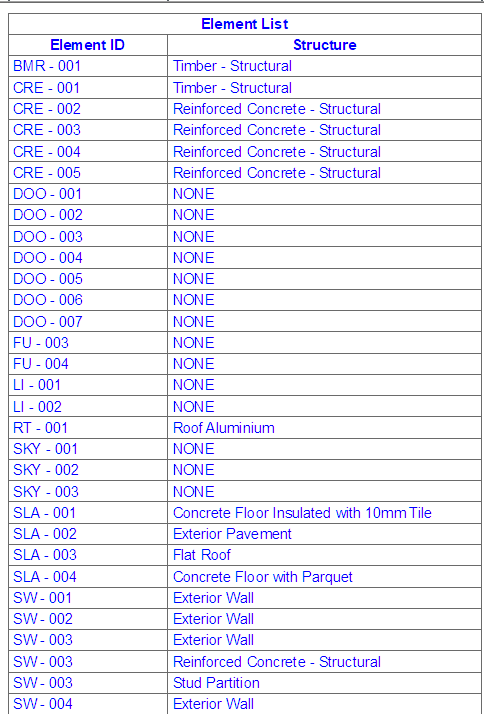
Example 1: Simple Mapping
Create a new property that automatically maps existing element parameter values. No functions are needed for this; just identify the set of existing parameters that you want to evaluate for model elements.
- In Property Manager, create a New Property called Structure.
- Set its Data Type to String.
- Select the Expression option. The Expression Editor appears.
Use the Parameters & Properties pop-up to add a sequence of Expressions, each one returning a Structure-type parameter (Building Material, Fill, Composite Structure, Complex Profile). Each Expression in the sequence must have the same Data Type (in this case, String.)
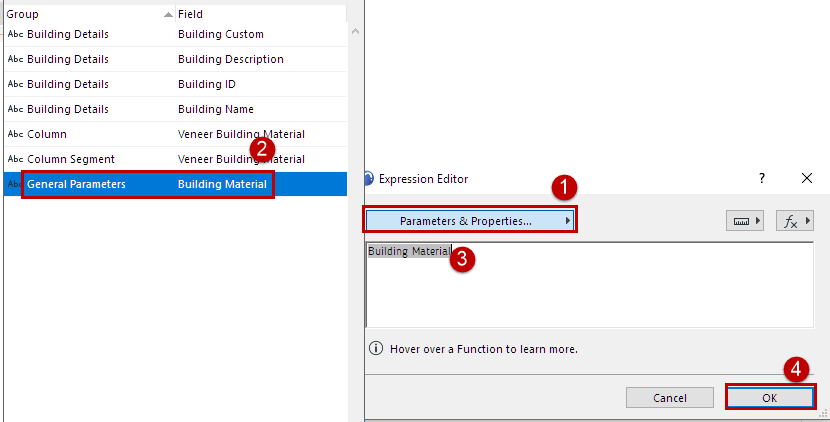
- Click Parameters & Properties to search for the “Building Material” parameter
- Double-click the parameter, or click Add to add it to the Expression Editor.
- Click OK to close Expression Editor.
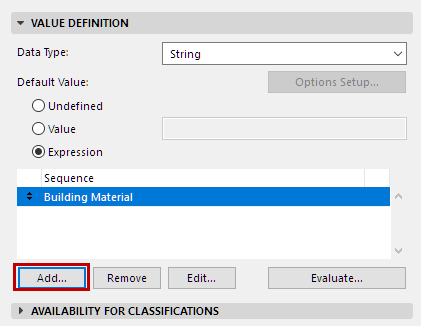
- Click Add to add the next Expression (the Fill Type parameter), and so on for all parameters in the sequence.
- Finally, add an expression consisting of the string “NONE”
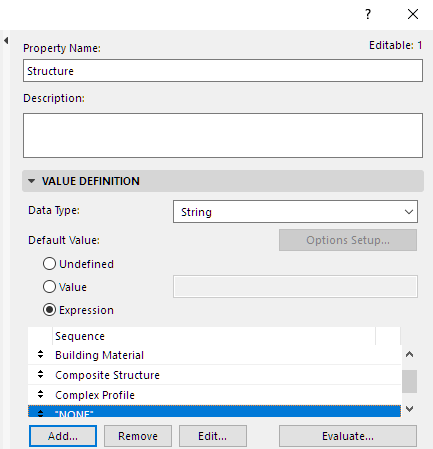
The program evaluates these Expressions in sequence for each element, returning the first valid value for each element. Once a value is returned, the subsequent expressions are not considered for that element.
If none of the definitions apply to an element, that element will list “NONE”.
- Make sure you set the property’s Availability for Classifications.
- Click OK to close Property Manager and save the new property.
- List the property in Interactive Schedule to see the results for model elements: