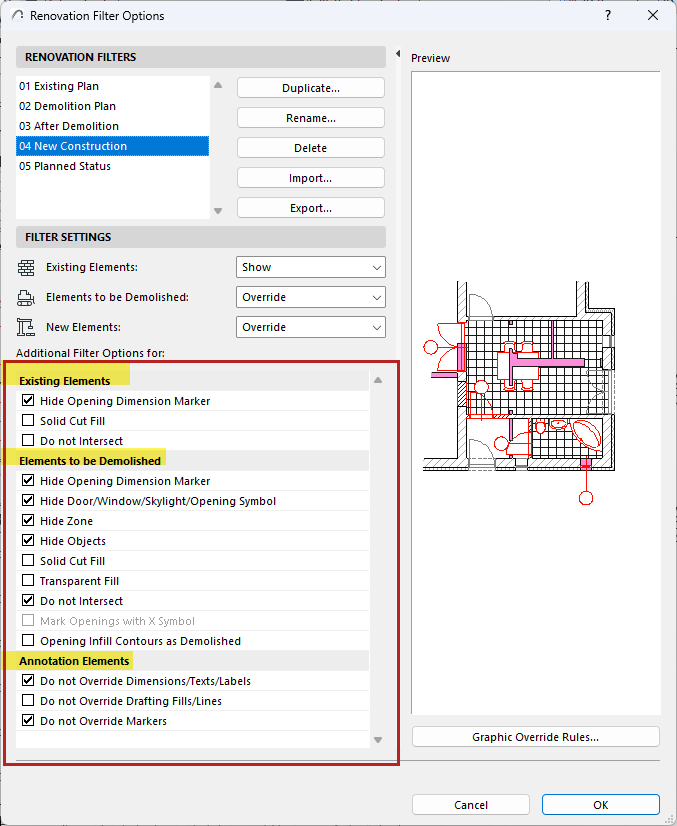
Additional Override options are available for “Existing” elements, for
“To be Demolished” elements, and for Annotation Elements.
These extra options help you meet local standards or make your Renovation
views easier to interpret.
Check the box of any of the Additional Overrides you wish to add to your
Renovation Filter definitions:
For “Existing” Elements:
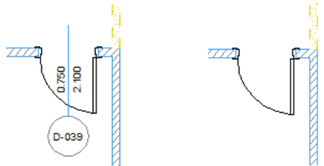
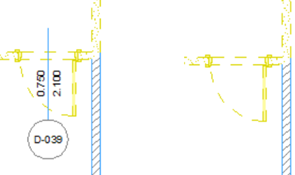
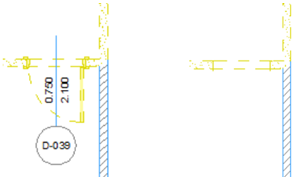
Hide Opening Dimension Marker (if you don’t need to see
dimensions of openings already in place)
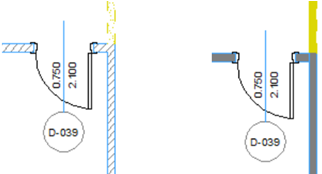
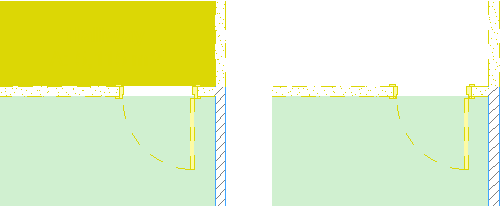
Solid Cut Fill (if you don’t need to see the structure of
walls already in place)
Do not Intersect (use this to ensure that intersections among
New or Demolished walls do not interfere with existing wall intersections)
For “To Be Demolished” Elements:
Hide Opening Dimension Marker (if you don’t need to see
dimensions of openings that will soon no longer exist)
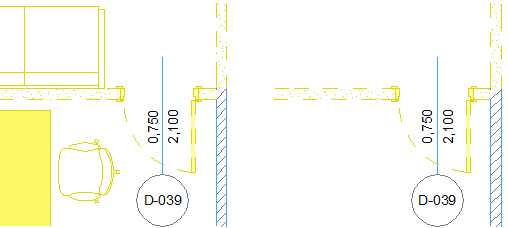
Hide Door/Window/Skylight/Opening Symbol (if you don’t need
to see openings that will soon no longer exist, especially if they are part of walls to be
demolished anyway)
Hide Zone (if you don’t want to see information for zones
that will be eliminated)
Hide Objects (since most furnishings will not really be
demolished; and they don’t need to be visible on the Demolition Plan)
Solid Cut Fill (if you don’t need to see the structure of
walls that will be demolished)
Transparent Fill (to indicate the place of a demolished
element with just lines, no fill)
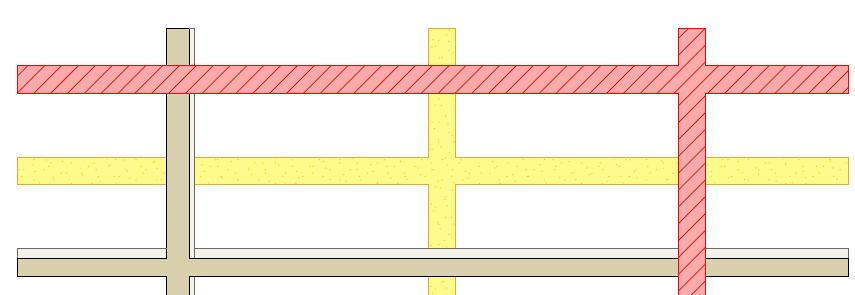
Do not Intersect (to ensure that intersections among New or
Demolished walls do not interfere with existing wall intersections) Figure 1. Walls and slabs with “Do not Intersect” setting: “New” on top of “Existing”, on
top of “Demolished”
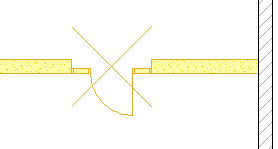
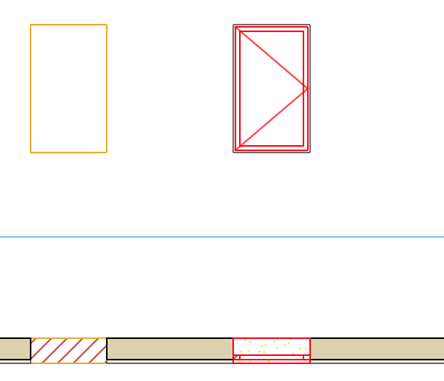
Mark Openings with “X” Symbol: Place an X on Doors and
Windows to be demolished.
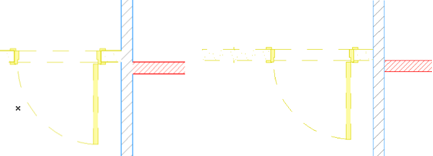
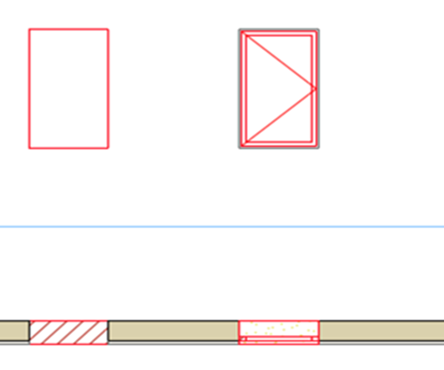
Opening Infill Contours as Demolished: On a wall where a door/window
will be demolished (and replaced by new wall parts): Display the contour lines of
demolished openings as To Be Demolished.
Window on left: Opening
contour as “New”
Window on left: Opening
contour as “To Be Demolished”
For Annotation Elements:
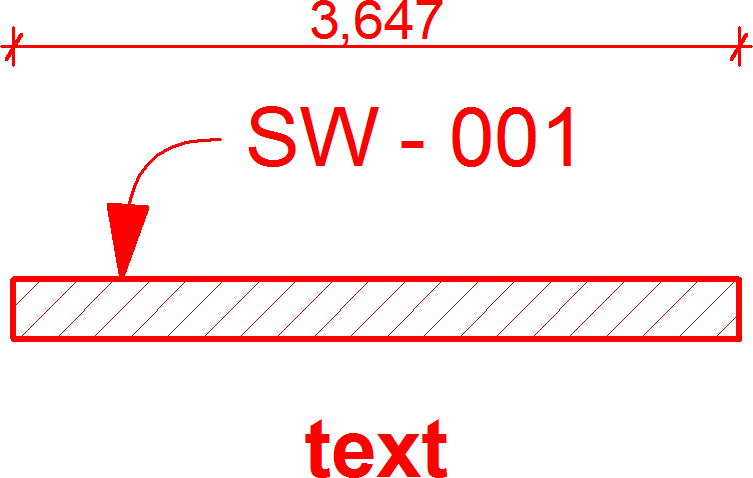
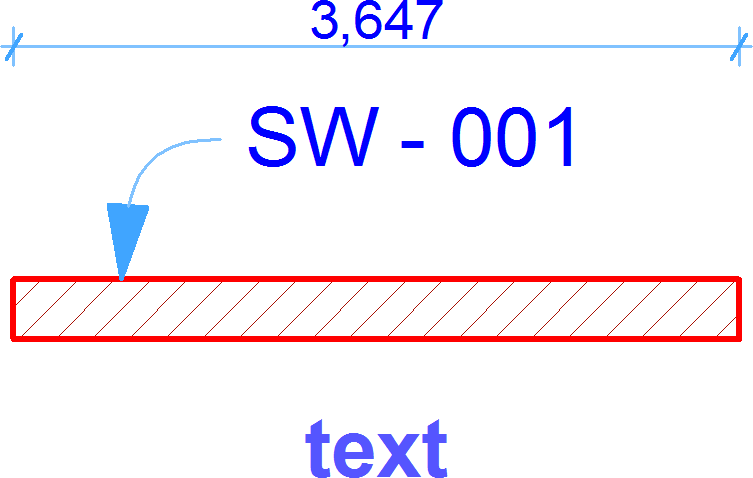
Do not Override Dimensions/Texts/Labels
Do not Override Drafting Fills/Lines
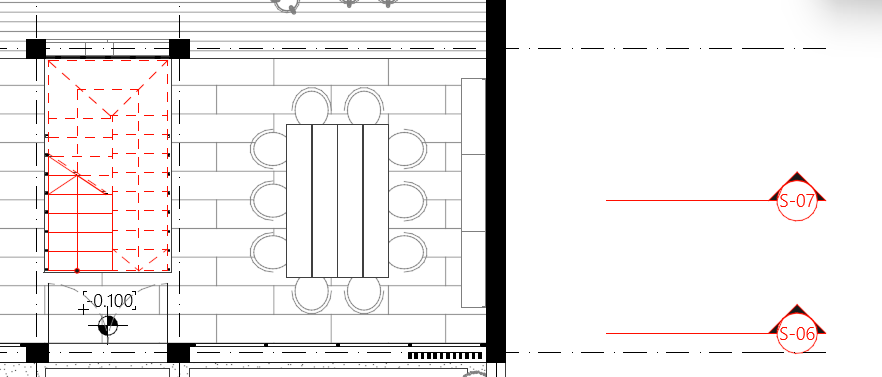
Do not Override Markers
Use these checkboxes to exclude Annotation Elements - Dimensions, Texts
and Labels, and/or Drafting Fills and Lines - from the override rules. You can also choose
to exclude Markers (Section, Elevation, Interior Elevation, Detail, Worksheet) from the
override rules.