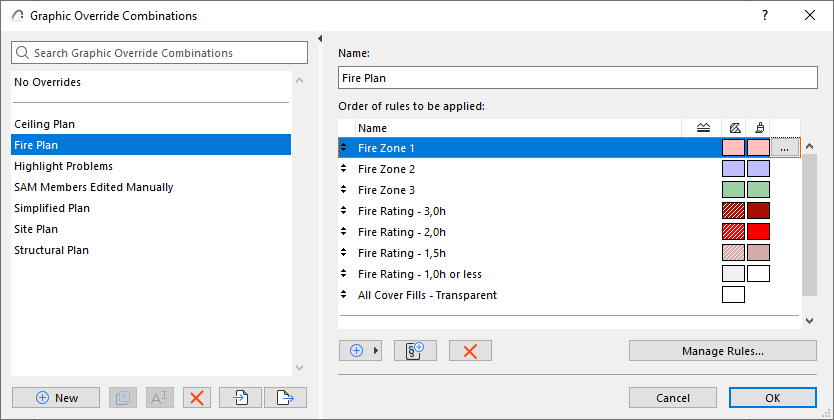
Use Graphic Overrides to apply a predefined appearance (color, fill) to
model elements by view, to convey information at a glance.
For example:
Display elements in different colors based on their Renovation
Status
Display all plaster walls in blue
Highlight a group of zones which belong together (e.g. unheated
areas)
Highlight all elements having a specific acoustic rating or fire ratingFigure 1. Zones by Fire Rating
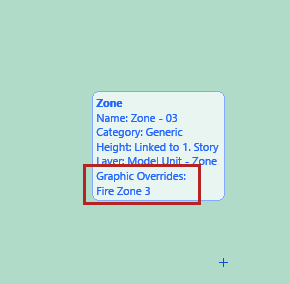
The element’s Info Tag lists the Graphic Override Rules in effect for
this element:
Apply Graphic Override Rules
There are two ways to assign a Graphic Override:
By Graphic Override Combination: A Graphic Override
Combination is a collection of Graphic Override Rules, applied in a particular order to
the elements that match the rule’s criteria.
ByRenovation Filter: The Renovation Filter defines
which elements (by Renovation Status) should be displayed with an override
Graphic Override Combination and Renovation Filter are saved with each
view’s settings. For any view, the rules of the Graphic Override Combination are applied
first. The rules applied by the Renovation Filter are the lowest priority.
Exception: You cannot set a Graphic Override
Combination or Renovation Filter for views that are based on Drawing-type or Manual-Rebuild
Section or Elevation markers.