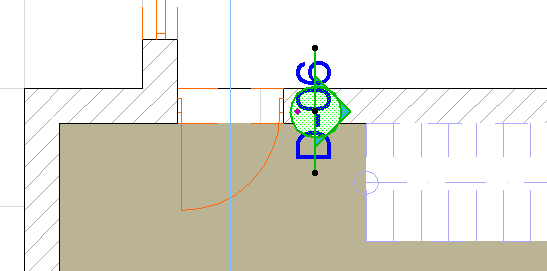
Place a Linked Section Marker
A linked marker is for reference purposes only. It has no model source and does not generate a new viewpoint.
To place a linked Section marker, use the Section tool in any of the following windows: Floor Plan; Section; Elevation; Interior Elevation; 3D Document; Worksheet; Detail. Then link the marker to an existing viewpoint, view or drawing whose information is displayed in the marker.
Define Reference for Linked Marker
Follow these steps to define reference information for linked Section, Elevation, Detail and Worksheet markers.
- Activate the Section tool.
- In the Marker Type control of the Info Box or Section Default
Settings, select “Place Linked Marker”.

- In the appearing dialog box, define the Marker Reference.
For a new linked marker, or to redefine an already placed selected marker, you have these choices:
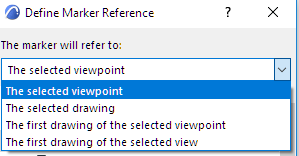
- the selected viewpoint (i.e., the viewpoint you select from the directory list after choosing “Browse”)
- the selected drawing (i.e., the drawing you select from the directory list after choosing “Browse”)
- the first placed drawing of the selected viewpoint (i.e., the first drawing created from the viewpoint you select from the directory list after choosing “Browse.”). “First” means the topmost eligible drawing in the Navigator Layout Book.
- the first placed drawing of the selected view (i.e., the first drawing created from the view you select from the directory list after choosing “Browse.”). “First” means the topmost eligible drawing in the Navigator Layout Book.
Choosing any of these reference options will bring up a directory dialog box showing the relevant view of the Navigator (Project Map, View Map, or Layout Book). Choose the desired viewpoint, view or drawing. The chosen item’s information will be displayed in the linked marker.
Thus, a linked marker can refer to any viewpoint, view or drawing in the project.
See Place view from external project (menu command).
After the marker is placed, you can still go back and change its marker information at any time.
Linked Section Example
For example, you might create a Wall Section that functions like a Detail:
First, place a source Detail marker in the Section window;
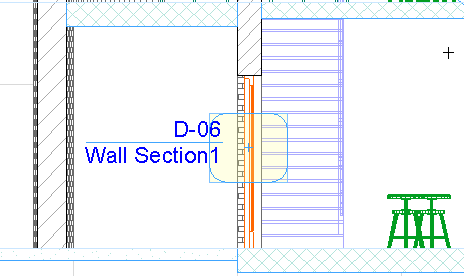
then place a linked Wall Section marker on the Floor Plan which is linked to this Detail.