Cell background colors

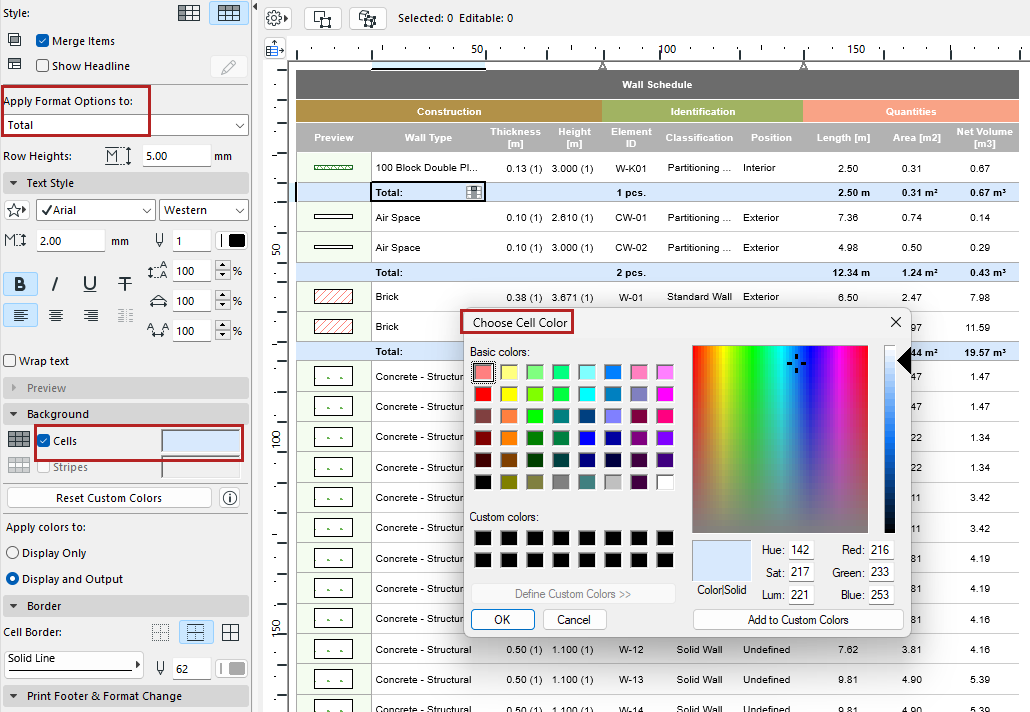
You can apply background colors to schedule cells by category (such as Headline or Grand Total).

  1. From “Apply Format Options,” choose a cell category. Or click in a cell.
  2. Click Cells.
  3. Choose a background color.

    ScheduleBackground.png

Display stripes

To apply stripes to alternating rows of values:

  1. From “Apply Format Options,” choose Value. (Or click in any schedule row.)
  2. Click Stripes.
  3. Choose a stripe color.

Set custom color for schedule field

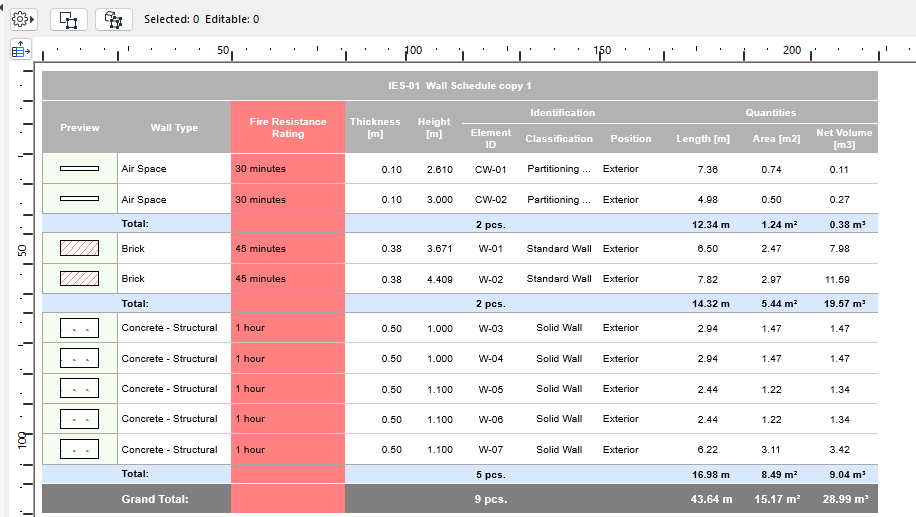
Set a custom color for any schedule field (for example, make all the Fire Resistant Rating cells red.)
  1. Click any cell of the field you want to customize.
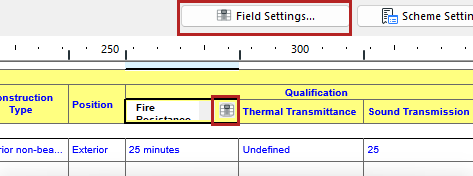
  2. Open Field Settings:
    • Click the Field icon from inside the cell, or the Field Settings button at the top of the schedule

      FieldSettingsOpen.png
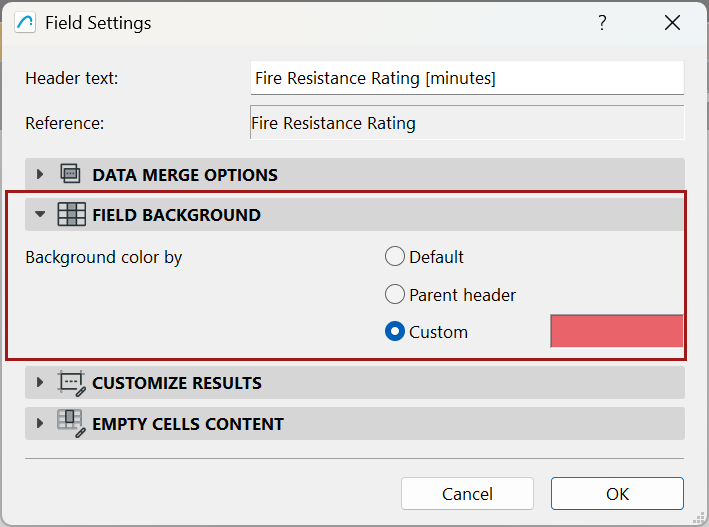
  3. In the Field Background panel, do one of the following:
  • Choose Custom, then click the color to pick a color for this schedule field
  • Choose Parent header to apply the same color used by the field’s parent header

    FieldSettingsCustomColor.png

    FieldSettingsCustomColorExample.png

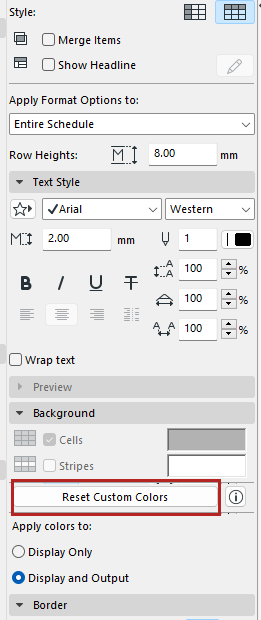
Reset custom colors

In the Formatting panel: Click Reset Custom Colors to remove field-level custom colors.

ResetCustomColors.png