Drawing Frame
Each placed Drawing has a Frame. Use it in two ways:
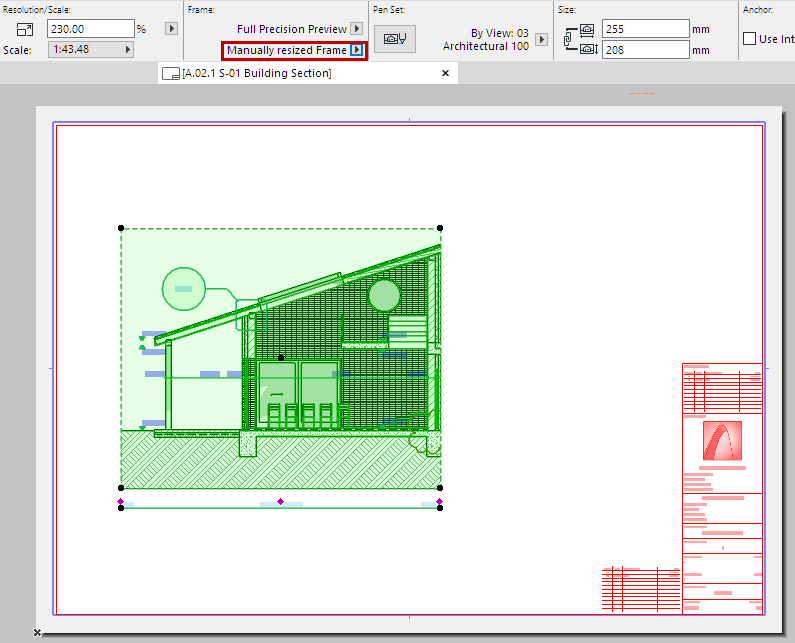
- Fit Frame to Drawing to include the full content of its source view
- Manually Resize the Frame to limit the visible content (and optionally crop it out)
Why Crop the Drawing Content?
If you resize a Drawing Frame, you can optionally crop out the unseen Drawing content and delete it from the Drawing cache. Cropped content no longer has to be checked or refreshed (until it is restored). Thus, cropping Drawing content reduces file size and can speed up Drawing update.
Frame editing and Drawing crop features work the same for all types of Drawings, including those with an external source.
Cropped content can be restored at any time, as long as its source remains available.
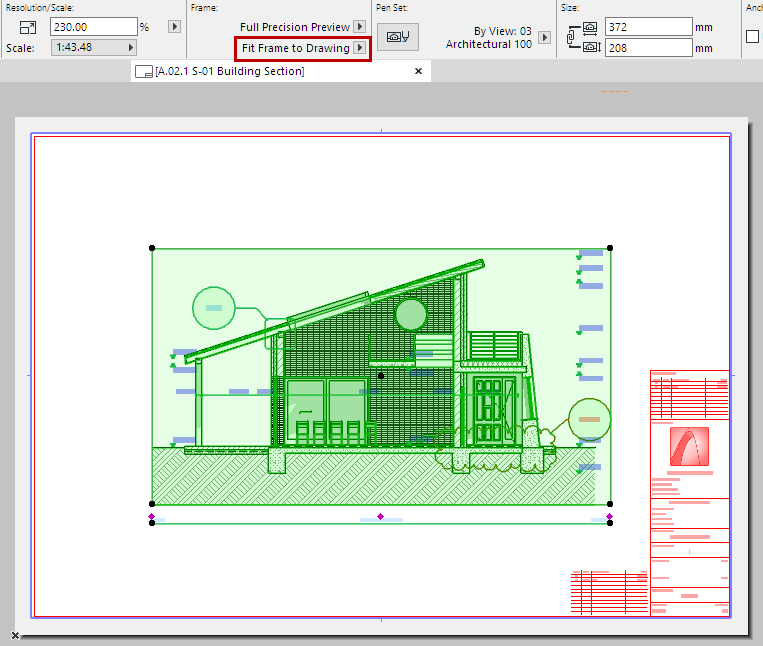
Fit Frame to Drawing
By default, the Drawing Frame fits to the full Drawing content: The Fit Frame to Drawing control is active, in Drawing Settings or Info Box.
This Drawing Frame is shown with a solid line: it is not cropped.
Resize Frame and Crop Content
- Select any edge of the Frame and use pet palette editing commands to modify it.
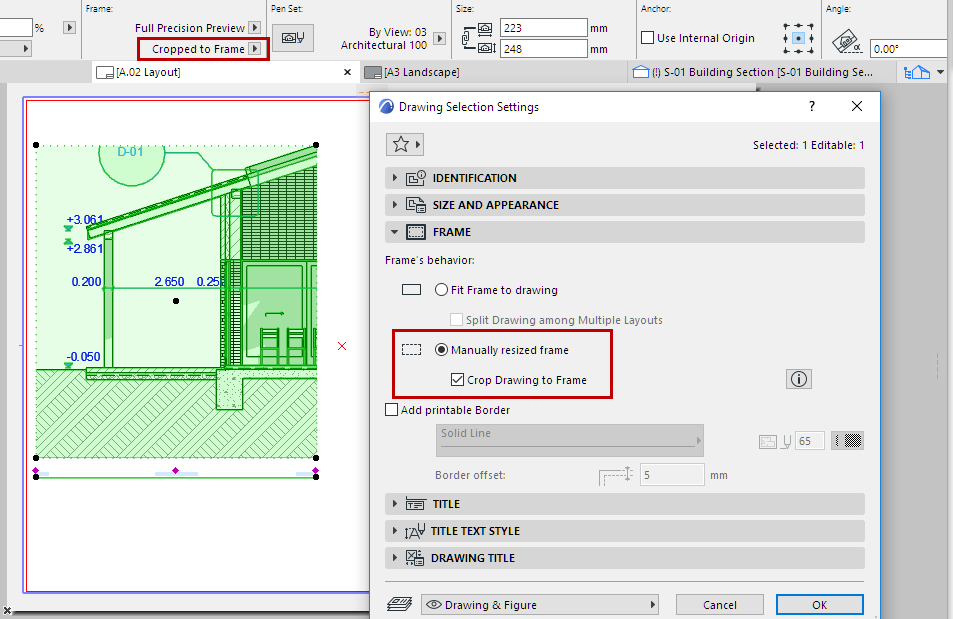
- The Manually resized frame button is now activated (in Drawing Settings or the Info Box).
- By default, Crop Drawing to Frame is also checked: As you resize the Frame, the Drawing content is cropped accordingly.
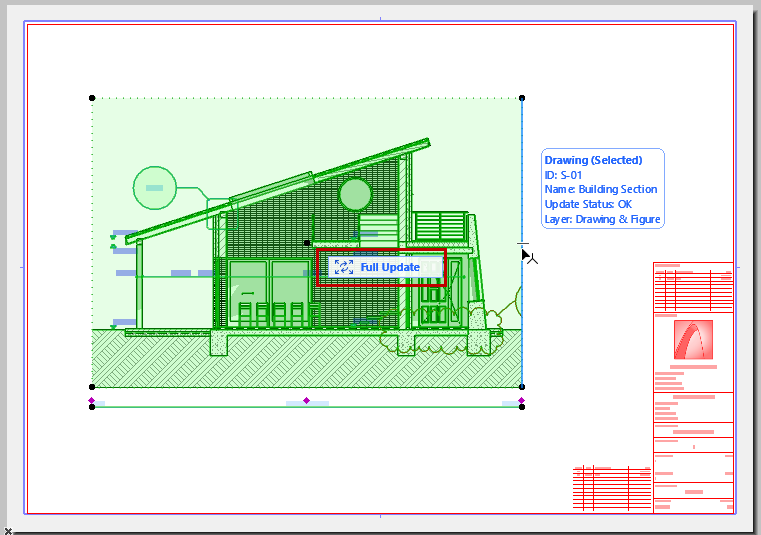
The Drawing Frame of a cropped Drawing is shown with a dotted line.
Cropped content can be restored at any time, as long as its source remains available. (see below)
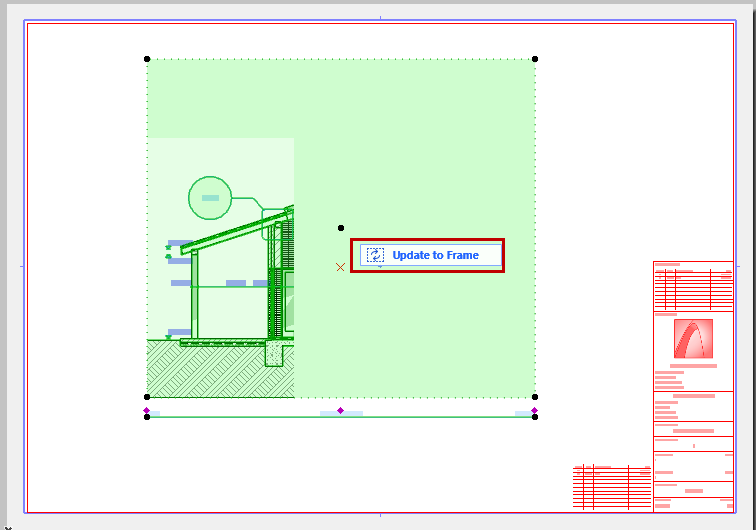
Restore Cropped Content
On a selected cropped Drawing:
Crop Drawing(s) to Frame Command
For a selected Drawing with a Manually resized Frame, which is not cropped:
Use the Crop Drawing(s) to Frame command from:
- Context menu of the Drawing or the Drawing’s Navigator item
- Context menu of the Layout tab
- Info Box
- Document > Drawings menu
- Drawing Settings (Frame panel)
The Drawing status is now Cropped (as shown in the Info Box and Drawing Manager.) Any Drawing content that falls outside the current extent of the Frame is deleted from the Drawing cache.
The Drawing Frame of a cropped Drawing is shown with a dotted line.
Uncrop Drawing(s) Command
For any selected, cropped Drawing(s):
Use the Uncrop Drawing(s) command from:
- Context menu of the Drawing, or the Layout tab
- Info Box
- Document > Drawings menu
- Drawing Settings (Frame panel): Uncheck Crop Drawing to Frame
The Drawing status is now Uncropped (as shown in the Info Box and Drawing Manager.) Its Frame is now Manually Resized.
- For an Auto-update Drawing: The Uncrop Drawing(s) command restores previously cropped content to the Drawing
- For a Manual-update Drawing: To restore cropped content, use the Uncrop Drawing(s) command, then update the drawing.
A Manually Resized Drawing Frame is shown with a dashed line: